


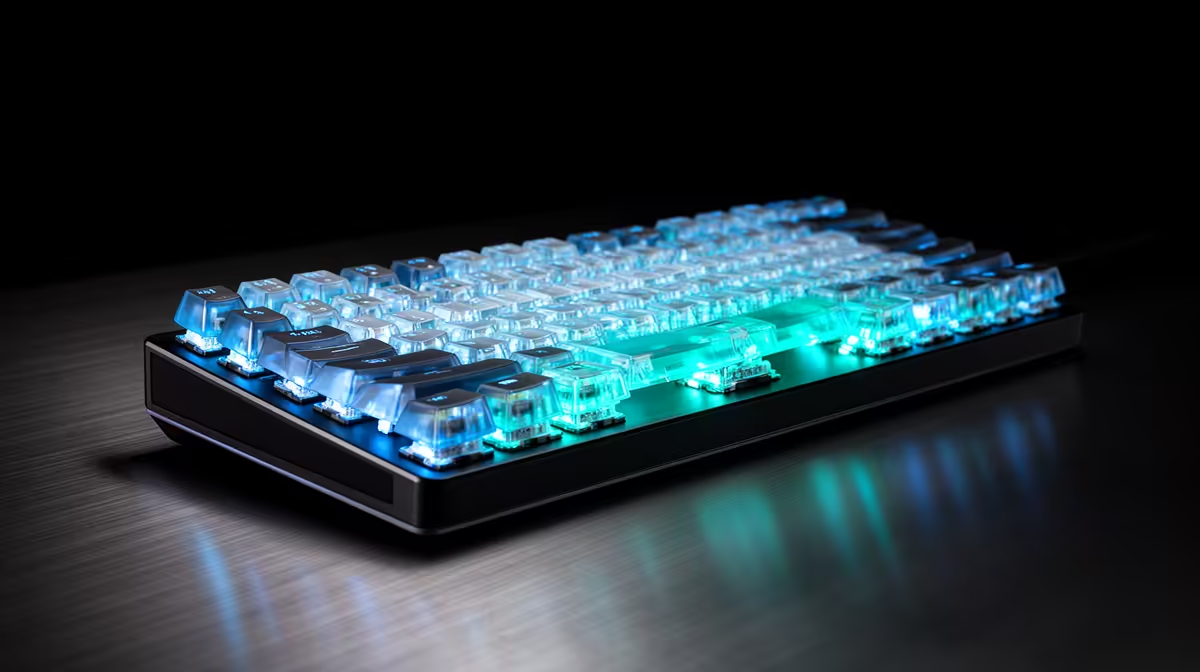
Tiny actuation points leave little room for a sensor baseline to be wrong. Magnetic keyboard calibration teaches the board each key's travel and resting position, making the supported calibration tool part of setup and troubleshooting.
Quick Answer
Calibration teaches a magnetic keyboard how its sensors map each key's resting and pressed positions. Run it when the manufacturer instructs you, after a supported switch change, after a firmware update that requests it or when repeatable actuation drift appears. A new board does not have to drift during its first weeks, and routine recalibration intervals vary by model. Use the official tool, keep the keyboard flat, leave every key untouched during the process and test default actuation before restoring an aggressive rapid-trigger profile.
Understand what calibration stores
A Hall-effect or TMR sensor reads magnetic field strength across key travel. The controller converts that signal into a position, then applies your actuation and release settings.
Calibration establishes the useful range and rest point for each key. It does not repair a cracked switch, liquid damage or a PCB fault.
Temperature, switch replacement, firmware and physical obstruction can change a reading. The size and importance of that change depend on the board.
Prove there is a symptom
Return the affected key to a default actuation point and disable rapid trigger. Test it in a plain text field and the maker's supported diagnostic view.
Check for missed inputs, unintended repeats or a key that never returns to zero. Compare another key with the same setting.
If the problem appears only in one game, inspect the binding, macro and profile switch. Calibration should answer a sensor symptom, not every input problem.
Prepare the board
Save or export your profiles through the supported software. Update the tool only from the manufacturer and read any firmware note before applying it.
Place the keyboard on a flat stable desk. Remove objects resting on keys. Connect through the recommended USB path and avoid a flaky hub.
Close games and macro tools that can change profiles. Keep the PC on stable power until calibration and any requested firmware work finish.
Run the official sequence
Open the calibration page in the keyboard app or use the documented onboard command. Follow the exact instructions because some boards ask for untouched keys while others include a full-press stage.
Do not type during the process. Wait for a success message and save when the tool requires it.
The procedure can take seconds or several minutes depending on the model and firmware. Trust the current tool rather than a universal time estimate.
Test at default settings
Load a plain profile with ordinary actuation and rapid trigger off. Type a paragraph, hold movement keys and repeat a controlled press on the affected switch.
Watch whether each key returns to rest. Add rapid trigger in a small step only after the base reading stays clean.
If the symptom returns at an extreme setting, widen the actuation or reset distance. That can be a tuning limit rather than calibration drift.
Recalibrate after a switch change
Use only switches approved for the keyboard. Replace one with the board disconnected, confirm orientation and run calibration before using it in a match.
Magnet position and sensor response can differ between switch families. A mechanically fitting switch can remain electronically incompatible.
Keep the original switch until the replacement passes a week of use. Record the switch name, firmware and calibration date.
Handle firmware with care
Firmware updates can add features or change calibration behaviour. Read release notes and keep the keyboard connected through the process.
Do not flash unofficial files or disconnect during an active update. If the tool fails, follow the maker's recovery guidance.
After a successful update, calibrate only when the release notes or software asks for it. Repeated resets without a symptom can erase a working profile and make comparison harder.
Know when cleaning comes first
Dust or a displaced keycap can obstruct travel. Disconnect the board and use a soft brush according to the care guide. Do not spray liquid or lubricant into the switch.
Reassemble, reconnect and calibrate. If one key still reports an unstable value at defaults, collect a short diagnostic recording and contact support.
A spill, burning smell or physical PCB damage is not a calibration job. Disconnect the keyboard and seek a qualified service route.
Compare supported software before buying
Calibration quality is part of the keyboard, not an extra. Look for clear status, per-key diagnostics, profile export and current firmware support.
Browse gaming keyboard deals for complete board features. Use the keyboard best-seller selection to compare layouts, software and ownership fit.
FAQ
Must every new magnetic keyboard settle and drift?
No. Run calibration when the maker requires it or a repeatable sensor symptom appears.
Should you recalibrate after changing actuation?
Changing a supported actuation point should not require it by itself. Calibrate when the software or symptom indicates a range problem.
Can temperature affect magnetic sensing?
Components can respond to temperature, but the practical effect varies. Use the board in its normal environment and follow manufacturer guidance.
Save the profile, reproduce the key at default actuation and run the official calibration only when the board or evidence calls for it.








