

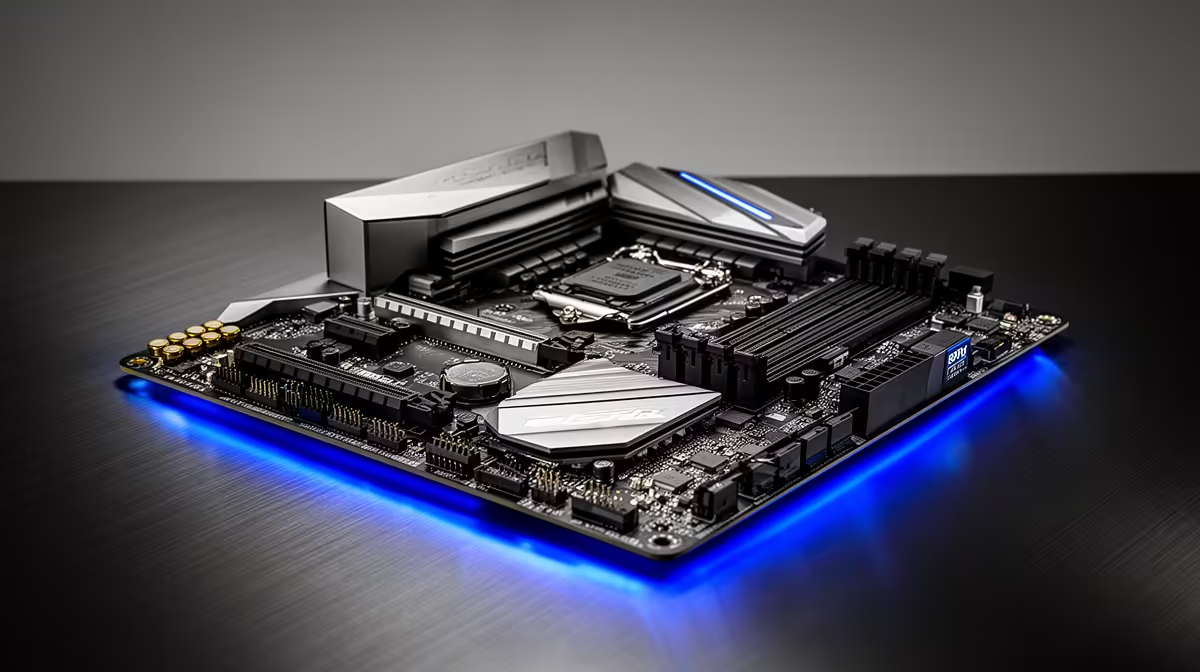
You’ve unboxed everything, the CPU is seated, the RAM is in... you hit the power button, and... nothing. Just silence and a dark screen. Before you start panicking about that new ZAR 5,000 CPU, let's dive into some motherboard troubleshooting. It's often the culprit behind a non-starting PC, but the fix can be simpler than you think. Let’s get your rig booting and back in the game! 🔧
Your First Line of Defence: Basic Motherboard Checks
Before you start tearing your build apart, let's cover the basics. Overlooking a simple connection is the most common mistake for new and veteran builders alike. This first phase of motherboard troubleshooting is all about double-checking your work.
Start with the power. Is the switch on the back of the Power Supply Unit (PSU) flipped to 'I'? Are the 24-pin ATX and 8-pin CPU power cables firmly clicked into the motherboard? A loose connection here is a frequent cause of a dead PC. Also, check your front panel connectors—the tiny pins for the power switch, reset switch, and LEDs. Getting these wrong means the power button on your case won't do anything at all.
Understanding Your Motherboard's Language: Beep Codes & Debug LEDs
If the basic connections are solid, your next step is to listen and watch. Your motherboard performs a Power-On Self-Test (POST) every time you boot. If it finds a problem, it will try to tell you what's wrong using either audible beep codes (on older or budget boards) or diagnostic LEDs (on most modern boards).
These signals are your best friend for diagnosing motherboard issues. A sequence of beeps or a specific LED (labelled CPU, DRAM, VGA, or BOOT) points you directly to the faulty component. Whether you're building with budget-friendly parts or high-end gear from our range of Intel and AMD-based motherboards, the manual is your key to translating these codes.
Check The Manual! 📖
Your motherboard manual is the single most important tool for troubleshooting. It contains a map of all connectors, explains what each debug LED or beep code means, and shows you exactly where the Clear CMOS jumper is. Keep it handy—it can save you hours of frustration.
Common Motherboard Problems and How to Fix Them
If the basics are covered and the POST codes are pointing to a specific area, it's time to get hands-on. Most PC motherboard problems fall into a few common categories.
RAM Seating and Compatibility
DRAM errors are incredibly common. The fix? Power down completely, unclip your RAM sticks, and reseat them firmly until both clips click shut. If that doesn't work, try booting with just one stick of RAM in the primary slot (usually A2, but check your manual). Test each stick individually to rule out a faulty module.
CPU and Power Issues
A CPU error can be scary, but it might just be a mounting issue. Uneven cooler pressure can sometimes prevent a solid connection. It’s also worth checking for bent pins, especially if you're building with a new Intel motherboard where the delicate pins are in the socket itself. For Team Red builders, ensure the CPU dropped into the socket easily on your AMD motherboard before you locked it down.
The Classic Reset: Clearing the CMOS
Sometimes, a setting in the BIOS/UEFI can prevent your PC from booting. Clearing the CMOS resets everything to factory defaults and can often solve mysterious boot failures. You can do this by either briefly removing the silver coin-cell battery from the motherboard or by shorting the two "CLEAR CMOS" pins with a screwdriver for a few seconds (with the power off, of course).
Knowing When to Call It: Is Your Motherboard Toast?
Effective motherboard troubleshooting also means knowing when the board itself has failed. If you see physical damage like burnt spots or bulging capacitors, smell burning plastic, or have tested every other component (PSU, RAM, CPU) in another system and they all work, the motherboard is likely the problem. ✨
Don't see it as a failure, though. Think of it as an unexpected opportunity to upgrade to a board with better features, more M.2 slots, or improved power delivery for your next CPU.
Ready for a Rock-Solid Foundation? Motherboard troubleshooting can be tough, but a reliable board is the heart of any great PC build. If it's time for an upgrade, we've got you covered. Explore our massive range of PC components and find the perfect foundation for your next dream rig.











