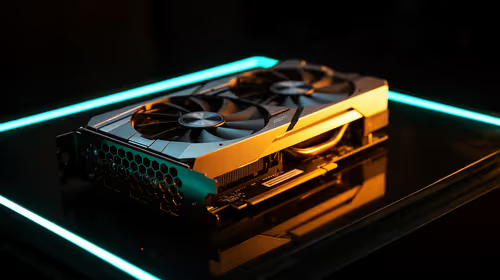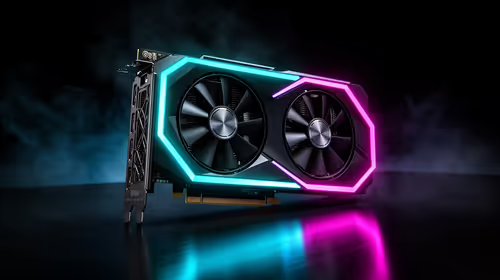
Lowering an RTX 5070 power limit is the fastest reversible way to cut board power and fan noise. An 80 to 90 percent setting is a test range, not a promised sweet spot. The frame-rate cost depends on card BIOS, cooler, resolution and game.
Quick Answer
Start at 90 percent, record power, clocks and one-percent lows, then try 85 and 80. Keep the highest reduction that meets your performance target. Use a voltage curve later if you want finer efficiency without the same blunt cap.
Compare the wider NVIDIA graphics-card range, see the GPU best-seller shortlist, and identify exact models in the RTX 5070 selection. Partner cards can have different limits.
Step 1: Establish Stock
Restore defaults and run a twenty-minute game loop. Log board power, frequency, voltage, temperatures, fan RPM, average frame rate and one-percent lows.
Check connectors and airflow. A power cap cannot repair a poorly seated cable or blocked intake.
Save the stock profile. Keep it available for diagnosis and performance comparisons.
Step 2: Move Only the Power Slider
Set 90 percent in a supported tuning utility. Leave core, memory, voltage and fan controls at stock.
Run the same scene. Confirm the GPU is actually reaching the new power ceiling. A CPU-limited game may show little power change because the card was not fully loaded.
Record the new sustained clock and frame times, not only the average FPS.
Step 3: Try Lower Limits
Move to 85 percent, then 80 percent if performance remains acceptable. Use small steps and repeat the same test.
A power limit is usually stable because the GPU manages clocks within the cap. The trade is reduced boost, not the voltage-edge instability common in manual curves.
Games can respond differently. A ray-traced title may lose more than an esports game already limited by the CPU.
Step 4: Find the Knee
Put board power and frame rate in a small table. Look for the point where another 5 percent power reduction causes a larger performance drop.
Keep the setting above that bend. The goal is a quieter card for a small cost, not the lowest wattage number.
Check fan RPM. If the card remains on the same noisy fan step, the power reduction may not solve your problem.
Step 5: Validate the Whole Library
Test a demanding raster game, ray tracing, frame generation and a high-rate competitive title. Include long sessions and menu transitions.
Frame generation can make the displayed number look high while base performance falls. Compare raw or upscaled base frames and input feel.
Use any creative or compute workload that relies on the GPU. A power cap can extend completion time even when game impact is small.
Step 6: Compare With an Undervolt
The power slider limits the whole card budget and lets boost choose clocks. A curve asks the GPU to hold a chosen frequency at less voltage.
An undervolt can preserve more performance for the same power in a good sample, and it needs more stability testing. Use the power cap as the safe quick profile and tune a curve only when the extra effort has value.
Keep the two methods separate during comparison. Avoid changing memory and fans at the same time.
Step 7: Tune Fans Only Afterward
If the card is cooler but still noisy, smooth the fan curve. Keep enough airflow for memory and power components.
Avoid a steep step near normal gaming temperature. It can make RPM surge as the GPU moves across the threshold.
Track hotspot and fan speed through a long run. A quiet first five minutes can become heat soak later.
Step 8: Save Purposeful Profiles
Keep stock for troubleshooting, 90 percent for quiet everyday play and full power for workloads where completion time matters.
Name profiles in the utility. Confirm which one loads after a driver update. Do not assume startup application survived.
Retest after firmware, driver or major game changes.
Step 9: Check the PSU and Cable
Lower board power reduces demand but does not excuse an unsuitable PSU. Match wattage and native connector to the exact RTX 5070 and CPU.
Seat the GPU plug fully and keep the first bend clear. A lower power limit cannot make a loose connector safe.
Never mix modular PSU cables between models.
Step 10: Decide From the Experience
Compare game sound with the room quiet. Note whether fan pitch, case heat and frame consistency improved.
If 90 percent removes the noise and costs little, stop. If 80 percent harms the target, move back. If none changes fan behaviour, address case airflow or the cooler.
The correct limit is the highest-quality experience, not a universal percentage.
FAQ
Is a lower power limit safer than undervolting?
It is easier to validate and usually trades boost for power without a custom voltage stability edge.
Will 80 percent always save 20 percent power?
No. The card may not have reached the original limit, and control behaviour varies.
Does a power cap reduce VRAM speed?
It limits total board budget. Leave memory stock and measure the exact card's behaviour.
Log stock, 90, 85 and 80 percent profiles in the same game, then keep the first cap that lowers fan noise without breaking your frame target.