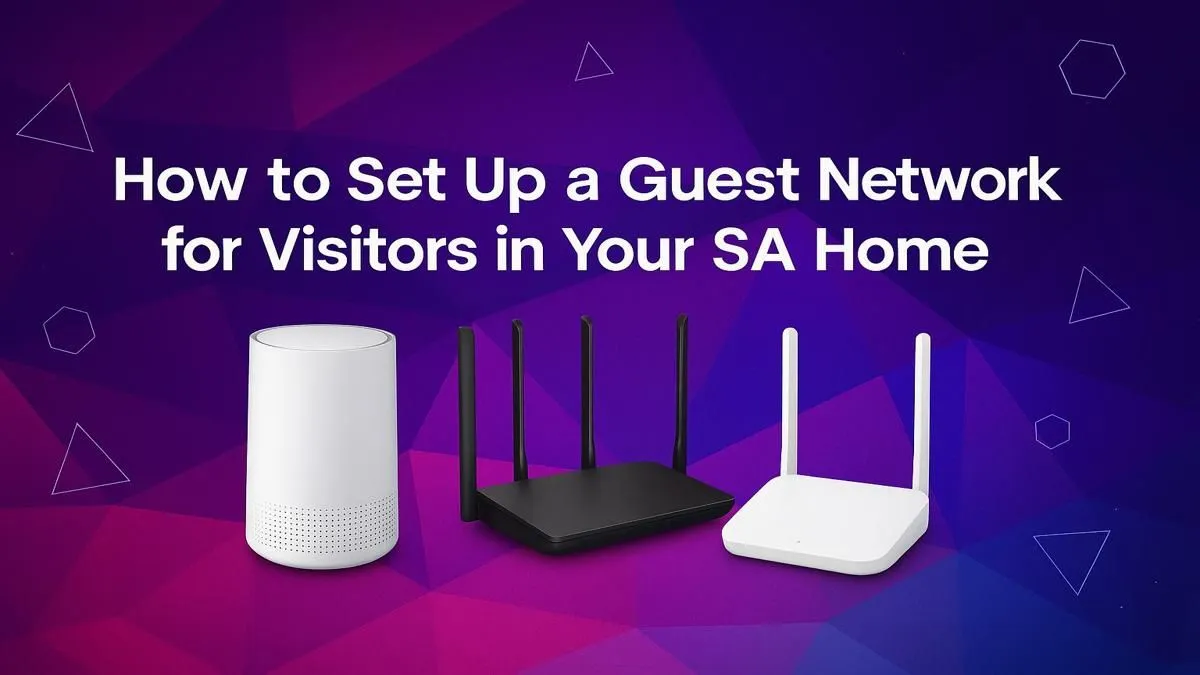
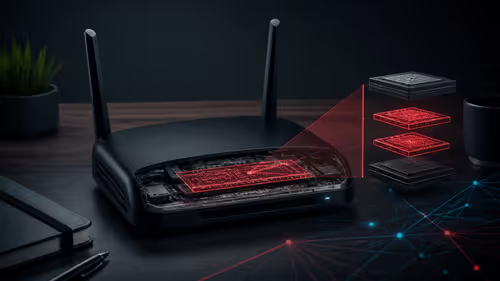
Having mates over for a braai or a weekend gaming session is awesome. What’s not? Awkwardly spelling out your super-complex Wi-Fi password… the one that connects to your gaming PC, work laptop, and smart home devices. There’s a much smarter, safer way. It's time to set up a guest network in South Africa, giving your visitors internet access without handing over the keys to your digital kingdom. It's easier than you think. 🚀
Why You Absolutely Need a Guest Network
Creating a guest network isn't just about convenience; it's a critical security step for any modern home. Think of it as a digital velvet rope for your visitors.
🛡️ Boost Your Security
Your main network connects all your trusted devices. When a guest connects to it, any potential malware or vulnerability on their phone or laptop could theoretically expose your entire network. A guest Wi-Fi creates a separate, isolated network. This means your visitors can browse and stream without ever touching your personal files, smart cameras, or that PC holding your life's work. It's the single best way to protect your entire wireless networking setup.
⚡ Control Your Performance
Ever experienced lag spikes in the middle of a competitive match, only to find out a visitor is streaming 4K video? A guest network solves this. Many modern routers allow you to limit the bandwidth available to guests, ensuring their online activity never throttles your gaming or work-from-home connection. Your low latency is sacred; protect it.
Your Simple Guide to a Guest Network Setup
The exact steps can vary slightly between router brands like TP-Link, ASUS, or Netgear, but the core process is remarkably similar. If you can't find these options, it might be a sign that your hardware is a bit outdated, and exploring some of the latest wireless routers could be a worthwhile upgrade.
Step 1: Log In to Your Router
Open a web browser on a connected device and navigate to your router's admin panel. This is usually an IP address printed on the router itself. Common addresses include:
192.168.1.1192.168.0.110.0.0.1
You'll need the admin username and password, which are also typically on the router's sticker unless you've changed them.
Step 2: Find the Guest Network Option
Once logged in, look for a section labelled "Guest Network," "Guest Wi-Fi," or something similar. It’s often found under "Wireless" or "Advanced Settings."
Step 3: Configure and Enable
You'll see a few options to configure. Here’s what to do:
- Enable Guest Network: Tick the box to turn it on.
- Network Name (SSID): Give it a clear name, like "Braai_Wi-Fi" or "YourHome_Guest." This makes it easy for visitors to find.
- Security: Always choose
WPA2-PSK or WPA3 for security. Never leave it open. - Password: Create a password that's secure but easier to share than your main one.
Password Pro Tip 💡
Make your guest password easy to say and type. Think of a simple, memorable phrase like "EnjoyTheBraai2024" or "NoLagForGuests!". You can even create a QR code for your guest Wi-Fi using a free online generator, so friends can just scan it with their phone's camera to connect instantly.
Optimising Your Guest Experience
Once your guest network is active, a few extra tweaks can make it even better.
Check your router's settings for "AP Isolation," "Client Isolation," or "Guest Isolation." Enabling this feature prevents devices on the guest network from seeing each other. It adds another layer of security, especially if you have multiple different visitors over.
What if your guest network signal doesn't quite reach the entertainment area or the lapa outside? This is a common issue in many South African homes. The solution is simple: a good Wi-Fi extender can amplify the signal, ensuring strong coverage everywhere. You can find many powerful wireless range extenders that integrate seamlessly.
And for that one friend who brings over an ancient laptop with a faulty Wi-Fi card? Keeping a spare USB Wi-Fi adapter on hand is a lifesaver. Instead of troubleshooting their hardware, upgrading with a new wireless adapter is a quick plug-and-play fix to get them online.
Ready to Upgrade Your Home Network?
A secure, high-performance network is the backbone of any modern home in South Africa. Stop sharing your main password and start enjoying total control. Explore our massive range of wireless routers and find the perfect hardware to power up your home.