

Streaming camera for video calls: why it matters for South African pros 🔧✨
Looking sharp on video calls matters. Whether you’re a Cape Town content creator, a Joburg consultant, or a gamer pitching to sponsors, a streaming camera for video calls lifts your presence and credibility in minutes. This guide covers simple setup steps, budget options in ZAR, and pro tips to make every call look intentional and polished.
Streaming camera for video calls: choosing the right hardware
Start with the basics: resolution, frame rate, and low‑light performance. Most people get great results with 1080p at 30–60fps; creators who need crisp closeups or green‑screen work sometimes choose 4K. See Evetech’s full webcam range for models and specs to compare before you buy: https://www.evetech.co.za/PC-Components/buy-webcams-145.aspx. For many South African buyers, value is key — so below I link budget and premium ranges to match your needs.
Streaming camera for video calls: budget tiers and where to shop
If you want reliable video under R1 000, there are solid entry webcams that upgrade clarity over laptop cameras — great for everyday meetings and Twitch stream overlays. Browse budget cameras here: https://www.evetech.co.za/PC-Components/buy-webcams-145.aspx?max-price=1000.
Mid-range models (around R1 000–R2 000) usually add better low‑light sensors and autofocus. If you’re building a more consistent brand look, consider the mid-range options here: https://www.evetech.co.za/PC-Components/buy-webcams-145.aspx?max-price=2000.
For flagship clarity and features like background replacement, wider autofocus and improved microphones, expect to pay up to R3 000 or more. Premium choices live here: https://www.evetech.co.za/PC-Components/buy-webcams-145.aspx?max-price=3000. Each Evetech listing links to product pages with specs so you can confirm frame rates and resolution before checkout.
Streaming camera for video calls: simple setup steps for professional calls 🚀
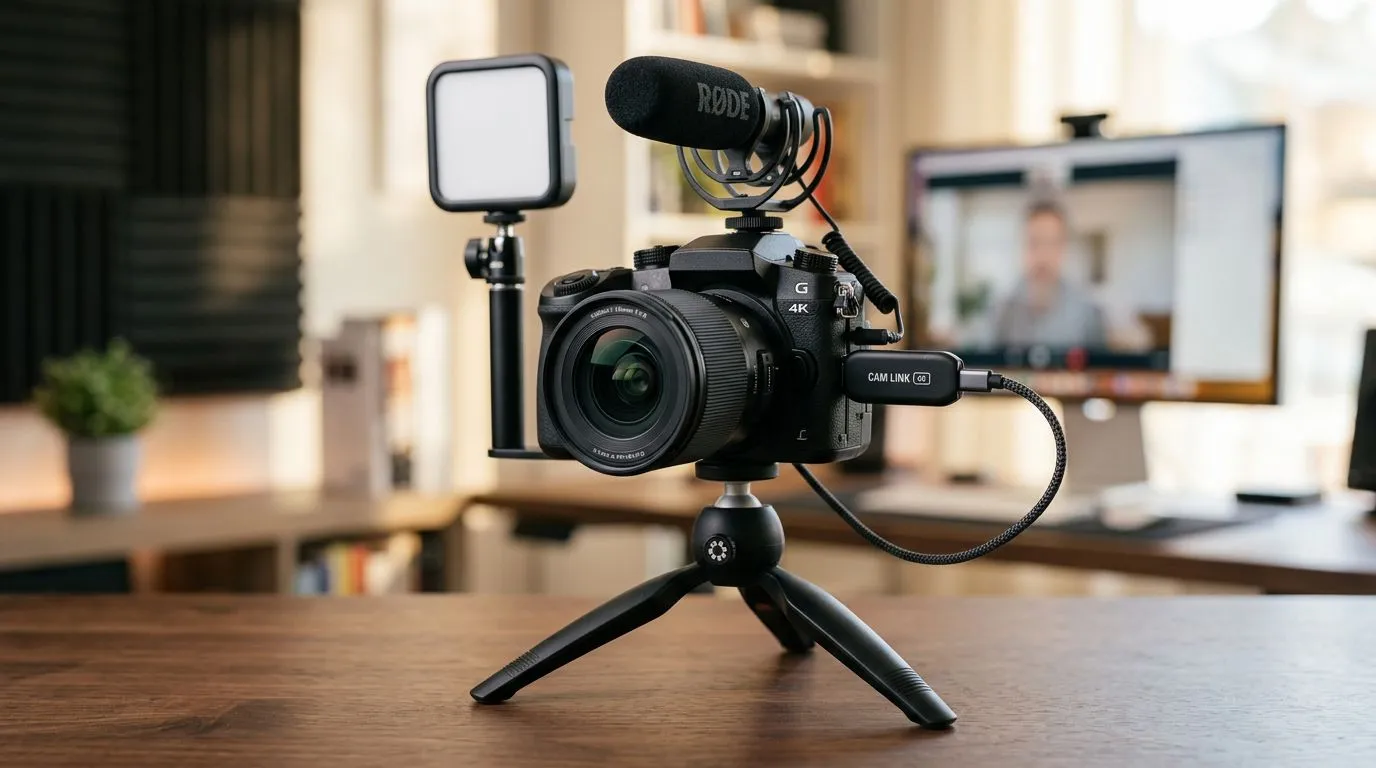
- Positioning: camera at eye level. Use a small tripod or monitor mount so your eyes meet the lens.
- Lighting: face a soft light source; avoid a bright window behind you. Even an inexpensive ring light dramatically improves skin tone.
- Background: tidy or use a subtle branded backdrop. Soft fabric works better than busy walls.
- Audio: if possible pair your webcam with a USB mic or headset. Clear audio raises perceived production value more than marginally better video.
- Software: test your camera settings in Teams, Zoom or OBS before the call. Most apps allow manual exposure and white balance to stop automatic shifting mid‑call.
Productivity Pro Tip ⚡
On Windows, use the PowerToys FancyZones utility to create custom snap layouts for your windows. It's a lifesaver for managing multiple apps on an ultrawide monitor, letting you organise your timeline, preview window, and asset folders perfectly for video editing.
Streaming camera for video calls: pro tweaks and psychology of presence
Small changes have outsized effect. A slightly higher camera angle makes you look more confident. Consistent lighting triggers trust because viewers aren’t distracted. Use a neutral shirt colour and avoid tiny patterns that moiré on camera. Practise a two‑sentence intro so you lead with clarity... then lean forward when you make a point to show engagement.
Quick checklist before your next call
- Camera at eye level?
- Soft light on face?
- Mic tested and levels set?
- Background tidy and distraction-free?
Ready to Find Your Perfect Match? The Mac vs Windows debate is complex, but for maximum power, choice, and value in South Africa, Windows is hard to beat. Explore our massive range of laptop specials and find the perfect machine to conquer your world.











