


Clean Gaming Keyboard: Guide for Dusty & Humid Conditions
Clean gaming keyboard quickly and safely in dusty or humid conditions with step-by-step tips, tool checklist, and maintenance routines to prevent corrosion and switch failure. 🧼💨
Read moreMaster undervolting Intel Core Ultra processors to drop temperatures and silence fans. 🌡️ This guide ensures you maintain peak performance while boosting power efficiency. ⚡ Learn the safest settings for your new CPU today.
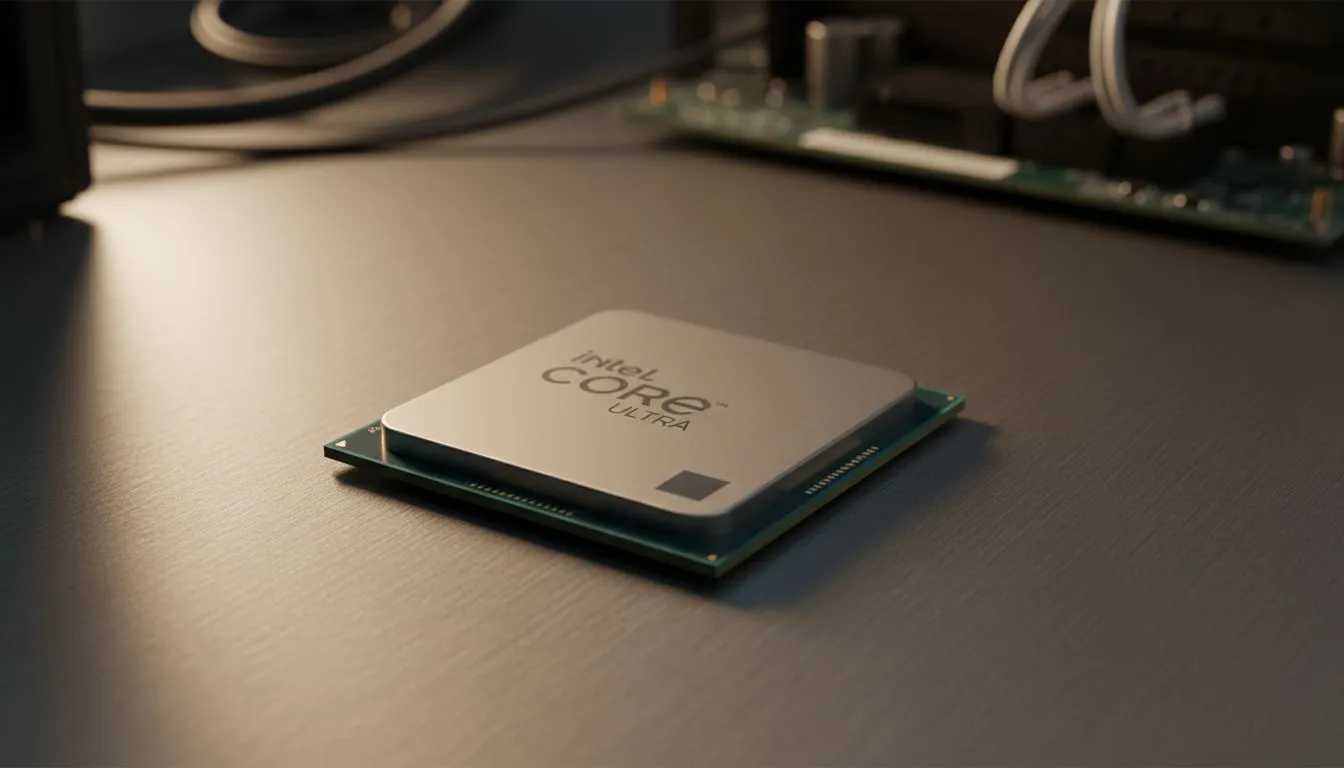
Is your brand-new laptop with its shiny Intel Core Ultra chip running hotter than a braai in December? You’re in the middle of a nail-biting Valorant clutch, and suddenly your frames drop as the fans scream for mercy. It’s called thermal throttling, and it’s a performance killer. What if you could lower temps and get more consistent speed for free? That's exactly what this undervolting Intel Core Ultra guide is for. Let's get tweaking. 🔧
Think of voltage as the fuel for your CPU. To guarantee stability across millions of units, manufacturers often supply a little extra "just in case" fuel to every chip that leaves the factory. This excess voltage, however, generates unnecessary heat.
Undervolting is the simple process of reducing that voltage to the optimal level your specific chip needs to run stably. It's not overclocking; you're not pushing for higher speeds, but rather greater efficiency. The benefits are brilliant:
It’s one of the best 'free' performance optimisations you can do for the heart of your PC, especially in the thermally constrained chassis of a laptop.
Getting started with an Intel Core Ultra undervolting project is surprisingly simple. You don't need any fancy hardware, just a couple of free software tools. This process works on most modern Intel CPUs, but it's especially effective on the latest Core Ultra series.
Here’s what you’ll need:
Alright, let's dive in. Follow these steps carefully, and remember that patience is key. The goal is to find the 'sweet spot' for your specific chip. This process is particularly rewarding on high-performance chips like the Intel Core Ultra 9, which have immense power to unleash. ✨
Before you change anything, you need to know your starting point.
Open XTU and navigate to the "Advanced Tuning" section. Look for the "Core Voltage Offset" slider. This is where the magic happens. Moving this slider into the negative values will reduce the voltage supplied to your CPU core.
Start conservatively. Adjust the Core Voltage Offset to -0.050V (which is -50mV). Click "Apply". Don't worry, this small change is extremely unlikely to cause any issues.
If your PC crashes or blue-screens during a test, don't panic! It's a normal part of the process. Simply reboot your machine—it will revert to the last stable settings. This just means you've found your chip's limit. Reduce the voltage offset by 10mV from your last crash point and you should have a rock-solid, 24 7 stable undervolt.
Run the Cinebench R23 multi-core test again.
If your first test was stable at -50mV, it's time to push further. Go back to XTU and increase the negative offset in small steps, for example, to -60mV, then -70mV, and so on. Run the benchmark after each change. Eventually, you'll find a value that causes a crash. The last stable setting you tested is your chip's sweet spot.
This undervolting Intel Core Ultra method is all about the "silicon lottery"—no two chips are identical. Some might achieve a stable -150mV offset, while others might only manage -80mV.
A 5-10°C drop in temperature under load is a fantastic and very common result. This means your laptop's fans won't spin up as aggressively, giving you a quieter experience during gaming or heavy work. While this guide focuses on Intel, similar principles of thermal and power optimisation apply when looking at performance on AMD CPUs, too.
An Intel Core Ultra undervolt is a brilliant way to maximise the hardware you already own. It extracts hidden potential and improves user experience. But it has its limits. It won’t magically transform your Core Ultra 5 into a multitasking monster capable of outperforming powerful desktop-class CPUs like the AMD Ryzen 9 series.
For a truly significant leap in gaming or productivity, the most effective path is always a hardware upgrade. 🚀
Ready to Unleash True Performance? Undervolting is a fantastic tweak, but nothing beats the raw power of the right processor for the job. Whether you're building a new rig or upgrading an old friend, the perfect CPU is the foundation of your entire experience. Explore our massive range of CPUs and find the perfect silicon heart for your machine.
Yes, undervolting is generally safe as it reduces power rather than increasing it. However, pushing the voltage offset too low can cause system instability or crashes.
No, proper undervolting maintains the same clock speeds. It often improves performance by preventing thermal throttling, allowing the CPU to boost higher for longer.
Intel Extreme Tuning Utility (XTU) is the most user-friendly official tool. Advanced users often prefer Throttlestop for more granular control over voltage offsets.
Software-based undervolting typically does not void warranties since it doesn't permanently alter hardware, but always check your specific manufacturer's terms.
Every chip is different. Start with a small offset like -50mV and test for stability, then gradually increase the offset in -10mV increments until unstable.
Yes, by reducing the voltage required to run the processor, the system consumes less total power, which can noticeably extend battery life on portable devices.
Clean gaming keyboard quickly and safely in dusty or humid conditions with step-by-step tips, tool checklist, and maintenance routines to prevent corrosion and switch failure. 🧼💨
Read more
Best gaming keyboard features to prioritize when building a high-end setup: mechanical switches, low latency, hot-swap, RGB, macros, durability and ergonomics 🎮⌨️
Read more
Custom actuation point keyboard setup guide: learn to set per-key actuation on your analog gaming keyboard for faster, precise inputs and better control 🎮⚙️
Read more
Cable management for home entertainment helps you eliminate cable clutter quickly and safely. Learn routing, concealment, and product picks to tidy your setup fast 📺🔌
Read more
conference room setup Microsoft Teams Zoom: Upgrade AV, camera, mic, and network to ensure seamless meetings, clear audio, and crisp video 🎯🔧
Read more
• Audit setup • Link accounts • Configure ViewBoard • Test workflows Integrate Google Workspace with ViewSonic ViewBoard to enable secure SSO, calendar and Drive sync, and smooth collaborative whiteboarding 🔗📋
Read more
Discover webcams that automatically adjust light and color for crystal-clear video calls 🎥✨. Boost your streaming quality today!
Read more
Discover webcams that blend into your workflow 🎯 Capture moments while you work, stream, or create. Upgrade your setup with smart, multitasking tech!
Read more
Dedicated media keys give streamers one-touch control to mute, switch scenes, clip highlights, and adjust audio — cutting task time and boosting consistency 🎛️⚡
Read more
PBT vs ABS keycaps: Clear, local guide for South African gamers—compare feel, sound, durability and where to buy. Find the best material for your budget and playstyle 🎮🇿🇦
Read more
- Multi-Function Digital Dial: define benefits - Show gamer setups and macros - Offer buying and setup tips Multi-Function Digital Dial puts programmable control at your fingertips for faster actions and smoother streaming. 🎮⚙️
Read more
- Explain benefits; - Show the science; - Compare options; - Recommend picks. Magnetic wrist rest for gaming cuts wrist strain and boosts comfort during long sessions 🕹️✨
Read more