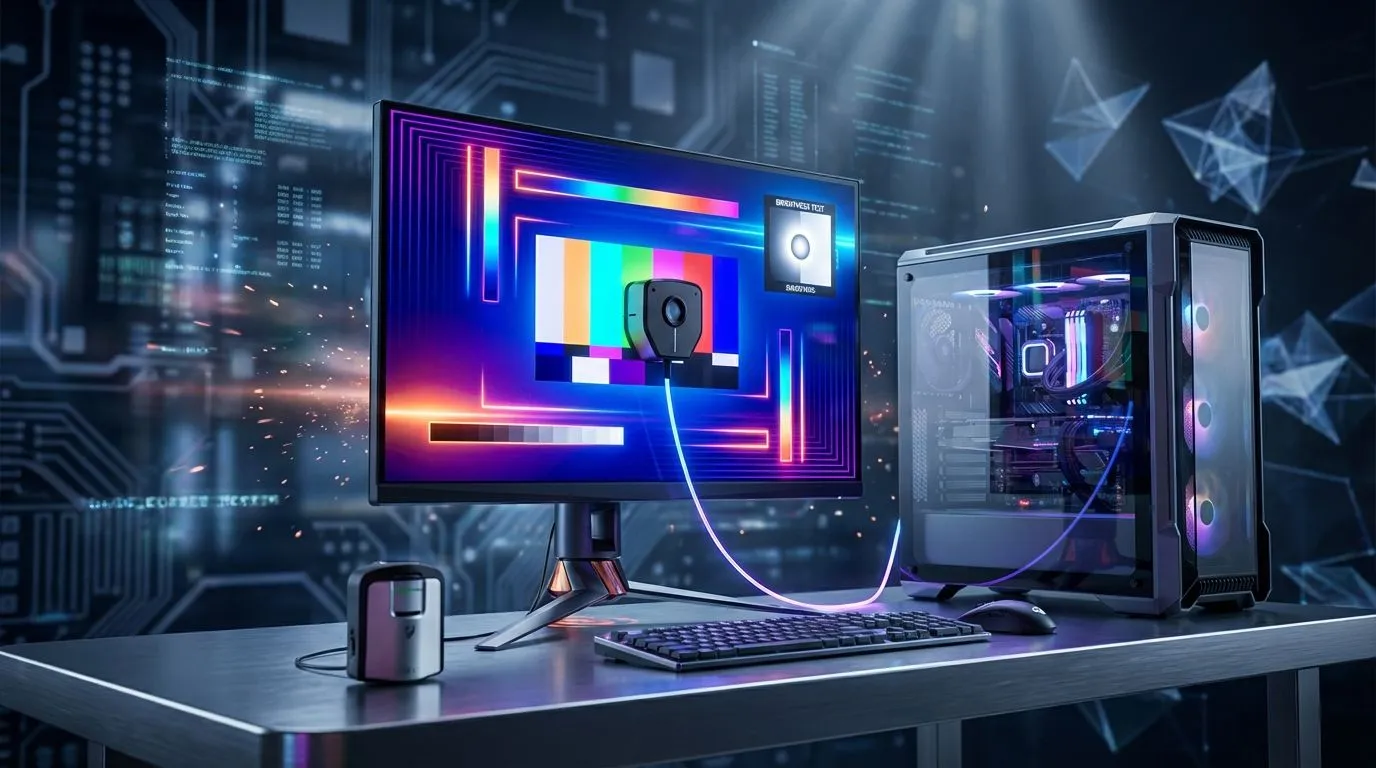
Just unboxed that shiny new HDR monitor, plugged it in, and fired up Baldur's Gate 3 only to find the visuals look… a bit washed out? You're not alone. Those vibrant colours and deep, inky blacks you were promised are often locked behind one crucial step: a proper Windows HDR Calibration. This simple process ensures your display shows games and media exactly as the creators intended. Let's unlock your monitor's true potential. ✨
Why Bother with Windows HDR Calibration?
Think of it like tuning a guitar before a show. An uncalibrated HDR monitor is playing the right song, but all the notes are slightly off. High Dynamic Range (HDR) is designed to show a massive range of brightness and colour, from the blinding glint of a sniper scope to the subtle details lurking in a dark cave. Without calibration, these extremes get crushed.
Proper Windows HDR calibration fixes this by:
- Setting Correct Black Levels: Ensuring shadows are deep and detailed, not a muddy grey mess.
- Defining Peak Brightness: Allowing highlights like explosions or sunlight to pop without washing out the entire scene.
- Balancing Colour: Making sure colours are rich and accurate, not oversaturated or faded.
The difference is night and day, especially on today's best gaming monitors. Taking five minutes to perform an HDR calibration on Windows 11 can drastically improve your entire visual experience.
Your Step-by-Step Guide to HDR Calibration
Microsoft has made this process incredibly simple with their free Windows HDR Calibration app. If you don't have it, grab it from the Microsoft Store first. Ready? Let's begin. 🔧
Step 1: Prepare Your Display
Before you launch the app, make sure your monitor is set up for success. Turn on HDR in Windows by going to Settings > System > Display > Use HDR. Also, check your monitor's own on-screen display (OSD) menu and disable any settings that might interfere, like dynamic contrast or special colour modes. You want a neutral starting point.
Step 2: Run the Three Core Tests
The app will guide you through three simple pattern tests. The goal is to adjust a slider until a specific shape is barely visible or completely disappears.
- Minimum Luminance (Darkest Scene): This test sets your black level. Adjust the slider until the cross pattern is no longer visible. This ensures true blacks in dark scenes.
- Maximum Luminance (Brightest Scene): You'll do the same for a bright pattern. This tells Windows how bright your screen can get, which is crucial for impactful highlights on high-resolution 4K monitors.
- Maximum Full-Frame Luminance: This final brightness test measures how bright your monitor can make the entire screen, helping the system balance overall scene brightness.
Pro Tip: Trust Your Eyes ⚡
Don't just slam the sliders to the end. Take your time in a dimly lit room. The goal is to find the exact point where the pattern disappears. This precision is what makes the HDR calibration so effective. Small adjustments can make a big difference in visual fidelity.
Step 3: Adjust Colour Saturation
The final step is a simple slider that controls colour intensity. You'll see two bars: one with washed-out colours and one with hyper-vibrant colours. Drag the slider to find a balance that looks rich and natural to your eyes, without being cartoonishly oversaturated. Once you're done, save the profile, and you're good to go! The Windows HDR Calibration tool will apply this new profile automatically.
Beyond Calibration: Building the Ultimate Visual Setup
A perfect calibration is only half the battle; it needs a great canvas to work on. If you're finding your current display isn't delivering the "wow" factor even after tuning, it might be time for an upgrade.
For unparalleled immersion in titles like Starfield or Microsoft Flight Simulator, nothing beats the wraparound view of ultra-immersive curved monitors. For those who need a second screen for Discord or a streaming setup, handy portable monitors offer incredible flexibility. And don't forget that a clean setup with the right cables and stands, made possible with essential monitor accessories, can make your entire battle station feel more professional. 🚀
Optimising your monitor for the best visuals is a rewarding process. With a quick calibration, you ensure you're getting every ounce of performance out of your hardware.
Ready to Experience True HDR Brilliance?
Proper Windows HDR calibration is key, but it all starts with the right hardware. From competitive esports displays to stunning 4K screens, we've got the perfect monitor for your setup. Explore our massive range of PC monitors and see what you've been missing.