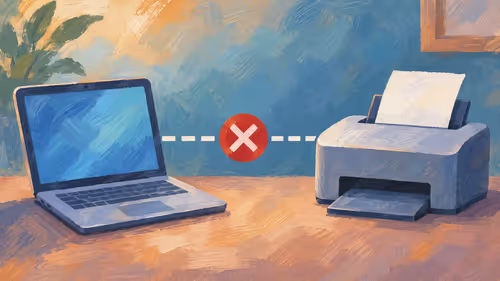
Your voice landing a beat before your lips move is fixable in about ten minutes. For audio and video out of sync when streaming online obs, match every sample rate to 48 kHz, type a Sync Offset in milliseconds on the faster source and stop OBS from dropping frames. The camera is almost always the late one, so the microphone is what you delay.
Quick Answer
Open the audio mixer, click the gear icon, choose Advanced Audio Properties and enter a delay in the Sync Offset column for your microphone. Start with 100 ms if the picture trails your voice and adjust in steps of 20 to 50 ms. Set Windows and OBS to 48 kHz first, otherwise the drift returns an hour into the stream.
🎚️ Set the Sync Offset the right way
Webcams and capture cards need time to process each frame, so the picture reaches OBS after the sound does. The cure is to hold the audio back by the same amount.
- In the Audio Mixer panel, click the gear beside your microphone.
- Choose Advanced Audio Properties.
- Find the Sync Offset column and type a number in milliseconds for that source only.
- Record ten seconds and play it back before changing anything else.
Delaying the microphone by 150 ms means every word arrives 150 ms later, which is what you want when the video trails by that much. Always delay the source that is ahead rather than trying to speed the late one up.
👏 Measure the gap with a clap
Guessing offsets wastes an evening. Record a short clip, clap once in front of the lens and open the file in any video editor that shows an audio waveform. The spike in the waveform and the frame where your hands meet will sit a little apart. That gap, in milliseconds, is your Sync Offset.
Repeat the clap after you change the offset. If the spike and the frame line up within one frame, which is about 17 ms at 60 fps, you are done. A webcam with a fixed delay stays consistent between sessions, so once measured the number rarely needs touching again.
🔊 Match the sample rates
Drift that appears after an hour is usually a clock problem, not a delay problem. Two devices running at 44.1 kHz and 48 kHz slowly disagree about how long a second is.
- Windows: Settings, System, Sound, pick the device, then Advanced and set the format to 48000 Hz.
- OBS: Settings, Audio, Sample Rate set to 48 kHz.
- Do the same for the capture card's audio input, if it has one.
Mixing a USB microphone, a headset and a capture card's embedded audio gives you three clocks. Where you can, route everything through a single interface from the streaming essentials range so one clock rules the whole chain.
🖥️ Stop the PC from falling behind
If the Stats dock shows missed frames due to encoding lag or skipped frames, OBS is not keeping up and sound gets ahead of the picture. Drop the output resolution from 1080p to 720p, lower the frame rate from 60 to 30, or choose a faster encoder preset. On a Highveld summer afternoon a dusty, hot case throttles the CPU and the problem arrives mid-stream, so clean the filters before blaming the settings.
Close the browser tabs and launchers running behind your game too. A clean Stats dock with no skipped frames is the real test.
A quick routine for every stream
Before each broadcast, glance at three things: the sample rate in Windows, the Sync Offset values you saved, and the Stats dock after a minute of play. If you swap cameras or add a capture card, repeat the clap test, because a different device brings a different delay. Write the offset in a note beside your desk so a reinstall never costs you the number. Streamers who record locally can also fix a small gap afterwards by nudging the audio track in an editor, but it is far better to get it right live, since viewers notice a lag of even a quarter of a second.
Frequently Asked Questions
Where is the OBS sync offset?
It sits in the Advanced Audio Properties window, reached from the gear icon in the Audio Mixer. Each source has its own Sync Offset box, measured in milliseconds.
Why is my video behind my voice?
Cameras and capture cards add processing time before a frame reaches OBS. Your microphone has almost none, so it arrives first and you delay it to match.
Can the sample rate cause drift?
Yes. Devices at 44.1 kHz and 48 kHz drift apart slowly, which shows up as a gap that grows during a long session. Setting everything to 48 kHz stops it.
Do dropped frames change the sync?
They can. When OBS skips frames the picture stutters while sound carries on, so lower resolution or frame rate until the Stats dock stays clean.
How do I know the offset is correct?
Record a clap and compare the sound spike with the video frame. When they sit within one frame of each other, the offset is right.
Ready to fix your stream sync for good?
Browse the streaming essentials and webcam categories at Evetech for the microphones, cameras and capture gear that keep your voice and picture locked together.