




Chrome always use secure connections: Understand the warning before continuing
Chrome always use secure connections: An encrypted connection does not establish that a website is trustworthy. Read the full destination.
Read moreChrome secure DNS: Encrypted DNS is not a VPN and does not guarantee a working connection. Check browser DNS mode.

The Chrome secure DNS setting changes how the browser looks up website addresses. Check it when Chrome alone cannot find a site while other applications still connect. It is different from changing Wi-Fi hardware and cannot guarantee that every destination will become reachable.
Open Chrome Settings, Privacy and security, then Security to review Use secure DNS. Automatic mode can fall back to unencrypted lookup when secure lookup fails; a chosen custom provider does not use that fallback. Reviewing the mode costs R0. Keep workplace and parental-control restrictions in place, and check the provider before replacing a router.
DNS translates a website name into an address a device can contact. Encrypting that exchange protects the lookup transport between the client and its resolver. It does not turn every later part of browsing into a private tunnel or guarantee that the website itself is genuine.
A lookup error is one possible reason a page fails. A disconnected network, a server outage or a misspelt address can produce a different problem. Try a known working page and note the exact error. Avoid changing several network settings merely because the message mentions a connection.
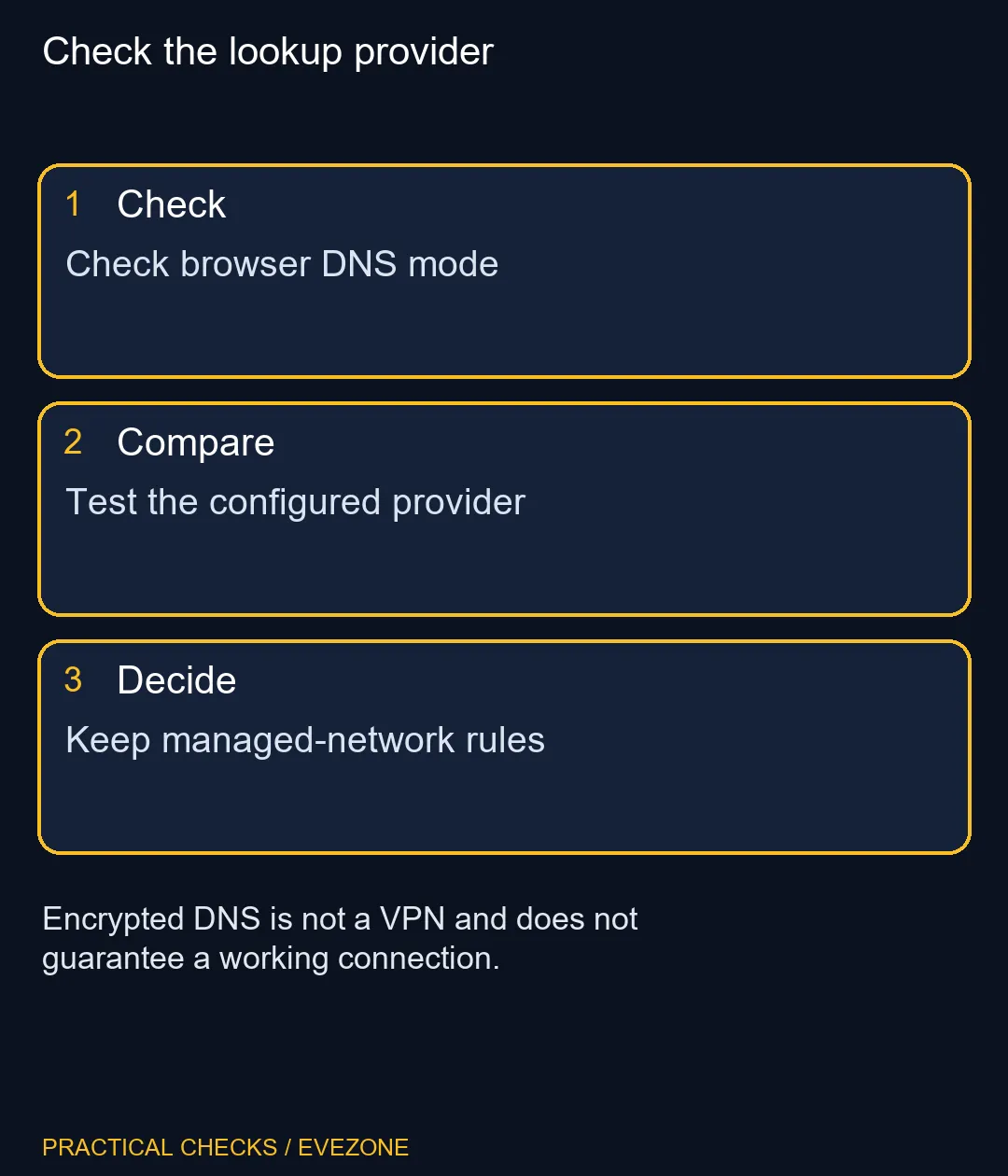
In Security settings, record whether the browser uses its current provider or a custom selection. Automatic fallback and custom-provider behaviour differ, so an old note saying DNS always falls back is insufficient. Match your interpretation to the selected mode before changing it.
If a custom provider cannot resolve the intended site, compare that behaviour with the provider guidance and your network's requirements. Change one control at a time and test the same destination. Note the previous choice so troubleshooting remains reversible instead of becoming a sequence of forgotten guesses.
Managed devices and parental controls can make the browser feature unavailable. A grey control is not permission to delete policy entries or evade a household filter. On a work or study network, ask the administrator how name resolution should operate, especially when internal sites behave differently from public ones.
For home troubleshooting, compare the browser-specific symptom with another trusted application before blaming the access point. Secure DNS does not improve physical Wi-Fi signal, add Ethernet ports or increase the speed purchased from an internet provider. It addresses a different layer of the route to a page.
Review wireless routers and networking if a measured hardware requirement remains. An unrelated captured ASUS laptop example was R8,499; neither that purchase nor router replacement is a necessary first response to a DNS-mode mismatch. Keep the free setting test separate from an actual coverage or port problem.
Look in Settings, Privacy and security, Security, then review the Use secure DNS control.
No. Google documents an unencrypted fallback when automatic secure lookup has problems.
Chrome documents that a selected custom provider does not fall back to unencrypted mode.
No. It protects the DNS lookup transport and is not a tunnel for all browser traffic.
Management or parental controls can prevent use of the feature. Follow the network owner's rules.
Start with the R0 browser and provider check. Buy hardware only for a separate demonstrated requirement.
Check the lookup provider Check browser DNS mode.
Look in Settings, Privacy and security, Security, then review the Use secure DNS control.
No. Google documents an unencrypted fallback when automatic secure lookup has problems.
Chrome documents that a selected custom provider does not fall back to unencrypted mode.
No. It protects the DNS lookup transport and is not a tunnel for all browser traffic.
Management or parental controls can prevent use of the feature. Follow the network owner's rules.
Start with the R0 browser and provider check. Buy hardware only for a separate demonstrated requirement.
Chrome always use secure connections: An encrypted connection does not establish that a website is trustworthy. Read the full destination.
Read more
Chrome install web app: A separate app window does not promise offline support or a native desktop program. Confirm the genuine website.
Read more
Chrome clear download history: Clearing the browser list does not securely erase the actual downloaded files. Locate important downloaded files.
Read more
Chrome find on page: Find on page searches loaded page text; it is not a search of every website. Open the intended page.
Read more
Chrome change language: Display language, translation and keyboard input are separate settings. Identify menus or page content.
Read more
Chrome Safety Check reviews browser warnings for updates, saved passwords, extensions and permissions. Act on the precise finding while keeping connection security separate from claims about a website being trustworthy.
Read more Chrome Safety Check reviews browser warnings for updates, saved passwords, extensions and permissions. Act on the precise finding while keeping connection security separate from claims about a website being trustworthy.

Stalker 2 Heart of Chornobyl PC build under R50,000 should start with balance, not one headline part. Compare CPU, GPU, RAM, SSD, cooling, case airflow, and monitor target before buying in South Africa.

Best 240HZ setup for video editing 4K needs careful context before choosing parts. Use this guide to check parts, settings, compatibility, cooling, and upgrade timing for a South African gaming PC without relying on live stock, price, or benchmark promises.

Peripheral loadout for Kingdom Come Deliverance should be shortlisted around the job it must do. South African buyers should compare fit, performance, compatibility, and upgrade room, warranty path, and upgrade room before treating any pick as best.
Chrome Safety Check reviews browser warnings for updates, saved passwords, extensions and permissions. Act on the precise finding while keeping connection security separate from claims about a website being trustworthy.

Chrome delete saved passwords removes a stored login through Google Password Manager. Match the site and username, confirm another working sign-in method and use the individual action instead of deleting every saved credential.

Chrome microphone not working needs separate checks for the selected input, site permission and operating system access. Test the trusted call site after one change before replacing a microphone or granting broader recording permissions.

Chrome reopen closed tab starts with Ctrl+Shift+T on Windows or Linux. Recover the intended page, inspect its actual state and save valuable work separately before changing how the browser behaves at startup.

A fitness-class headset mic should stay put through jumping, resist sweat and connect to your sound system's input. Check the fit, the sweat protection and the receiver output, and make sure the battery covers a full session.
The Ryzen 5 5500U has six cores and twelve threads; the Ryzen 7 3700U has four and eight, so the 5500U is stronger. It is also a newer design. The laptop around the chip matters too, since cooling and single-channel RAM change what you feel.
svchost.exe is not one program but a host that runs Windows services, so the fix is finding which service is busy. Right-click it in Task Manager and use Go to services, then check Windows Update, Delivery Optimization and the file location.
The 12600K leads in games and includes integrated graphics, while the 5700X sits on cheaper AM4 boards. Neither ships with a cooler, so budget for one before you compare the final totals in Rand.