




Chrome secure DNS: Check the provider before changing your router
Chrome secure DNS: Encrypted DNS is not a VPN and does not guarantee a working connection. Check browser DNS mode.
Read moreChrome install web app: A separate app window does not promise offline support or a native desktop program. Confirm the genuine website.
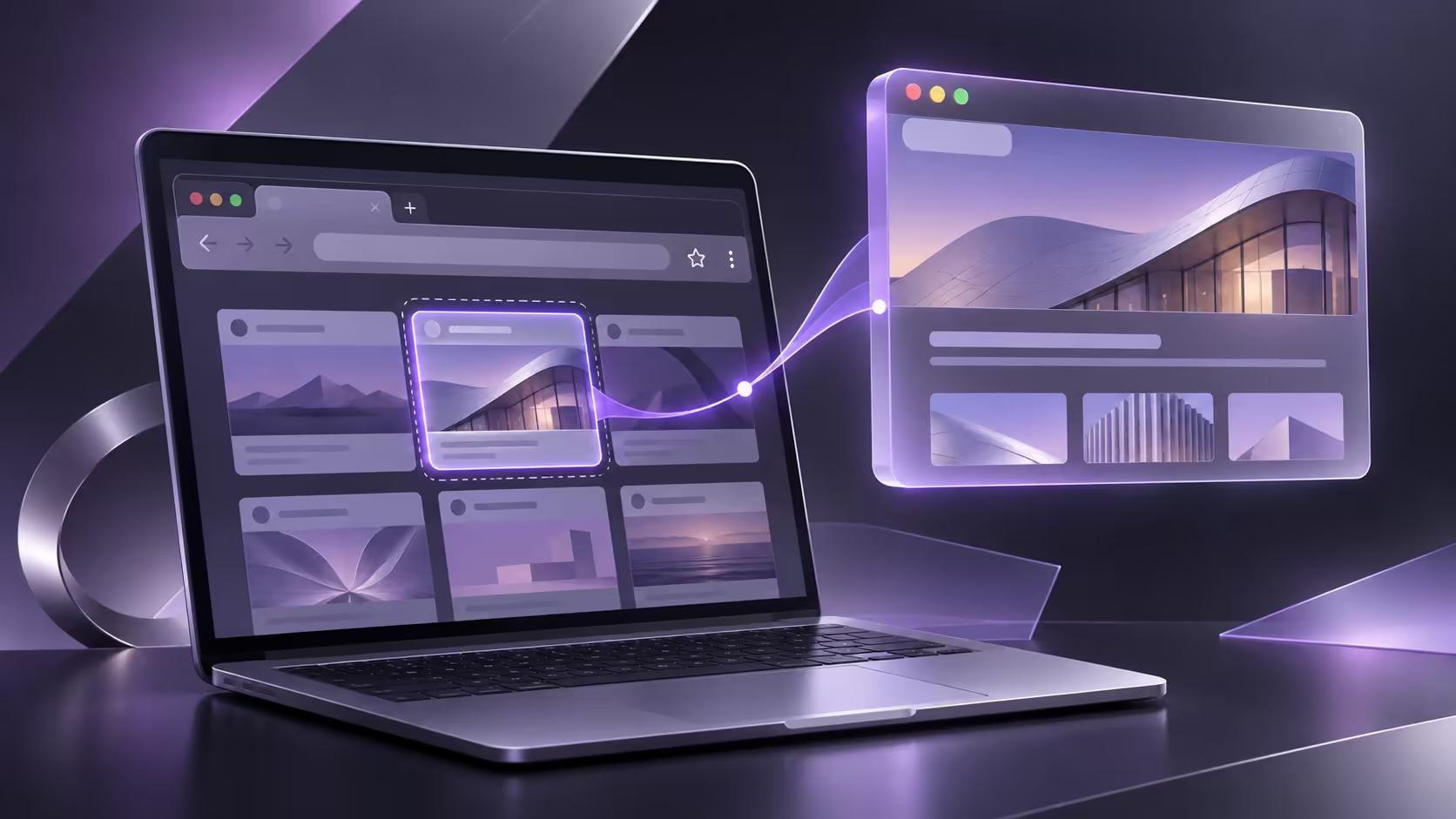
A Chrome install web app action can make a frequently used website open in its own window. The result may feel tidier than another browser tab. Still, know which site you installed and what it can do without a connection before making it central to your work.
Open the genuine website in Chrome, then use More, Cast, save, and share, and Install page as app where available; some sites also show an Install control in the address bar. Manage installed web apps through chrome://apps. The browser action costs R0, while service charges remain separate. Installation does not promise complete offline operation.
Confirm the address before creating an app window. An imitation site does not become legitimate because it gains a desktop shortcut. Sign in only through the genuine service and keep a work application in the browser profile intended for that account.
Name the purpose: faster access to an existing page, a separate window for a task, or an app-specific feature. This helps decide whether installation adds value over a bookmark. It also prevents an unnecessary collection of duplicate launchers for the same service.
Use the available Chrome install action and follow the on-screen prompts. The control can vary with the site. Open the new window and check its title and destination before treating it as the app you wanted. A separate frame is a convenience, not evidence of a different underlying service.
Test the work you actually need to do. Some web-app features need an internet connection, so do not promise a presentation, meeting or file workflow will work offline merely because an icon exists. Save important work through the application's supported method and confirm the result.
Chrome's app-management page provides a place to review installed web apps. If an app requests a name or icon update, inspect it rather than accepting an unexpected change blindly. Google advises removing an app when a change appears malicious, such as an icon altered to resemble another application.
Read removal choices before confirming them. Uninstalling an app and also deleting its site data have different consequences, including possible sign-in changes. If you only wanted fewer shortcuts, avoid choosing broader data deletion without understanding what will be removed.
A captured R8,499 ASUS Vivobook Go 15 and R8,999 HP 255R G10 provide local hardware context. Those are hardware examples, not installation fees or guarantees of offline app support. Browse asus laptops and hp laptops when processor, memory or screen needs justify a purchase. Installing a trusted existing site is a separate free browser task.
Use Chrome's Cast, save, and share menu and its Install page as app action when available.
Some sites show an Install control in the address bar. Follow the genuine site's supported prompts.
Open chrome://apps to review apps and their available management options.
Not necessarily. Test the specific app; some functions still require an internet connection.
Do not assume that. Review the update and remove the app if the change appears malicious.
Read the choices. Removing an app and also deleting its Chrome data are separate decisions.
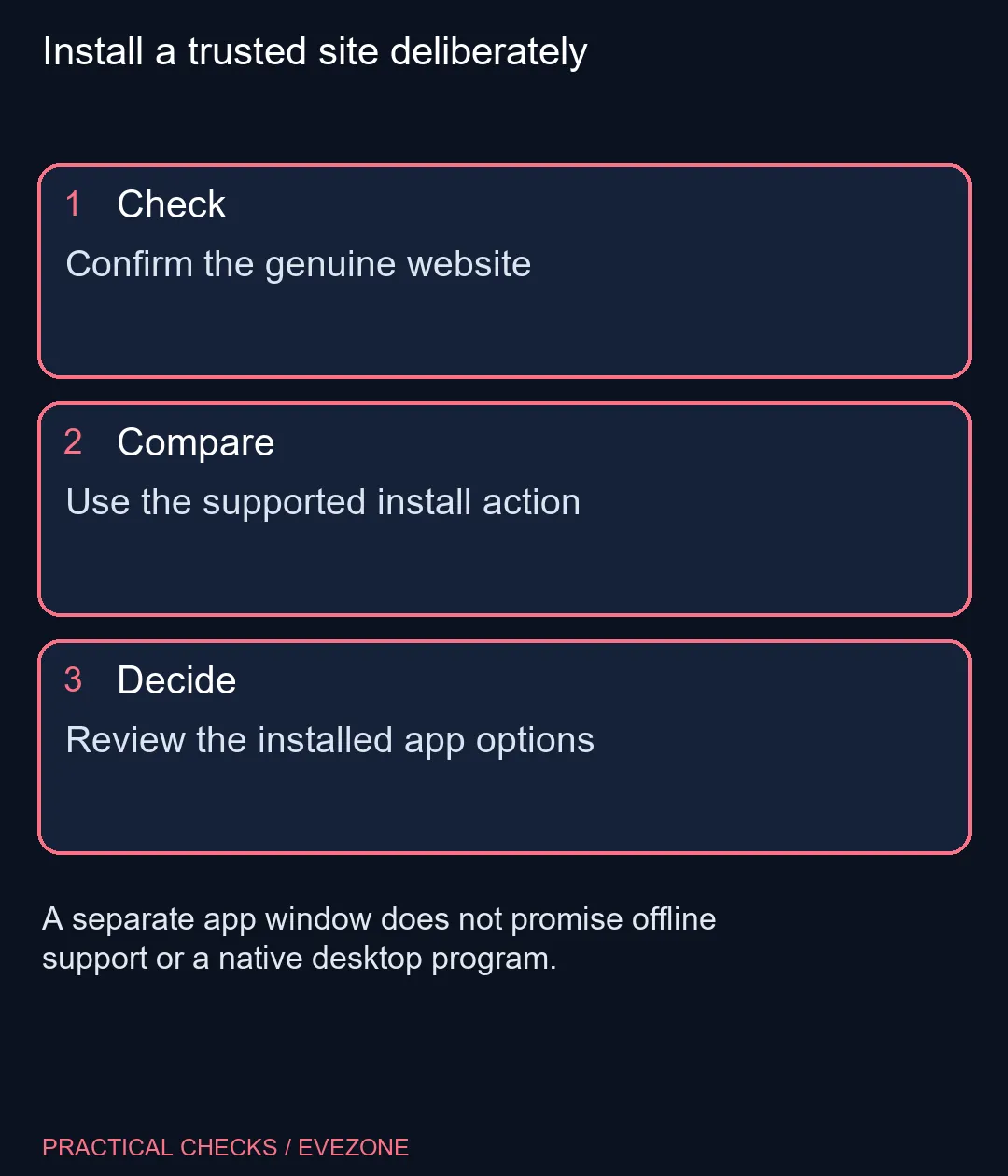
Install a trusted site deliberately Confirm the genuine website.
Use Chrome's Cast, save, and share menu and its Install page as app action when available.
Some sites show an Install control in the address bar. Follow the genuine site's supported prompts.
Open chrome://apps to review apps and their available management options.
Not necessarily. Test the specific app; some functions still require an internet connection.
Do not assume that. Review the update and remove the app if the change appears malicious.
Read the choices. Removing an app and also deleting its Chrome data are separate decisions.
Chrome secure DNS: Encrypted DNS is not a VPN and does not guarantee a working connection. Check browser DNS mode.
Read more
Chrome always use secure connections: An encrypted connection does not establish that a website is trustworthy. Read the full destination.
Read more
Chrome clear download history: Clearing the browser list does not securely erase the actual downloaded files. Locate important downloaded files.
Read more
Chrome find on page: Find on page searches loaded page text; it is not a search of every website. Open the intended page.
Read more
Chrome change language: Display language, translation and keyboard input are separate settings. Identify menus or page content.
Read more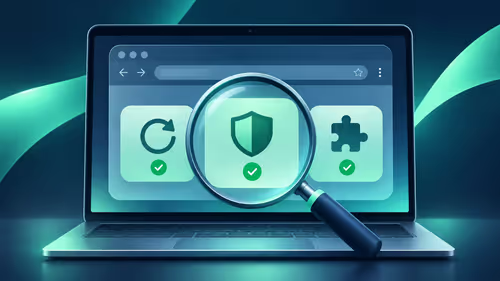
Chrome Safety Check reviews browser warnings for updates, saved passwords, extensions and permissions. Act on the precise finding while keeping connection security separate from claims about a website being trustworthy.
Read more Chrome Safety Check reviews browser warnings for updates, saved passwords, extensions and permissions. Act on the precise finding while keeping connection security separate from claims about a website being trustworthy.
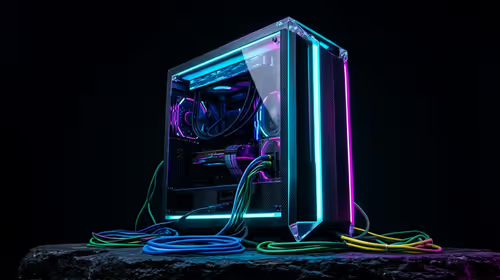
Stalker 2 Heart of Chornobyl PC build under R50,000 should start with balance, not one headline part. Compare CPU, GPU, RAM, SSD, cooling, case airflow, and monitor target before buying in South Africa.

Best 240HZ setup for video editing 4K needs careful context before choosing parts. Use this guide to check parts, settings, compatibility, cooling, and upgrade timing for a South African gaming PC without relying on live stock, price, or benchmark promises.
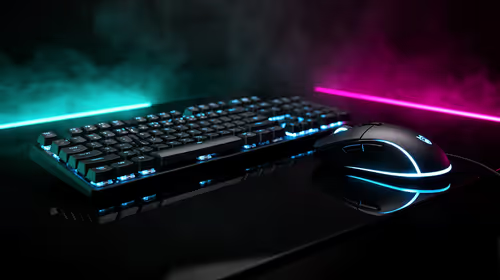
Peripheral loadout for Kingdom Come Deliverance should be shortlisted around the job it must do. South African buyers should compare fit, performance, compatibility, and upgrade room, warranty path, and upgrade room before treating any pick as best.
Chrome Safety Check reviews browser warnings for updates, saved passwords, extensions and permissions. Act on the precise finding while keeping connection security separate from claims about a website being trustworthy.

Chrome delete saved passwords removes a stored login through Google Password Manager. Match the site and username, confirm another working sign-in method and use the individual action instead of deleting every saved credential.

Chrome microphone not working needs separate checks for the selected input, site permission and operating system access. Test the trusted call site after one change before replacing a microphone or granting broader recording permissions.
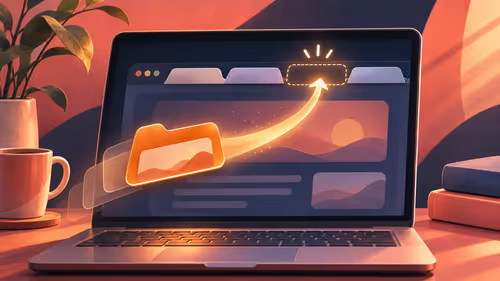
Chrome reopen closed tab starts with Ctrl+Shift+T on Windows or Linux. Recover the intended page, inspect its actual state and save valuable work separately before changing how the browser behaves at startup.
A fitness-class headset mic should stay put through jumping, resist sweat and connect to your sound system's input. Check the fit, the sweat protection and the receiver output, and make sure the battery covers a full session.
The Ryzen 5 5500U has six cores and twelve threads; the Ryzen 7 3700U has four and eight, so the 5500U is stronger. It is also a newer design. The laptop around the chip matters too, since cooling and single-channel RAM change what you feel.
svchost.exe is not one program but a host that runs Windows services, so the fix is finding which service is busy. Right-click it in Task Manager and use Go to services, then check Windows Update, Delivery Optimization and the file location.
The 12600K leads in games and includes integrated graphics, while the 5700X sits on cheaper AM4 boards. Neither ships with a cooler, so budget for one before you compare the final totals in Rand.