




Chrome secure DNS: Check the provider before changing your router
Chrome secure DNS: Encrypted DNS is not a VPN and does not guarantee a working connection. Check browser DNS mode.
Read moreChrome always use secure connections: An encrypted connection does not establish that a website is trustworthy. Read the full destination.

The Chrome always use secure connections option can turn an old HTTP link into a warning instead of opening it quietly. That pause provides useful information. Read the destination and warning before assuming a browser setting is broken or pressing through to a familiar-looking page.
In Settings, open Privacy and security, then Security, and review Always use secure connections. Chrome attempts HTTPS and warns when the destination does not support it, with choices covering public sites or both public and private sites. The check costs R0. A secure connection protects the exchange; it does not establish that the website deserves your password.
HTTPS concerns the connection between the browser and destination. With the option on, Chrome attempts a secure version of a URL and can warn about a site lacking support. That differs from proving who wrote a page or whether its claims are reliable.
Check the complete address, including the site name, before entering credentials. A polished design and familiar logo are insufficient reasons to trust an unexpected destination. If a link arrived in an unsolicited message, navigate through your known route to the service rather than treating the warning as a puzzle to bypass.
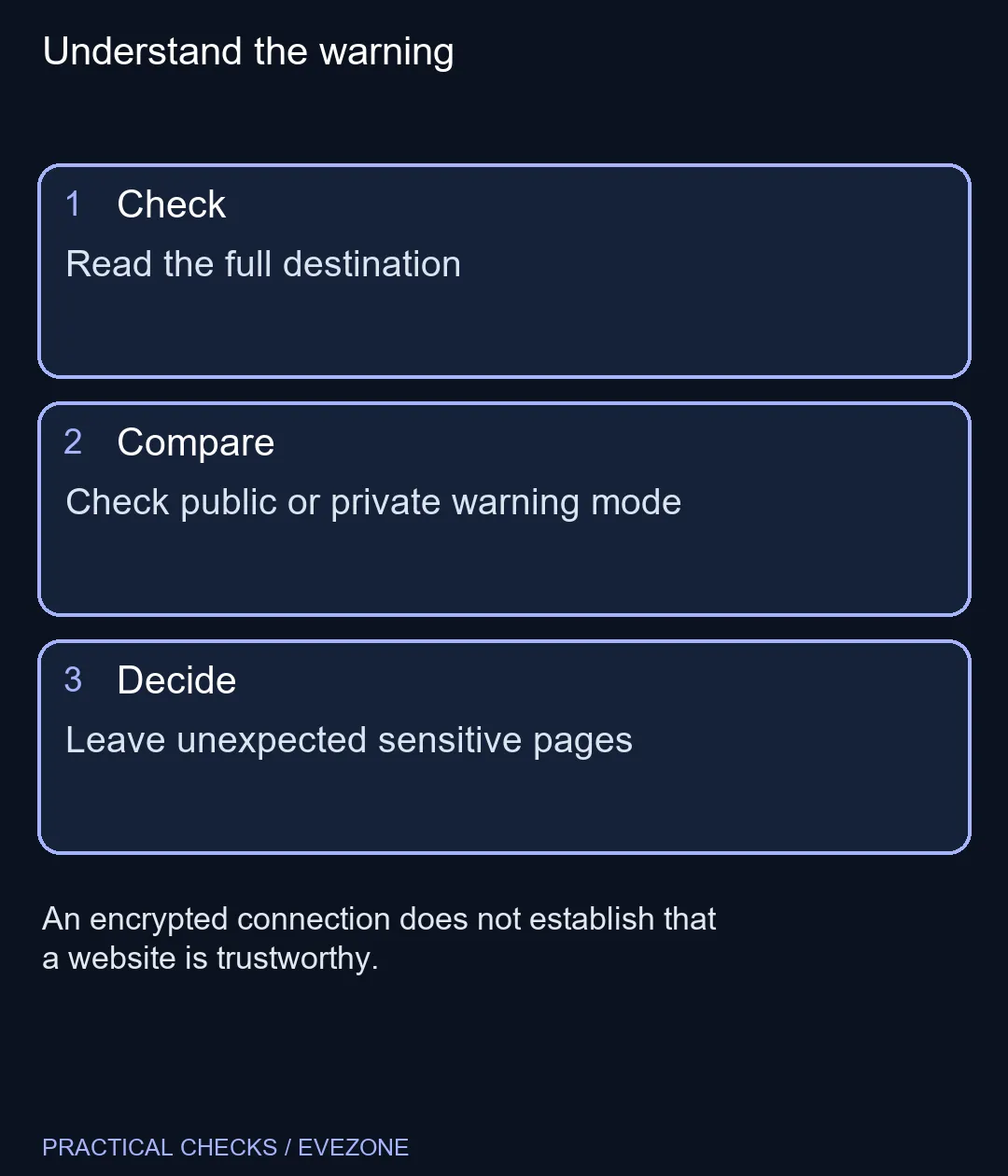
The documented choices can warn for insecure public sites, or for public and private sites. That distinction matters when a local device or company intranet uses an older connection method. Record which mode is selected instead of assuming every user sees identical warnings.
For a managed workplace site, ask its administrator for the approved route. Do not disable a broad protection to make one uncertain page load. For a home device, confirm its genuine local address and manufacturer guidance separately from an ordinary public login page.
Chrome exposes site information through the symbol beside the address. Use it to review connection status and relevant site controls. A secure status describes the exchange rather than endorsing everything hosted at that address. Keep that distinction when helping a family member interpret the browser.
If a page requesting a password unexpectedly produces an insecure warning, stop and verify the destination through another trusted route. Avoid entering information while experimenting. Turning a warning off does not make an insecure site support HTTPS, and replacing a laptop does not update the remote server.
The captured HP Notebook 255R G10 example was R8,999, while the setting itself costs R0. Browse hp laptops and asus laptops for actual hardware needs, not as a response to this connection warning. Identify the page before spending money on a device that would reach the same destination.
It upgrades URLs to HTTPS and warns when a site does not support that connection.
Open Settings, Privacy and security, then Security and the secure-connections section.
Yes. Google documents a public-site warning choice and a choice covering public and private sites.
No. A protected connection does not establish that the destination is trustworthy.
No. It changes browser behaviour, not the remote server's capabilities.
Not if the destination lacks HTTPS. Begin with the free destination and connection check.
Understand the warning Read the full destination.
It upgrades URLs to HTTPS and warns when a site does not support that connection.
Open Settings, Privacy and security, then Security and the secure-connections section.
Yes. Google documents a public-site warning choice and a choice covering public and private sites.
No. A protected connection does not establish that the destination is trustworthy.
No. It changes browser behaviour, not the remote server's capabilities.
Not if the destination lacks HTTPS. Begin with the free destination and connection check.
Chrome secure DNS: Encrypted DNS is not a VPN and does not guarantee a working connection. Check browser DNS mode.
Read more
Chrome install web app: A separate app window does not promise offline support or a native desktop program. Confirm the genuine website.
Read more
Chrome clear download history: Clearing the browser list does not securely erase the actual downloaded files. Locate important downloaded files.
Read more
Chrome find on page: Find on page searches loaded page text; it is not a search of every website. Open the intended page.
Read more
Chrome change language: Display language, translation and keyboard input are separate settings. Identify menus or page content.
Read more
Chrome Safety Check reviews browser warnings for updates, saved passwords, extensions and permissions. Act on the precise finding while keeping connection security separate from claims about a website being trustworthy.
Read more Chrome Safety Check reviews browser warnings for updates, saved passwords, extensions and permissions. Act on the precise finding while keeping connection security separate from claims about a website being trustworthy.

Stalker 2 Heart of Chornobyl PC build under R50,000 should start with balance, not one headline part. Compare CPU, GPU, RAM, SSD, cooling, case airflow, and monitor target before buying in South Africa.

Best 240HZ setup for video editing 4K needs careful context before choosing parts. Use this guide to check parts, settings, compatibility, cooling, and upgrade timing for a South African gaming PC without relying on live stock, price, or benchmark promises.

Peripheral loadout for Kingdom Come Deliverance should be shortlisted around the job it must do. South African buyers should compare fit, performance, compatibility, and upgrade room, warranty path, and upgrade room before treating any pick as best.
Chrome Safety Check reviews browser warnings for updates, saved passwords, extensions and permissions. Act on the precise finding while keeping connection security separate from claims about a website being trustworthy.

Chrome delete saved passwords removes a stored login through Google Password Manager. Match the site and username, confirm another working sign-in method and use the individual action instead of deleting every saved credential.

Chrome microphone not working needs separate checks for the selected input, site permission and operating system access. Test the trusted call site after one change before replacing a microphone or granting broader recording permissions.

Chrome reopen closed tab starts with Ctrl+Shift+T on Windows or Linux. Recover the intended page, inspect its actual state and save valuable work separately before changing how the browser behaves at startup.

A fitness-class headset mic should stay put through jumping, resist sweat and connect to your sound system's input. Check the fit, the sweat protection and the receiver output, and make sure the battery covers a full session.

The Ryzen 5 5500U has six cores and twelve threads; the Ryzen 7 3700U has four and eight, so the 5500U is stronger. It is also a newer design. The laptop around the chip matters too, since cooling and single-channel RAM change what you feel.
svchost.exe is not one program but a host that runs Windows services, so the fix is finding which service is busy. Right-click it in Task Manager and use Go to services, then check Windows Update, Delivery Optimization and the file location.
The 12600K leads in games and includes integrated graphics, while the 5700X sits on cheaper AM4 boards. Neither ships with a cooler, so budget for one before you compare the final totals in Rand.