Use Chrome delete saved passwords when one stored login is obsolete or should no longer be kept in that browser. Identify the site and username first. Deleting the wrong record can make the next sign-in harder, while deleting a stored entry does not close the website account or change the password the site accepts.
Quick Answer
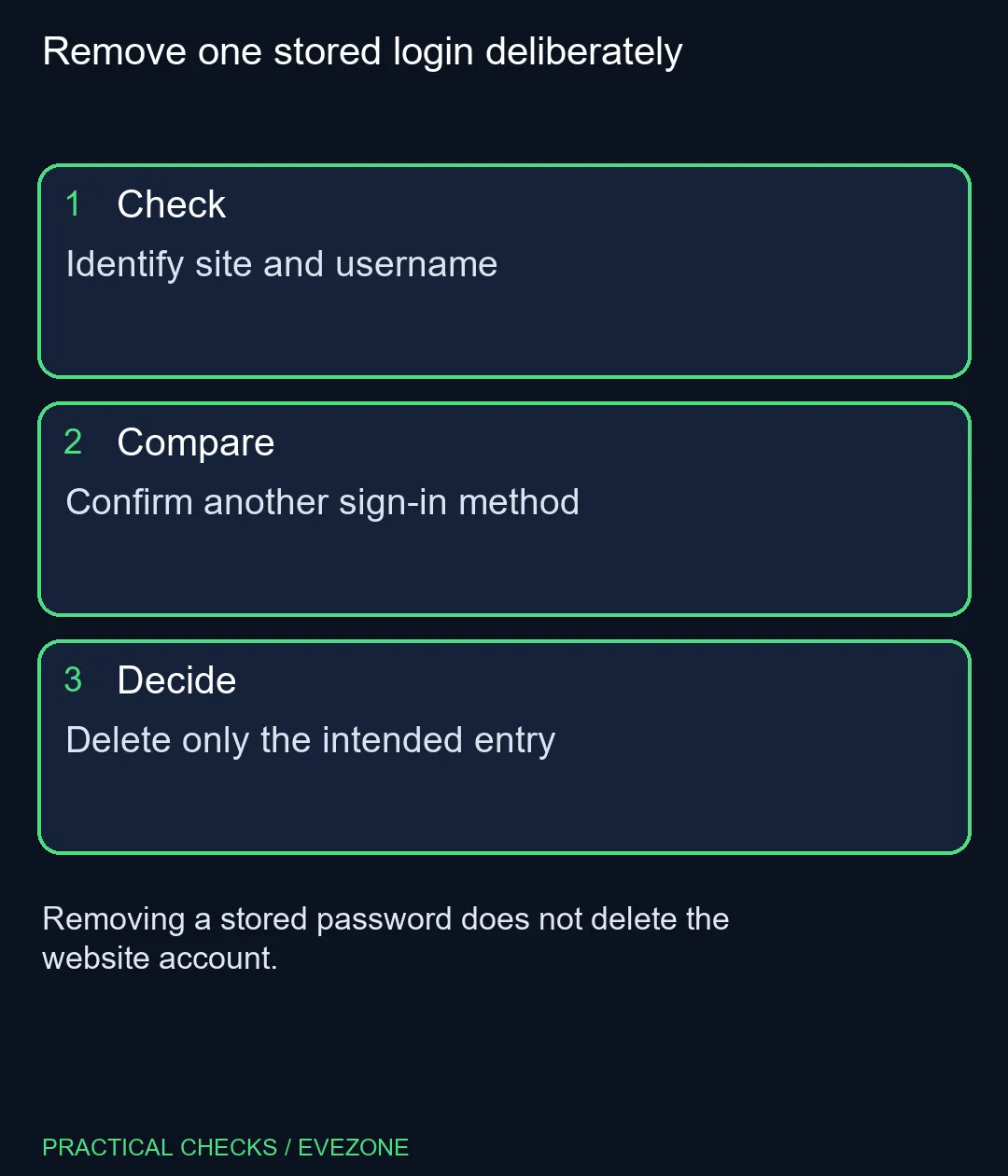
In desktop Chrome, open More, Passwords and autofill, then Google Password Manager. Select the intended saved entry and choose Delete. This costs R0. Confirm another working way to sign in before removal, and keep the individual Delete action separate from the much broader Delete all Google Password Manager data control.
🧾 Match the stored entry to the account
Search for the website and inspect the username as well as the address. Two accounts on the same service can appear similar, especially when a work address and personal address share part of the name. Do not remove a record solely because its displayed site title looks old.
If you are replacing an outdated password, consider whether editing the entry is the intended action. Deletion is appropriate when you want the record removed; it is not required for every correction. If you cannot sign in without autofill, establish the site's legitimate recovery method before touching the only stored copy you rely on.
Keep any sensitive details off shared screens while reviewing the entry. You do not need to reveal the password to someone else to explain that you are removing an obsolete login. Close the manager when you finish rather than leaving account information visible on a borrowed computer.
🗑️ Remove one record without clearing unrelated data
Google Password Manager provides an individual Delete control after you select a stored password. Use that scoped action when one record is the target. The manager's Delete all data option is a separate, much wider operation that can include passwords and passkeys; it should not be used as a shortcut to remove one old account.
Browser history, cached files and cookies are different categories of browsing data. Clearing one of those categories is not the same operation as managing a saved credential. Read the selected item and the confirmation text before acting, rather than assuming that all browser cleanup buttons have the same effect.
Check which profile and account the manager is using. Stored information can be associated with a signed-in Google Account, so do not assume that a change has consequences only on the computer in front of you. Review the account context before removing anything that another device may use.
🔓 Test future access without exposing a backup copy
After removing the intended record, confirm the manager's list reflects that choice. When you next need the site, use the sign-in method you deliberately retained. If your real goal was to stop Chrome offering to save new credentials, review that preference separately; deleting one entry does not express every future saving choice.
An ASUS Vivobook Go 15 Core i3 was R8,499 in the current catalogue snapshot. That hardware figure is context, not a reason to spend money on a browser-data task. Compare intel laptops on special or asus laptops only when you also have a device requirement.
Avoid making a plain-text export merely to feel safer about a single deletion. An exported password file needs its own protection and cleanup, and it can expose far more than the one record you intended to remove. The useful finish is deliberate: the obsolete entry is gone, the unrelated logins remain, and you know how to access the account when needed.
Frequently Asked Questions
Does deleting the entry close my website account?
No. It removes a stored credential. Account closure is a separate action on the website itself.
Will it change the password accepted by the site?
No. Change the website password through that site's legitimate account controls if that is your goal.
Where is the individual Delete control?
Open Google Password Manager, choose the intended stored password and select Delete.
Is Delete all data the same thing?
No. It is broader and can remove passwords and passkeys. Use the individual action for one obsolete entry.
Should I check the active profile first?
Yes. Confirm the browser profile, account, site and username before removing the saved record.
Must I export every password before removing one?
No. A plain-text export creates sensitive files. Confirm a working sign-in method without creating unnecessary copies.
Remove one stored login deliberately
Identify site and username.