The wrong saved login can be more disruptive than a slow tab. Chrome profiles gives work and personal browsing separate homes, helping keep bookmarks, history and settings attached to the context where they belong.
Quick Answer
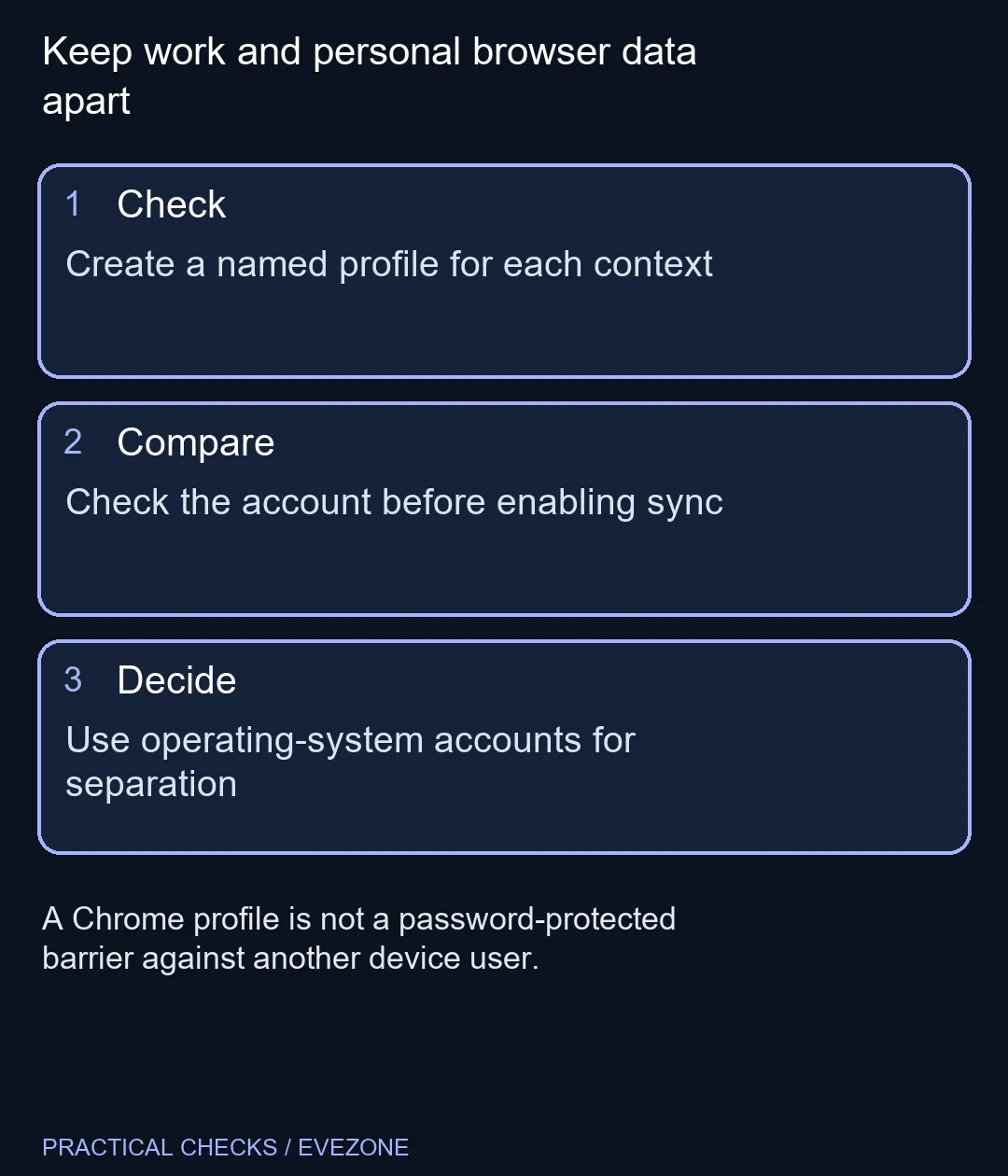
Create a named profile from Chrome's profile menu, then use a distinct name and colour for each browsing context. Check the account carefully before saving information across devices. Profiles cost R0 to create, but they are organisational tools: someone with access to the device can switch profiles, so they are not a substitute for separate operating-system accounts.
👤 Give each context a recognisable identity
Open the profile menu near the upper-right corner and add a profile. Choose a name that tells you its purpose immediately. A clear work label and a different colour are more useful than two nearly identical avatars, especially when several windows remain open through the day.
Build the separation around actual needs. A personal profile might keep family bookmarks and entertainment accounts, while a work profile carries project sites and the relevant sign-ins. The aim is to reduce mistaken context switches, not to create a new profile for every individual tab.
After creating one, open a familiar site and check which account is active there. Browser identity and website identity can still differ. Looking at both is a useful habit before submitting a form, joining a meeting or changing an account setting.
🔄 Understand the account decision
Chrome can save selected browser information in a Google Account for use on other signed-in devices. Review that choice rather than treating sign-in as a harmless decoration. The account you select determines where the relevant information is associated, so an accidental personal-versus-work choice can be inconvenient to untangle.
Start by deciding what needs to follow you to another machine. Bookmarks may be helpful everywhere, while a particular setup may be intentionally local. Use the documented account settings to inspect the available choices instead of assuming that all data behaves identically.
On a managed work computer, some settings may be controlled by the organisation. Do not try to bypass those controls to make the interface resemble a home PC. If the desired option is unavailable, establish who manages the browser before spending time changing unrelated settings.
🔐 Keep convenience separate from access control
A Chrome profile does not lock another trusted device user out of its history or other information. For people sharing a computer who need stronger separation, consider separate operating-system user accounts and appropriate device access controls. A coloured browser window is a helpful signpost, not a security boundary.
That distinction matters when choosing household hardware too. mini pcs can suit a shared desk, and all laptops on special offers portable alternatives, but neither form factor decides how people should share accounts. Set up the access arrangement deliberately after selecting the hardware.
Before removing an old profile, check what data exists only within it and preserve anything needed. Organisation should make your working day simpler, not become an excuse to delete a collection whose location you have not yet checked. Test the new layout with ordinary browsing before retiring the old one.
Frequently Asked Questions
What does a Chrome profile separate?
Profiles can hold separate bookmarks, history, passwords and other browser settings for different contexts.
Are profiles password-protected user accounts?
No. Someone with device access can switch Chrome profiles. Use suitable device and operating-system controls for stronger separation.
Must I create one profile per website?
No. Organise profiles around useful contexts, such as work and personal browsing, rather than every individual page.
Why choose a different colour?
A visible distinction helps identify which window you are using before submitting information or changing settings.
Will settings follow me to another PC?
That depends on the account and information-saving choices. Review them explicitly rather than assuming everything stays local.
Should I delete an old profile immediately?
Check for needed local data first, and test the replacement arrangement before removing the old profile.
Keep work and personal browser data apart
Create a named profile for each context.