A foreign-language page can load perfectly while the translation prompt never appears. Chrome translate not working is often a question about language rules or the current page, rather than the speed of your laptop. Start with a readable text page so the test gives a clear result.
Quick Answer
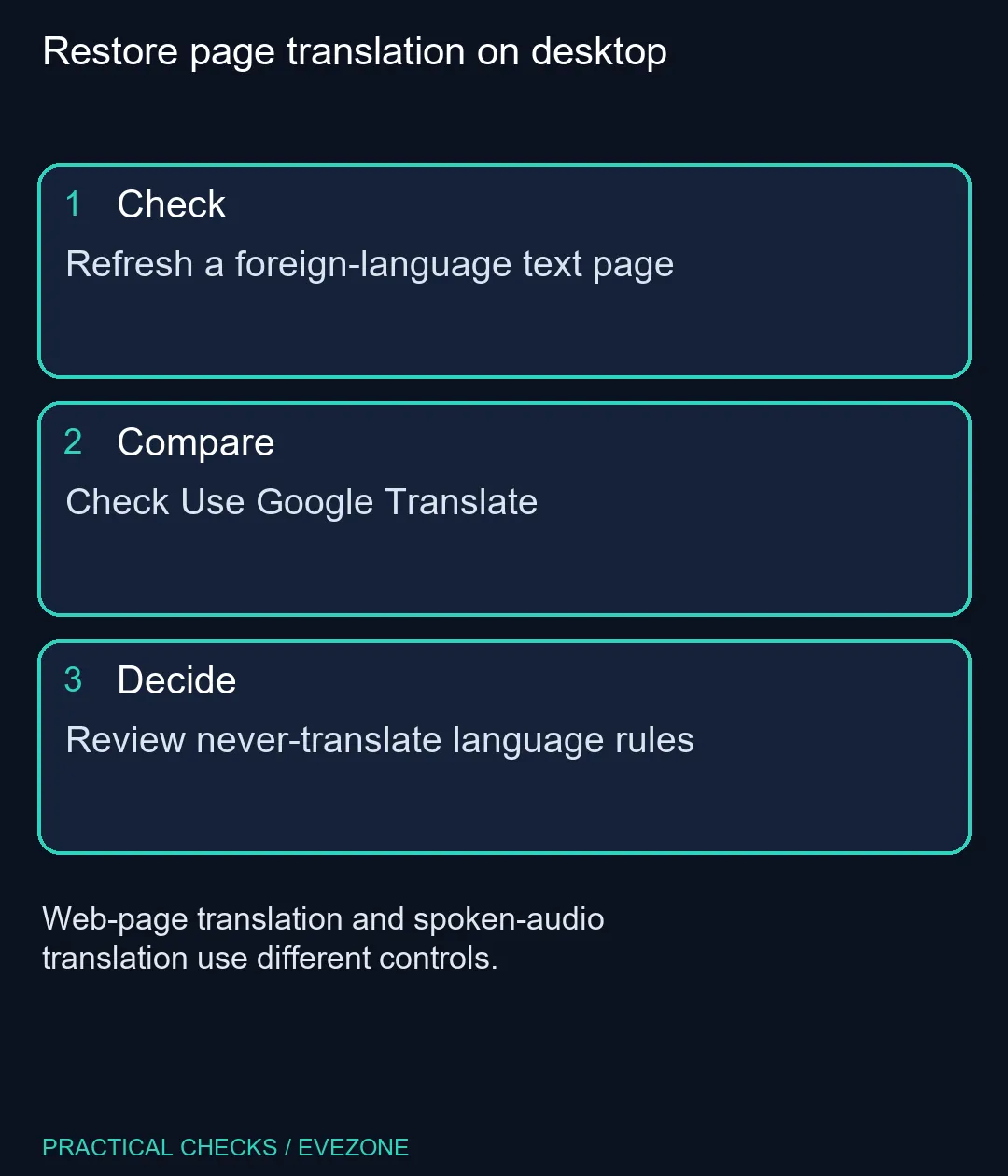
Refresh the page, try its translation control and check that Use Google Translate is enabled under Languages. Review any never-translate rule for the page's language. These checks cost R0 and should come before a browser reset or a hardware purchase.
🌍 Test a page that can be translated
Choose a normal article containing selectable text in a language different from your preferred one. A photograph of text, an embedded application and a page that has already selected English are different tests. Write down what fails: no prompt, the wrong destination language or a translation that stops partway through.
Try the translation icon beside the address bar or the page's right-click translation command, then refresh once if it fails. Selected-text translation is another useful check when only one paragraph matters. It also keeps the task small instead of making you guess whether an entire complex page has been processed.
⚙️ Review language preferences
Open Chrome Settings and select Languages. Check the Google Translate control and your preferred translation language. Then inspect the list of languages for which Chrome should never offer translation. A remembered preference can explain why one language behaves differently from another.
Avoid changing every language option at once. Remove only a rule that explains the affected page, reopen it and compare. The browser's display language is a separate setting, so changing menu language is not the first repair for missing page translation. Audio translation and captions are separate features too.
💻 Keep the spending decision separate
Compare the same page after the small setting change. If only one website fails, record the page and the exact symptom rather than assuming the whole computer needs replacing. A broader browser reset affects more preferences and should be reserved for a broader problem you have actually observed.
For a computer purchase already under consideration, all laptops on special can help with the wider browsing setup. gaming keyboards is relevant if keyboard comfort is part of that project. Neither is a required purchase for enabling translation; the language controls are already in Chrome.
Keep important names, amounts and technical instructions in their original form until you are confident about the translation. Automated wording can help you understand a page, but it is sensible to check an unfamiliar term before acting on it. A successful repair is a repeatable translation of the same page with the preferred language, not simply the disappearance of a prompt.
Frequently Asked Questions
Why is the translation icon missing?
Check that translation is enabled and that the source language is not on the never-translate list.
Can Chrome translate selected text?
Yes. Highlight a passage and use the right-click translation option where offered.
Should I change Chrome's menu language?
Not for this first test. Interface language and page translation are separate controls.
Will a faster laptop restore the prompt?
The prompt is controlled by page and language settings; check those before considering hardware.
Is Live Translate the same feature?
No. Audio translation and web-page translation use different controls and availability rules.
What should I compare after a change?
Reopen the same foreign-language page and check the result in your preferred destination language.
Restore page translation on desktop
Refresh a foreign-language text page.