A broken page does not always call for a browser reset. Chrome disable extensions is a useful search when you need a smaller test: switch off a suspected add-on, reload the affected page and observe what actually changes.
Quick Answer
Open Chrome's menu, choose Extensions and then Manage extensions. Turn off one suspected extension and repeat the same task on the affected page. This controlled test costs R0 and preserves a clearer diagnosis than uninstalling everything at once; if the symptom remains, restore the original state before moving to the next candidate.
🧪 Define a test you can repeat
Write down the exact problem first. A button that fails after opening a specific page is easier to compare than a general feeling that the browser is slow. Include what you clicked and what you expected to happen, then try to reproduce it once before changing anything.
Open the extensions list and identify likely candidates from their purpose. An add-on that changes website content is a more useful starting point for a page-layout fault than a tool unrelated to that page. This is a reasoned first test, not proof that the extension is defective.
Record the original enabled state so you can return to it. On a work browser, some extensions may be installed or controlled by the organisation. A setting that cannot be changed is a reason to contact the administrator, not a reason to search for a way around the restriction.
🧩 Change one thing and compare
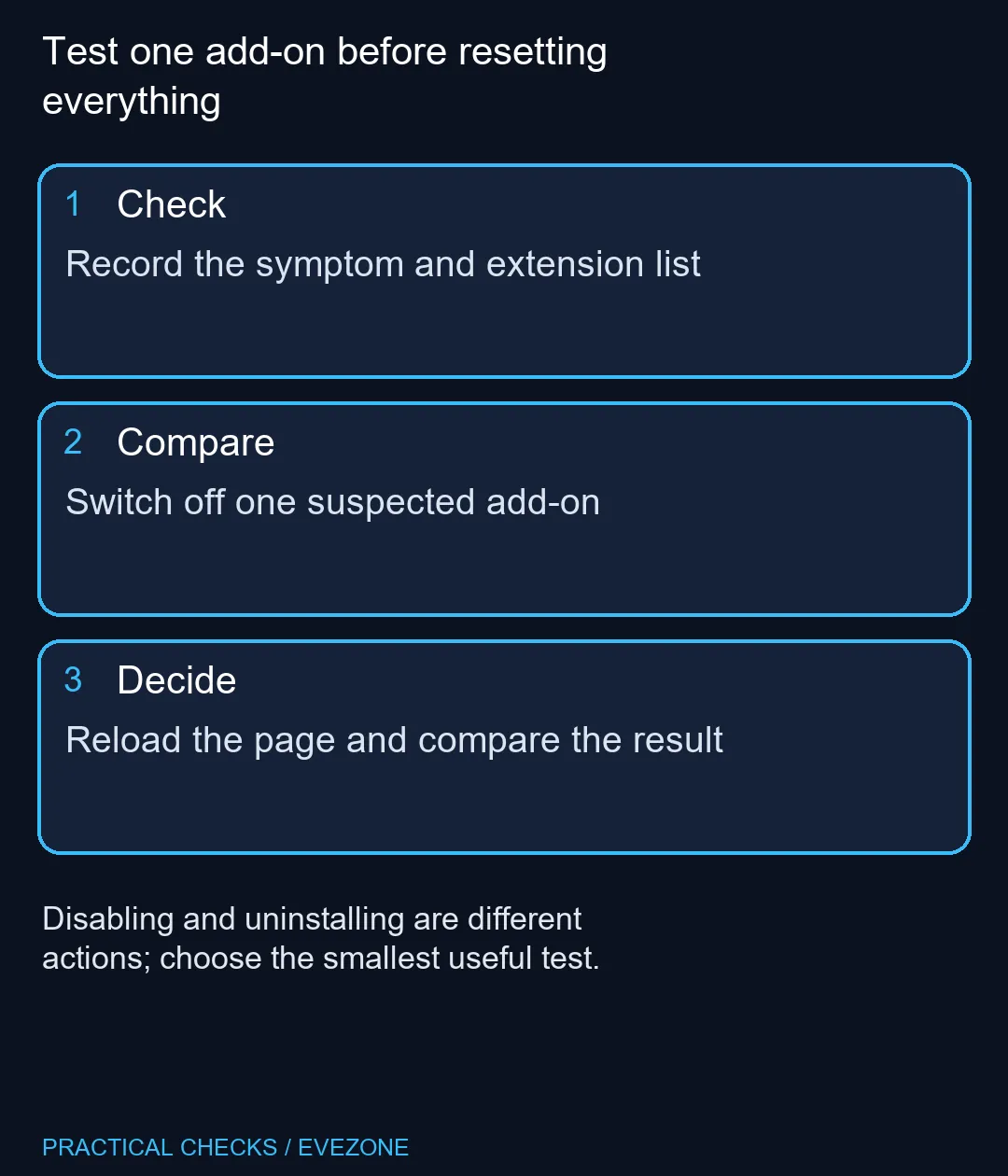
Use the extension's switch to disable it, then reload the affected page and repeat the recorded action. Keep the other test conditions as similar as possible. If you change the website, network and browser settings at the same time, the result becomes much harder to interpret.
If the symptom disappears, note that evidence before deciding what to do next. You might need to update the extension, inspect its site access or leave it disabled for that workflow. The appropriate choice depends on what the tool does and what permissions you intended to give it.
If nothing changes, restore the extension to its previous state before testing another candidate. Avoid accumulating a trail of disabled tools that later looks like a second browser problem. A short list of tested items is more useful than relying on memory after several experiments.
🛠️ Remove only when removal is the decision
Turning off an extension and uninstalling it are different actions. Disabling is usually the clearer diagnostic step because it lets you compare behaviour without immediately deciding to discard the tool. Removal makes sense when you have decided the extension is unwanted, with any relevant data checked first.
Do not buy a new computer solely because one website behaves badly. mini pcs and intel laptops on special are useful hardware categories when a genuine performance need is established, but an add-on conflict can follow the same browser setup onto another machine.
Close the loop by retesting normal work after the chosen change. Check that the original task succeeds and that the tools you still need remain available. This last comparison turns a lucky page reload into a recorded troubleshooting result you can use if the symptom returns.
Frequently Asked Questions
Where are extension controls?
Open Chrome's menu, choose Extensions, then Manage extensions to inspect the installed tools and their controls.
Should I uninstall all extensions together?
A one-at-a-time disable test usually gives clearer evidence and avoids changing every tool unnecessarily.
What should I do if the problem remains?
Restore the tested extension's previous state, then investigate the next plausible cause with the same repeatable task.
Does disappearance prove the extension is malicious?
No. A conflict or setting may explain the behaviour. Investigate the tool and its access without assuming a security verdict.
Why can I not switch off a work extension?
An organisation may manage the browser. Ask its administrator about controls that are locked.
Will a new laptop necessarily solve the fault?
No. The same extension setup can reproduce a browser problem on different hardware, so identify the cause first.
Test one add-on before resetting everything
Record the symptom and extension list.