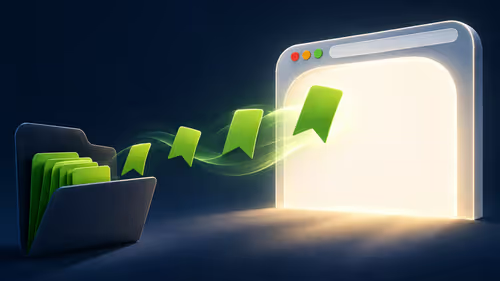
Moving to another computer is easier when your saved websites are already packed. Chrome export bookmarks creates a portable HTML file, giving you a practical copy before you reset an old machine or organise a new desk.
Quick Answer
In Chrome, open Bookmark manager from Bookmarks and lists, then use its menu to export bookmarks. Save the HTML file somewhere you can find and inspect before moving it. This built-in step costs R0 in extra software; buying another laptop or a backup application is not required just to export saved links.
📂 Begin in the profile that owns the links
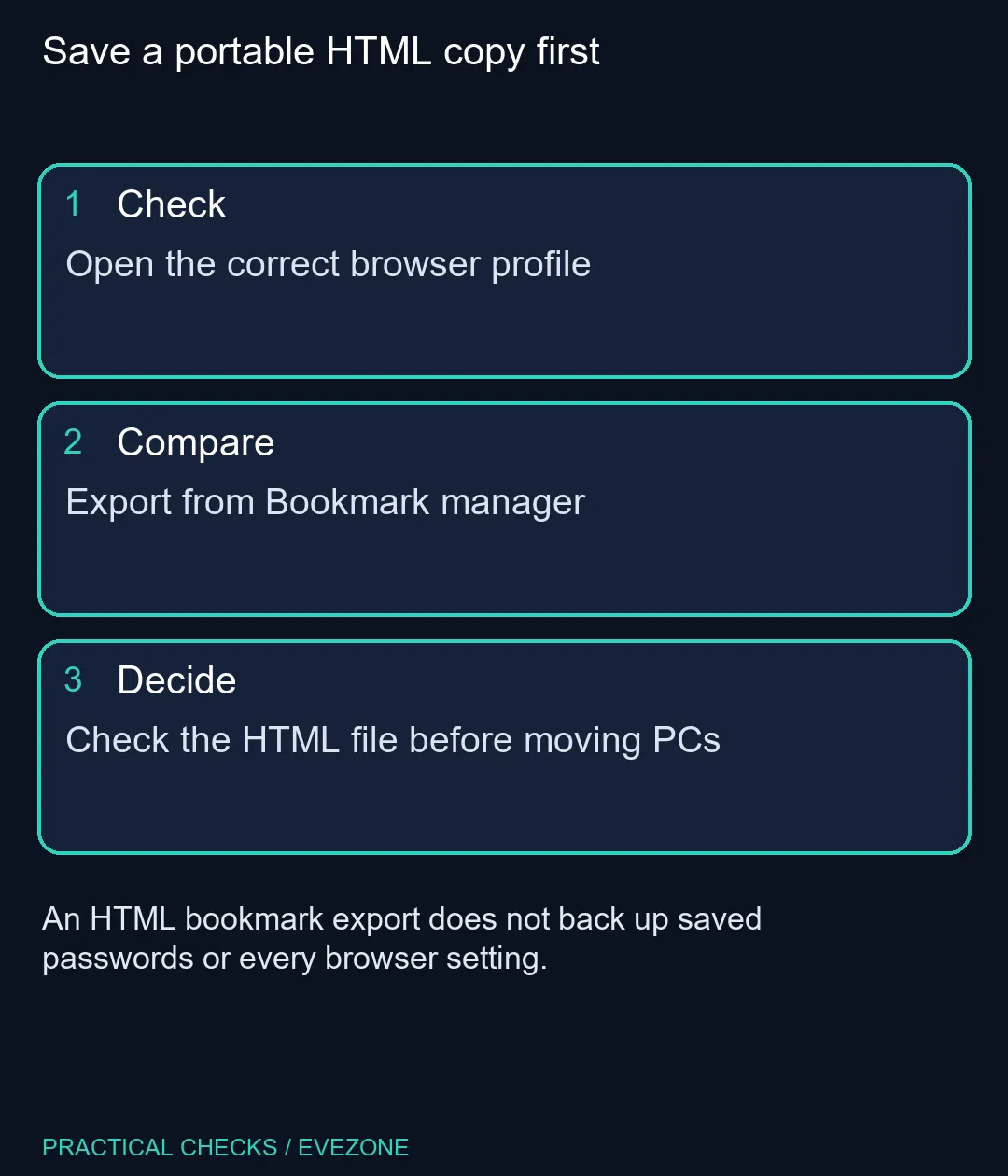
Look at the profile icon before opening the manager. A computer with several Chrome profiles can hold several different bookmark collections. Exporting the wrong one may produce a perfectly valid file while missing the folders you expected, which can look like a failed transfer later.
Find two or three familiar entries in the manager before continuing. Choose links from different folders rather than relying on the first visible bookmark. This quick check establishes what you intend to carry, without changing the original collection or deleting anything from the browser.
An export is a useful checkpoint before major housekeeping too. If you plan to rename folders or remove old links, keep the untouched file until the reorganised set has been reviewed. Give it a clear date and purpose so it does not become another anonymous download.
💾 Save the file and check its role
Use the manager's export command and choose a destination deliberately. The result is an HTML document containing saved links. It is not a full image of the computer, and it does not automatically include account sessions, installed extensions or every browser preference.
Open the destination folder and confirm that the file exists with the name you chose. Keep a copy on storage you will still have after changing computers. If your next step involves erasing the old device, a file left only on that device has not solved the transfer problem.
The links themselves can disclose useful details about your habits or projects. Share the export only with the person or device intended to receive it. There is no need to upload a personal bookmark collection to an unfamiliar conversion website merely to move between browsers.
🖥️ Make a new-computer checklist
On the destination machine, import the HTML file into the intended browser profile and inspect a few folders. Keep the source export until those checks pass. A successful import should be judged by finding the expected links, not by seeing a file-picker window close.
If you are still choosing the replacement machine, all laptops on special offers complete portable options, while mini pcs covers compact desktop alternatives. Hardware shopping and bookmark transfer are separate decisions: the export remains useful whichever format suits the desk.
Make one list for links, another for documents and a third for applications that need signing in again. That avoids expecting a bookmark export to restore your entire working environment. The small amount of checking now is easier than discovering a missing folder after the old installation is gone.
Frequently Asked Questions
What format does Chrome export?
Chrome exports bookmarks as an HTML file that can be imported by compatible browsers.
Does this export saved passwords too?
No. Treat passwords as a separate transfer task and use the password manager's documented process.
Why are some expected links missing?
Check whether you exported from the correct Chrome profile and whether the links existed in its Bookmark manager.
Can I keep browsing after exporting?
Yes. Exporting creates a file; it does not require deleting the original bookmark collection.
Do I need paid software?
No additional application is required for Chrome's built-in HTML bookmark export.
When can I remove the old copy?
Keep it until you have imported the file and checked the expected folders on the destination device.
Save a portable HTML copy first
Open the correct browser profile.