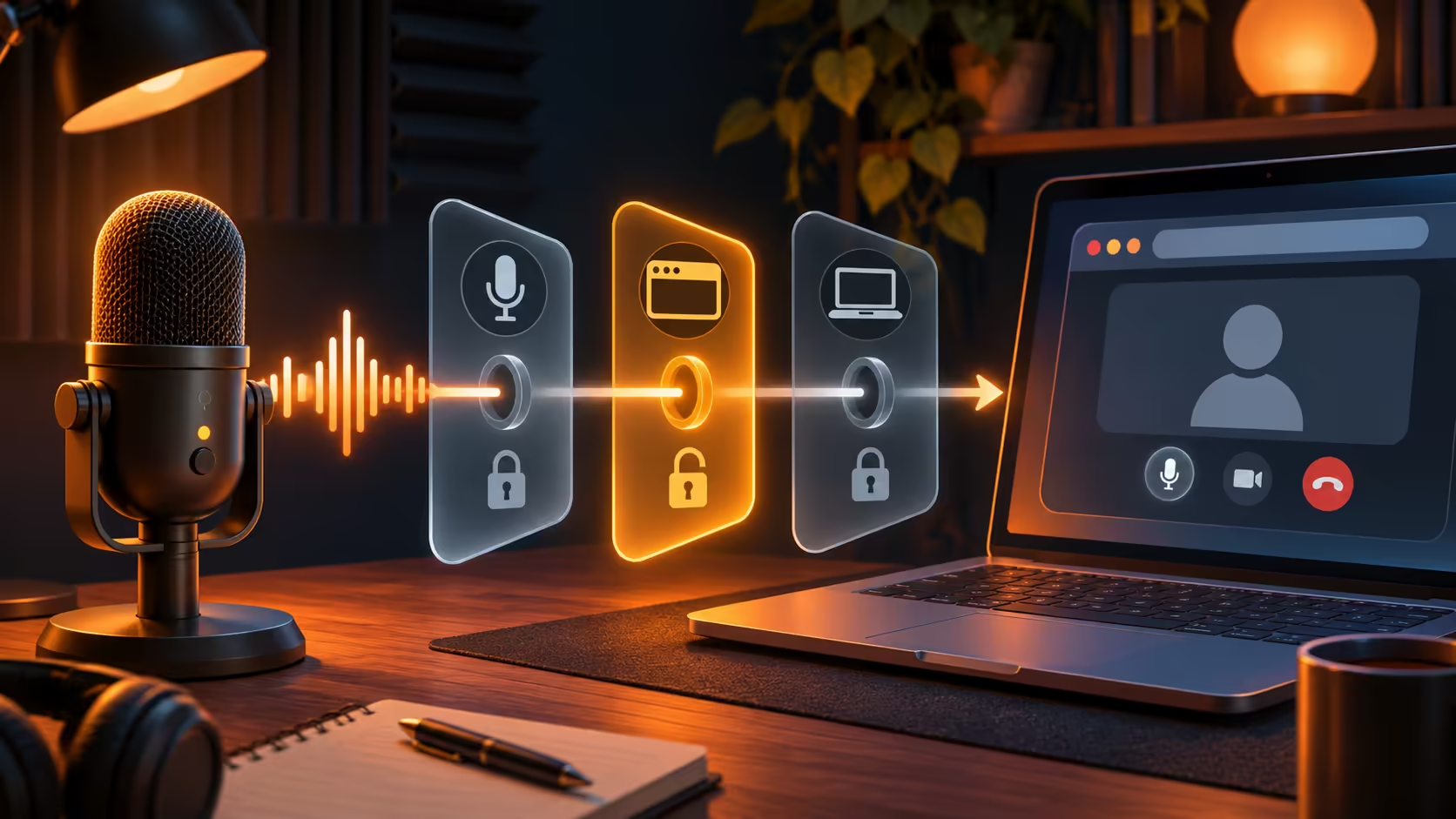
For Chrome microphone not working, first establish which layer is stopping the sound. A physical mute switch, the selected input, a website permission and Windows privacy access are different controls. Changing all of them at once makes it harder to know what fixed the call and can grant more access than the site needs.
Quick Answer
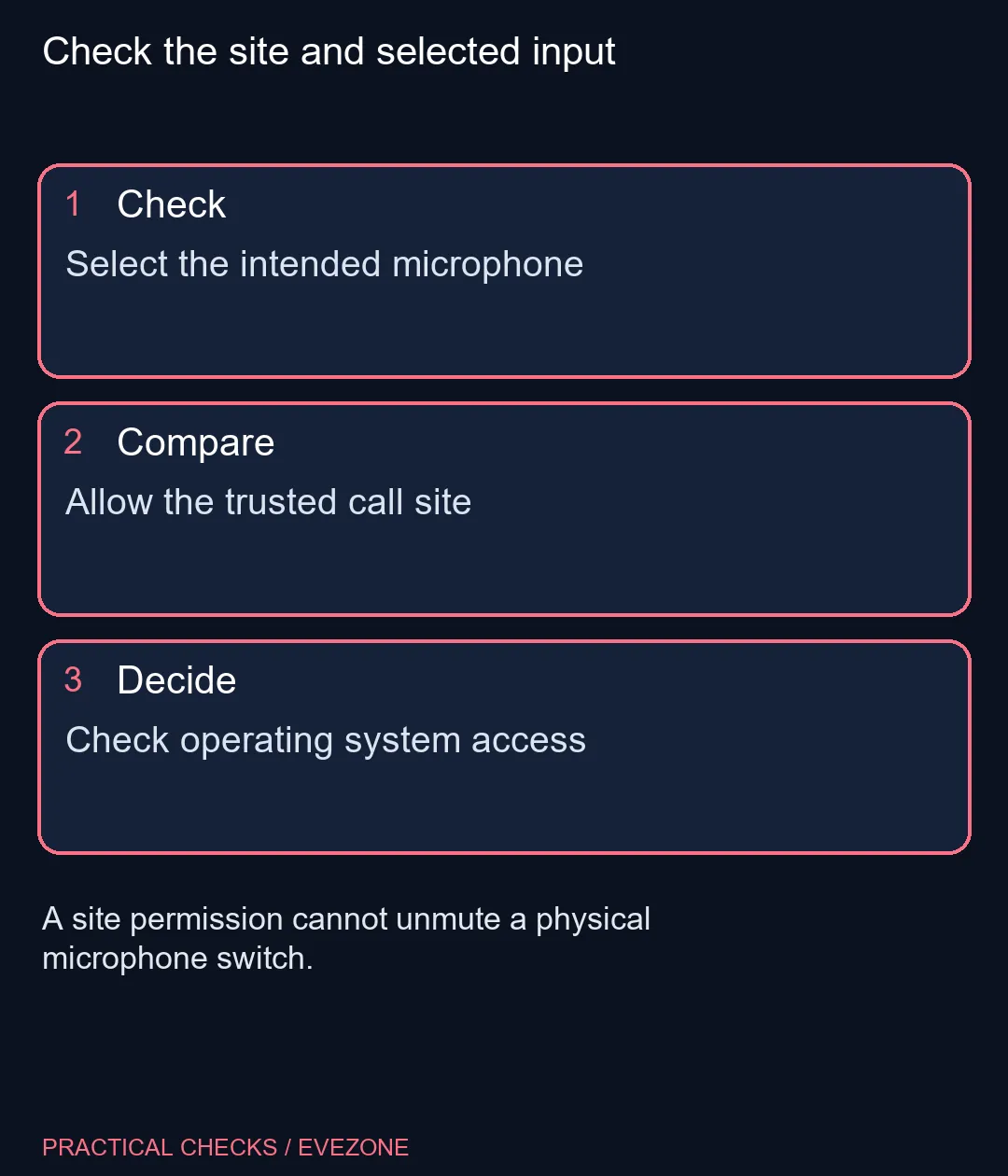
Select the intended microphone in Chrome, allow microphone access for the trusted call site and check Windows microphone permissions if the browser asks for them. These checks cost R0. Test with the website's own input meter before buying a replacement, and remember that permission cannot override a hardware mute switch or an unplugged microphone.
🎙️ Identify the real input before adjusting permissions
A laptop can expose its internal microphone alongside a headset, webcam or USB audio device. Open the browser's microphone settings and select the input you actually intend to use. Then check the call site's device selector, because a website may offer its own choice of input.
Look for a physical mute control and confirm that the cable or receiver is connected correctly. Avoid turning every gain control to maximum as a first test; that can create noise without solving a blocked input. Use an ordinary speaking voice and a visible input meter to establish whether sound reaches the selected device.
If a microphone works in one app but not the browser, that is useful evidence. Keep the working app configuration as a reference and focus on browser access rather than immediately changing drivers or replacing the device.
🔐 Give the intended site the access it needs
Chrome's general microphone setting and the permission for a specific website can differ. Open the trusted call site's information control, review Site settings and inspect Microphone. If the site is blocked, change only that permission when you want the site to capture audio.
Check the address carefully before allowing access. A page asking to use the microphone is requesting a sensitive capability, not just a cosmetic browser setting. Do not grant it to an unfamiliar site because a popup says it is required to diagnose your device.
Chrome may direct you to the computer's privacy settings if operating system access is disabled. Follow that specific prompt, then reopen the browser or call page if requested. On a managed machine, ask the administrator when access is controlled; do not remove the policy or disable broader security settings.
✅ Retest before spending on audio hardware
Repeat the same short microphone test after one change. If the input meter now responds but the other person still cannot hear you, inspect the call's own mute control and selected device. That separates capture from a meeting setting without disrupting audio that already works elsewhere.
For local budget perspective, the current catalogue included an ASUS Vivobook Go 15 Core i3 at R8,499. A browser permission fault does not justify replacing that whole device. Review microphone when a real hardware need remains, and gaming headsets when the connection, comfort and microphone arrangement suit your intended use.
Before ending the test, return any temporary permissions you no longer want. The desired outcome is a working input on the intended site with a known device selection, rather than unrestricted recording access across every website.
Frequently Asked Questions
Can Chrome use the wrong microphone?
Yes. Check both the browser's selected input and the call site's own device choice where available.
Where is the permission for one website?
Open the site's information control beside its address, select Site settings and inspect Microphone.
Will Allow fix a physical mute switch?
No. Permission permits capture but cannot unmute disconnected or physically muted hardware.
Why does the microphone work in another app?
That suggests the device can capture audio. Inspect browser and website access before changing working hardware settings.
What if Windows access is disabled?
Follow Chrome's prompt to the operating system microphone controls, then retest the same input and site.
Should I allow every site during testing?
No. Grant access only to the trusted site you intend to use, and remove temporary permissions afterwards.
Check the site and selected input
Select the intended microphone.