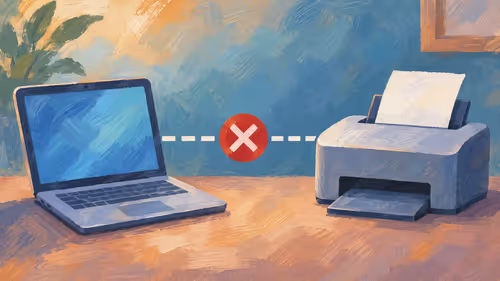
When your LG 32UN880-B USB-C not working problem shows a black screen or a no-signal message, the fault is nearly always the cable, the laptop port or the selected input rather than the monitor. A USB-C lead that only charges cannot carry video, and a laptop port without DisplayPort Alt Mode cannot send a picture at all. Test with a known video-capable cable, then pick USB-C in the monitor's input menu.
Quick Answer
Use a USB-C cable rated for video (DisplayPort Alt Mode or Thunderbolt), plug it into a laptop port marked with a DisplayPort or Thunderbolt symbol, and select the USB-C input on the monitor. A good certified cable costs roughly R200 to R600. If the screen stays blank, the laptop port probably carries data and charging only; check your exact model's spec sheet.
🔌 Cable and Port: Where Most Failures Start
USB-C is only a connector shape. Behind it sit many different standards, and a cable or port can support some and not others. A phone charging cable has thin wires and no video lanes. A short, thick cable labelled for 4K video or Thunderbolt carries the picture.
On the laptop side, look next to the USB-C socket for a small DisplayPort logo (a D inside a bracket) or a lightning-bolt Thunderbolt symbol. No symbol often means the port carries data and power only. Some budget laptops sold in South Africa have one video-capable USB-C port and one that is not, so try the other socket before blaming the screen.
A quick cable test
- Plug the cable into the laptop port with the symbol.
- Use a cable you know works for video, for example one that came with a docking station or the monitor.
- Avoid extension adapters and cheap hubs in the chain while testing.
If a direct, certified cable gives a picture, the earlier lead was the problem.
🎛️ Monitor Settings That Hide the Signal
Many monitors do not switch inputs by themselves. Open the on-screen menu, find Input or Source, and choose USB-C or Type-C explicitly. Some screens default to HDMI or DisplayPort and show No Signal until you pick the right one.
Look for an auto-switch option in the same menu. On a monitor with several inputs, turning auto-switch on can make the USB-C feed appear without a manual change, but it may also jump away if another source wakes up.
If the monitor has a USB hub, there may be a second setting for USB upstream. For keyboards or a webcam plugged into the monitor to work, the monitor needs its USB data path linked to the laptop, either through the same USB-C cable or a separate upstream lead. Check the manual's port diagram, because the exact routing differs between models.
When you buy cables and mounts for a monitor, the monitor accessories category is the place to compare leads and adapters.
⚡ Charging, Power Delivery and Black Screens
USB-C on a monitor can carry power as well as video, called Power Delivery. The monitor must supply at least as many watts as the laptop expects. A 65W laptop on a monitor that supplies only 60W may display a picture and still drain its battery slowly. A laptop that needs 90W or more should keep its own charger plugged in.
If the picture flickers or drops, suspect power. Unplug both ends, wait ten seconds, plug the monitor in first, then the laptop. This resets the handshake between the two devices. Also keep the cable out of tight bends, because a stressed connector can lose contact at high resolution.
Resolution and refresh limits
A 4K signal over a long or low-grade cable can fail to start. If you get a picture only at a lower resolution, try a shorter cable, then check the display settings for the resolution and refresh rate the monitor lists as Recommended.
🛠️ Drivers, Firmware and Last Checks
Once the cable and input are right, update the laptop's graphics driver and chipset driver from the maker's site. Windows Update on a fresh install sometimes leaves a generic driver that cannot manage USB-C display modes well. Restart after each update.
Look on the monitor maker's support page for firmware, since some USB-C and hub bugs are fixed there. Keep the update to one device at a time, and do not unplug during the process.
If everything still fails on a second laptop with a different cable, the monitor's USB-C board may be faulty. In that case, a gaming monitor with HDMI and DisplayPort inputs gives you a fallback that does not depend on USB-C at all.
Frequently Asked Questions
Why do I get no picture over USB-C?
Either the cable or the laptop port is not carrying video. Both ends must support DisplayPort Alt Mode or Thunderbolt, and a charge-only lead can never pass a picture.
Do I have to choose the USB-C input myself?
Usually yes. Open the monitor's Input menu and select USB-C, because many screens will sit on No Signal until you do.
How can I tell if my laptop port does video?
Look for a DisplayPort or Thunderbolt symbol beside the socket, or read the laptop's spec sheet for the words DisplayPort Alt Mode.
Why does the monitor show video but not charge my laptop?
The monitor's wattage may be lower than the laptop needs. Compare the two numbers and keep the original charger handy if the monitor falls short.
Why do my USB devices fail through the monitor hub?
The hub may need its upstream connection active. Use the USB-C cable that carries data or connect the dedicated upstream lead listed in the manual.
Ready to fix your monitor connection for good?
Browse the monitor accessories category at Evetech for cables and adapters, or compare monitors that offer HDMI and DisplayPort as well as USB-C.