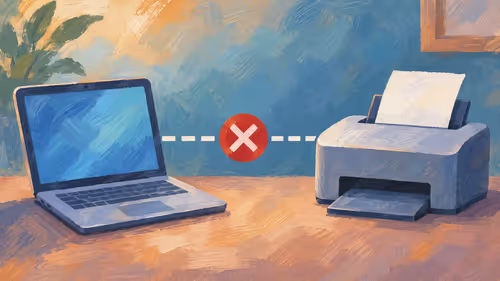
Wondering how to use 3 monitors with 2 ports is common, and the answer is yes: you need a third video output from somewhere, and there are four routes. Use a spare port on the motherboard, daisy-chain through DisplayPort, add a USB display adapter, or plug a laptop in through USB-C. Check which ports your graphics card and motherboard actually have before spending anything.
Quick Answer
Count every video socket on the PC, including the motherboard, since integrated graphics can drive a third screen. If none is free, a USB display adapter costs roughly R400 to R1,200 and suits documents and chat. A basic HDMI splitter will not work, because it only mirrors one picture. Read your exact model's manual for supported outputs.
🔍 Find the Third Output You Already Have
Start by looking at the back of the PC. A graphics card usually has one HDMI and up to three DisplayPort sockets. The motherboard has its own HDMI or DisplayPort outputs, but they only work if the processor has integrated graphics, and that is true of most mainstream Intel chips and many AMD ones with G in the name.
If your processor supports it, enter the BIOS and enable the multi-monitor or iGPU option, then plug the third screen into the board. Windows will see both the graphics card and the integrated graphics. The card drives your gaming monitor, and the third screen handles chat or documents.
Cards with more than two sockets are common, so also check whether you have a spare DisplayPort you missed. Verify with Settings, System, Display, and press Detect.
🔗 DisplayPort Daisy Chaining and USB Adapters
Some monitors have a DisplayPort out socket. With Multi-Stream Transport (MST), the first screen passes the signal to the second, and both run from one port on the PC. Both monitors need MST support, and the PC must be set to extend displays. Resolution and refresh rate share the available bandwidth, so high-refresh gaming on all three screens may not fit.
A USB display adapter is the simplest add-on. It plugs into a USB port and gives you an HDMI or DisplayPort output. These adapters use the CPU for rendering, so they suit office work, a chat window or a reference page. Video playback and fast games on that screen can stutter, so keep the busy window on your main monitors.
What does not work
- A plain HDMI splitter copies one image to two screens.
- A monitor stand with a USB hub holds screens but adds no video output.
- A cheap long cable can cap the resolution, so keep leads short.
For leads, adapters and docks, the monitor accessories category is a good place to compare.
💻 Laptops and Docks
A laptop with a USB-C port that supports DisplayPort Alt Mode can send a picture to one extra screen through a cable or a dock. A Thunderbolt dock may drive two. Look for the DisplayPort or lightning-bolt symbol next to the port, and read the manual for how many displays the laptop supports in total.
Set the displays in Windows with Windows key plus P, choosing Extend, then arrange the screens by dragging them in Display settings so the mouse moves in the order you sit.
🪑 Fitting Three Screens on a Small Desk
Many students in digs or res rooms work with a small desk. Use a clamp-on arm for each side screen, tilt them inward and keep one primary monitor centred in front of you. Arms beat deep stands because they free the desk surface, and a lighter 24-inch screen is easier to hold than a heavy 32-inch one. For the centre screen, a fast gaming monitor works well, with cheaper office screens on each side.
Check how the machine sleeps and wakes too. With three screens on two different graphics sources, a display can occasionally fail to return after sleep, and unplugging then replugging its lead or pressing Windows key, Ctrl, Shift and B usually wakes it. If the third monitor is a different size or resolution from the others, set its scaling separately under Display settings so text does not jump in size as the mouse crosses over. A 1080p side screen next to a 1440p main monitor is perfectly workable once scaling is set per screen.
Finally, choose cables sensibly: DisplayPort for higher refresh rates and HDMI for TVs, and check each port's version, since the old standards cap resolution.
Frequently Asked Questions
Can I use the motherboard port with a graphics card?
Often yes, if the processor has integrated graphics and the BIOS allows both. Enable the multi-monitor or iGPU option first.
What is DisplayPort daisy chaining?
A DisplayPort monitor with an out port passes the signal to the next screen using MST. Both monitors must support it.
Do USB display adapters work well?
For documents and chat, yes. They lean on the CPU, so video and fast games may stutter on that screen.
Will a splitter give me an extra screen?
No. A basic HDMI splitter only duplicates one picture. You need another output or a USB adapter.
Can a laptop drive a third screen over USB-C?
If the port supports DisplayPort Alt Mode, yes. Add a cable or dock and extend the desktop.
Ready to add the third screen?
Browse the monitor accessories category at Evetech for adapters, cables and arms, and pick the parts that fit your ports and your desk.