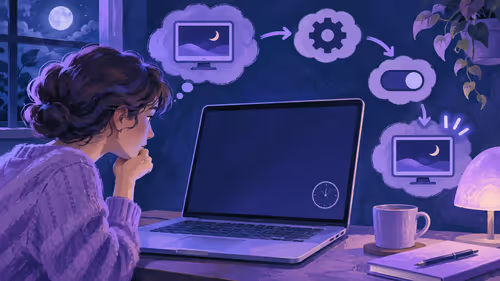
A beginner streaming setup for PS4 or its successors can be as small as a console, a controller and a live-stream option inside the console menu. No PC, no capture card, no extra cables. That route gets you on Twitch or YouTube tonight, and a capture card with OBS on a PC is the upgrade for when you want overlays and more control.
Quick Answer
Start with the console's built-in broadcast feature: sign in to Twitch or YouTube, press Share, and choose Broadcast Gameplay on a PS5, or use the Twitch app on an Xbox. When you want overlays and a facecam, add a capture card (USB models start in the low hundreds of rands) and run OBS on a PC. A starter streaming kit can begin near R199.
🎮 Streaming Straight From the Console
The no-cost method uses what the console already has.
- PS5: press the Create button, choose Broadcast, link Twitch or YouTube, set a title and go live. A headset mic lets viewers hear you, and a USB camera can add your face.
- Xbox: install the Twitch app from the store, sign in with a code, choose Broadcast and set your mic. Xbox also supports streaming through its own tools in some regions.
- Switch and handheld PCs: these usually need a capture card, because the built-in options are limited.
The quality will be basic. You have no custom scene, no chat on screen and few audio controls. But it teaches you pacing, talking and consistency, which matter far more than overlays in your first month.
🧩 When a Capture Card and OBS Make Sense
Add a capture card when you want a branded layout, a facecam, alerts or music control. Connect the console HDMI out to the card's input, then run the card's output to your TV or monitor, and connect the card to your PC by USB 3.0. In OBS, add the card as a Video Capture Device or Game Capture source.
If the picture is black on a PS5, the usual culprit is HDCP. Turn off HDCP under the console's system settings, and switch HDR off if the colours look washed out. The card must list console support and 1080p60 capture, so check the box before you buy.
A mid-range PC handles this, but your laptop may not if it is older, so test with a 10-minute recording first.
🎙️ Audio, Voice Chat and the Extras You Need
Good sound beats a sharp picture. Viewers forgive a soft image but leave when a mic crackles. A USB or headset mic around R400 to R1,500 is plenty to start, and a pop filter costs little. For a quiet desk, think about a boom arm so the mic sits near your mouth without picking up the keyboard.
Decide early how game audio and party chat will mix. On a console you can send chat to the stream, but you may want it quieter than the game. With OBS you control each channel separately.
Gear for beginners is gathered in the streaming essentials category, and if you want your face in the corner, a simple USB webcam is enough to begin.
📶 Your Internet Is the Real Limit
A stream is only as good as your upload. Run a speed test on your fibre line when you plan to go live. A line shared across a busy complex slows in the evening, and a cap on upload is the usual reason for buffering viewers. Use a network cable for the console or PC, as Wi-Fi in a flat with thick walls drops frames.
Frequently Asked Questions
Can I stream from a PS5 or Xbox without a PC?
Yes. Both consoles can broadcast to Twitch or YouTube using built-in features or an app. You will have basic controls, but it is a free way to start.
Why use a capture card with a console?
It lets a PC run OBS, so you get overlays, a facecam, alerts and separate audio control. The console feed simply travels through the card.
Why is my capture black on PS5?
HDCP protection is the most common cause. Disable HDCP in the console settings, confirm the right video source in OBS, and check the HDMI cable.
Does streaming from a console need good upload speed?
Yes. Aim for an upload comfortably above your stream bitrate, tested during evening peak. A wired connection is safer than Wi-Fi.
Can I add voice chat to the stream?
Yes. On a console, enable the chat mix option in the broadcast settings. With OBS, bring the headset audio in as its own source so you can lower it.
What else do I need to start?
A headset or USB mic, a stable connection, and a title and schedule. Overlays and a camera can wait until you have a few streams behind you.
Ready to take your first stream live?
Check out the Evetech streaming range for microphones, capture gear and lights that grow with your channel.