A live stream has more audio tracks competing for your headphones than almost any other recording scenario: your own mic, game audio, chat alerts, background music, and possibly a co-streamer. Most of that needs to reach you clearly without any of it bleeding into the mic or throwing off your delivery. Zero-latency 3.5mm monitoring is the foundation that makes a clean multi-source headphone mix possible, but the setup around it determines how well it actually works under stream conditions.
Quick Answer
Get the most from 3.5mm monitoring during streams by muting software monitoring in your DAW or OBS, balancing the interface mix knob so your direct voice sits evenly with game audio, and using a closed-back headset to stop mic bleed. The 0ms feed stays clean regardless of how busy the session gets.
🔧 Muting Software Monitoring and Why It Matters
The first configuration step is also the most commonly skipped. Software monitoring in OBS or a DAW routes your mic signal through the application and back to your headphones, adding 15ms to 30ms of delay depending on the buffer. When the hardware 0ms feed is also active, you hear two copies of your voice at slightly different times, which creates a flanging or chorus effect that becomes tiring within minutes.
Mute software monitoring in OBS via the Advanced Audio Properties panel, setting your mic source to Monitor Off. In a DAW, disable the input monitoring button on the mic track. Only the hardware feed should remain active. From that point the 0ms direct path is the only copy reaching your ears and the doubled voice disappears.
This change has no effect on what viewers hear. OBS captures the mic signal independently and sends it to the stream without involving the monitoring path at all.
⚡ Balancing the Mix Knob for Stream Use
Most interfaces offer a hardware mix control that blends the direct input signal against the playback signal coming from the computer, usually labelled Mix or Blend. At one extreme you hear only your direct mic feed. At the other extreme you hear only the software return, which includes game audio, alerts, and any music routed through the interface.
For streaming, a balanced position works better than either extreme. Setting the knob to roughly the midpoint allows your voice and your game audio to share the headphone output at similar levels. From there, adjust by feel: if game audio is too prominent and you are missing your own subtle pitch cues, nudge toward the direct input side. If you cannot hear the game well enough to make informed callouts, nudge toward the software return.
Chat alert volume should sit below both game audio and your voice. Loud alerts cause a flinch that the mic captures as handling noise. Route alert audio through an application with independent level control and set it audible but not startling.
Pro Tip ⚡
If you stream from a fixed location in Joburg or Cape Town and the room is reflective, position the interface mix so your monitoring voice is slightly quieter than you think you need. A quieter self-feed stops you from raising your delivery to compete with your own headphone level, which in reflective rooms keeps mic gain lower and room echo out of the recording.
✨ Closed-Back Headsets and Bleed Prevention
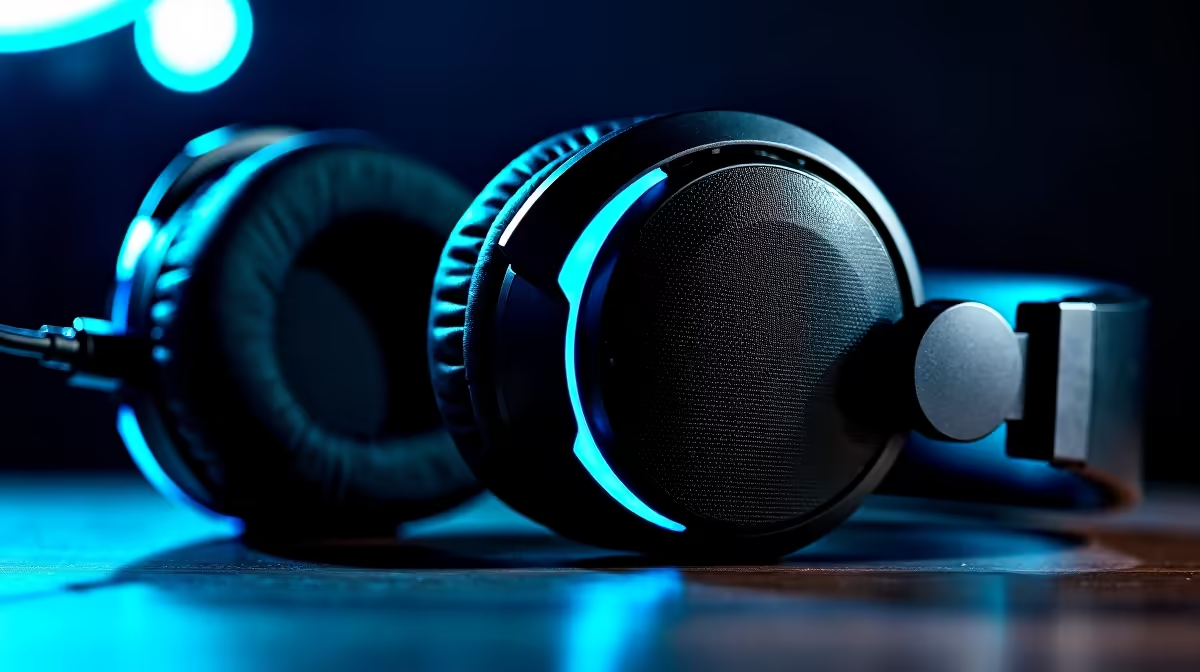
A closed-back headset does two jobs in a stream setup. It contains the headphone driver sound so it cannot reach the microphone capsule, and it reduces the amount of ambient room noise entering the ear so you can hear the monitor mix at a lower volume.
The containment benefit matters most when monitoring volume is high or when the game audio component of the mix includes explosive transients like gunfire. Without closed-back cups, those transients leak out of the headset and register on the mic if it is nearby, adding a faint but visible artefact in the waveform and a subtle background noise on stream.
Roughly 20dB of passive isolation is enough to prevent meaningful bleed in most home studio environments. Full around-ear earcups achieve this at most price points, including options under R600. The isolation benefit is consistent regardless of how aggressive the monitor mix volume is.
Open-back headphones are not suitable for this setup. Their superior soundstage and frequency response are advantages in critical listening, but the physical design routes driver sound directly toward the microphone, which cannot be corrected at the interface level.
🎯 Adding a Co-Streamer on the Same Feed
A physically present co-streamer can share the 3.5mm output via a passive splitter, giving both headsets the same 0ms mix for under R200. Both users receive an identical combined feed, so gain-matching the two microphone channels before the session starts keeps neither voice dominant. If per-person volume control becomes important, a small passive headphone amplifier with individual outputs sits between the interface and the headsets without converting the analogue signal or adding any latency.
Frequently Asked Questions
How do I balance my voice and game audio on the hardware monitoring feed?
Use the interface blend or mix control to set the proportion of direct mic versus software return. Start at the midpoint and adjust until both sit comfortably. The right ratio is whichever lets you monitor your own level accurately while still hearing enough game context to react and call.
Does a closed-back headset improve mic quality on stream?
Yes. Closed earcups stop headphone driver sound from reaching the microphone. On a sensitive condenser with high gain, even light bleed adds colouration to the captured signal. Around 20dB of passive isolation from closed-back cups prevents most of that leakage.
Can chat alerts be routed through the 3.5mm monitoring output?
Yes. Route alert audio through the PC's main output or a virtual device that feeds the interface's software return. It appears in the hardware blend at the software-return side of the mix knob. Set alert volume separately so notifications register without startling during quiet game moments.
Will 3.5mm monitoring conflict with my OBS audio setup?
No, provided OBS software monitoring is muted for the mic source. With both monitoring paths active simultaneously the signal doubles, creating a delay artefact. Muting OBS monitoring leaves the 0ms hardware feed as the only headphone path, while OBS captures and streams the mic without any change to viewer audio.
Is a splitter enough for a co-streamer on the same desk?
For a simple same-mix setup, yes. A passive splitter under R200 requires no extra hardware. If independent volume control becomes important, a small headphone amplifier with separate output knobs is the practical next step.
Ready to build a cleaner stream setup around zero-latency monitoring?
Browse audio interfaces and closed-back headsets with the hardware monitoring paths and isolation ratings that SA streamers need for a professional live sound.