


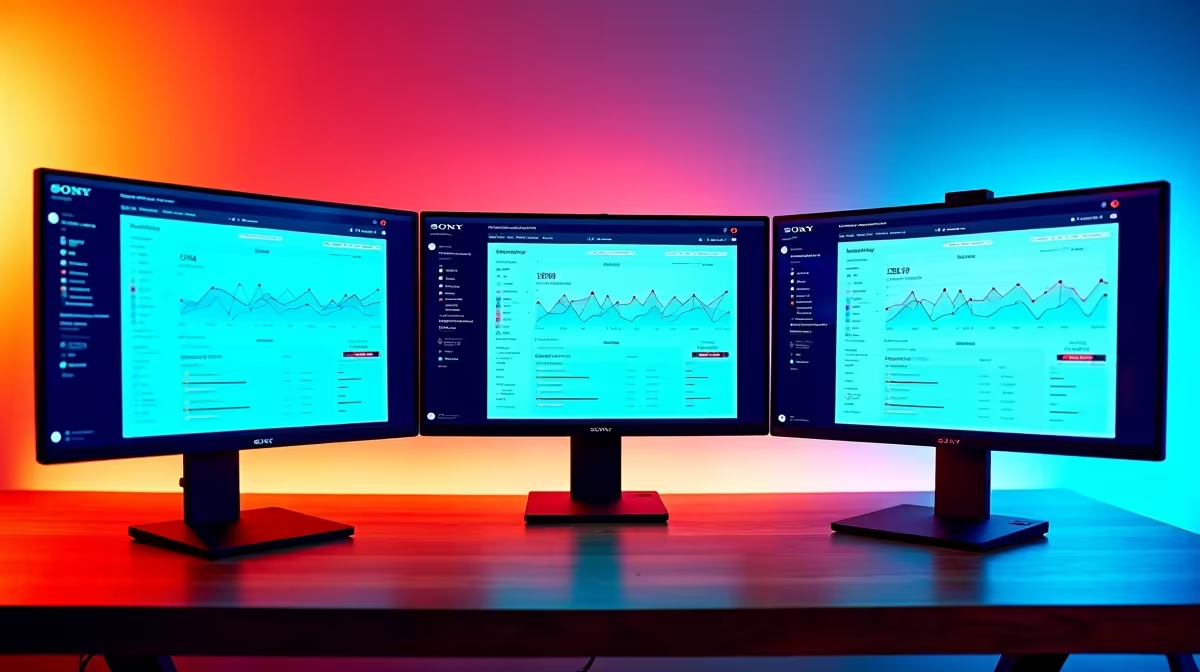
Running a single monitor in 2026 is leaving productivity on the table - whether you're a developer, creative professional, student, or remote worker, multiple screens dramatically reduce application switching time and expand your visible workspace. Setting one up correctly takes more than just plugging in a second display.
Quick Answer
How do I set up multiple monitors for productivity?: Connect your monitors via DisplayPort or HDMI, configure them in Windows Display Settings (Win + P or Settings > Display), set your primary display, arrange their virtual positions to match physical layout, and configure individual resolution and refresh rates per monitor.
🔧 Physical Setup and Cable Selection
Start with the right cables. DisplayPort is the gold standard for multi-monitor setups - it supports daisy-chaining on compatible monitors and handles high resolutions and refresh rates reliably. HDMI works well for secondary displays but check the version: HDMI 2.0 supports 4K at 60 Hz, while HDMI 1.4 is limited to 4K at 30 Hz or 1080p at 120 Hz.
Check how many outputs your GPU supports. Most mid-range GPUs have 3 DisplayPort outputs and 1 HDMI, allowing up to 4 simultaneous displays. Integrated graphics on Ryzen APUs and Intel processors typically support 2–3 monitors depending on the motherboard's port configuration.
Position your monitors ergonomically. For a dual-monitor setup, centre the monitor you look at most and angle the secondary display slightly toward you. For triple monitors, a monitor arm or dedicated stand keeps heights consistent and reduces neck strain during long work sessions.
📊 Windows Configuration
Once physically connected, right-click the desktop and select Display Settings. Windows shows each detected monitor as a numbered box. Drag these boxes to match your physical arrangement - if your second monitor is to the right, drag box 2 to the right of box 1. Mismatched virtual positions cause your mouse cursor to jump awkwardly when crossing monitor edges.
Set individual resolution and refresh rates: click each monitor and configure it under "Display resolution" and "Advanced display settings." Forcing a 1080p monitor to run at 1440p (or vice versa) degrades sharpness. Set each monitor to its native resolution.
Select your primary display - this is where the taskbar, system notifications, and app launches default to. Right-click the preferred monitor box and check "Make this my main display."
💡 Productivity Tips and App Configuration
Windows Snap (Win + Arrow keys) works across multiple monitors. Win + Left moves an app to the left half of the current monitor; Win + Shift + Left moves it to the monitor on the left. PowerToys' FancyZones tool (free from Microsoft) allows custom multi-monitor layouts with precise zone definitions.
For developers: put your code editor on the primary monitor and your browser or terminal preview on the secondary. For content creators: use the primary monitor for your editing timeline and the secondary for reference footage or palette tools. For students at SA universities: keep your lecture recording or notes on one screen and your active writing or research on the other.
If one monitor is a different size or DPI than the other, enable "Fix scaling for apps" in Display Settings to prevent blurry text when moving windows between screens.
❓ Frequently Asked Questions
Can I use two different-brand monitors in a multi-monitor setup? Yes. Windows handles mixed-brand, mixed-resolution setups without issue. You may notice colour or brightness differences between panels - calibrate each monitor individually for the most consistent look.
Does running multiple monitors significantly impact GPU performance? For gaming, running games on a single monitor while others display static content has minimal impact. If you're running GPU-intensive content on multiple screens simultaneously (like 4K video on both), you'll see more GPU load.
My second monitor isn't detected - what do I do? Check the cable connection, confirm the monitor is powered on and set to the correct input source. In Display Settings, click "Detect" to force Windows to scan for connected displays. If it still doesn't appear, try a different cable or port on your GPU.
Shop All Monitors and Graphics Card Deals at Evetech for fast delivery across South Africa.
Ready to Find Your Perfect Match? Shop at Evetech











