

Black Myth: Wukong 2 Ultrawide Support: 21:9 and 32:9 Setup Guide
Black Myth: Wukong 2 Ultrawide Support: 21:9 and. Clear setup instructions with SA-specific considerations, troubleshooting tips & recommended components.
Read moreDiscover why 120Hz 4K monitors are the sweet spot for gamers and professionals alike. Upgrade your setup for crisp detail and fluid motion. 🚀💻
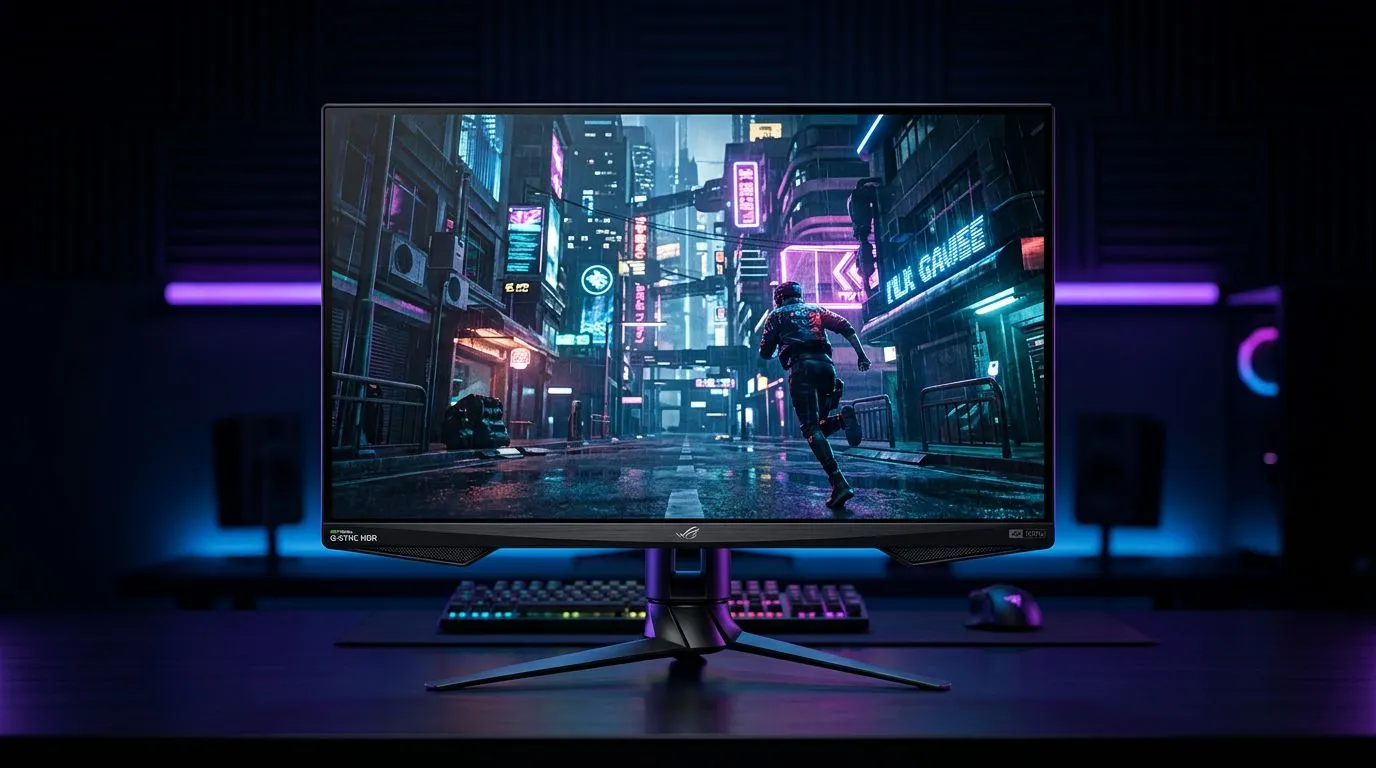
If you’ve ever squinted at pixel-poor UI after a long Valorant or FIFA session, you’ll understand the itch… You want sharp 4K detail, but you also want smooth motion. That’s exactly why 120Hz 4K Monitors: The Ultimate Balance for Gaming and Productivity are showing up in more local gaming setups. And no, you don’t need a NASA-grade PC to enjoy it. With the right settings and cables, you can game crisply and still knock out work faster.
A 120Hz panel doesn’t just improve gameplay feel… it also makes everything calmer. Mouse movements look steadier, scrolling is smoother, and video playback tends to feel more “alive”. For productivity, higher refresh rates can help with general responsiveness, especially when you’re switching between apps, editing clips, or working with timelines.
Now, 4K is the detail layer. Text looks cleaner, spreadsheets are easier to scan, and high-res assets don’t get as blurry. Put them together and you get a display that can pull double duty, instead of forcing you to choose: either a “pretty” monitor or a “smooth” one.
When shoppers compare monitors, they often focus only on “4K” and “120Hz”. The difference is usually in the fine print:
If you’re buying for mixed use (gaming + school + spreadsheets + editing), the “best” monitor is the one that stays comfortable and consistent.
Local availability varies week to week. If you see a deal on a 120Hz 4K display, it’s smart to confirm compatibility with your GPU and ports before committing. Evetech’s monitor categories make it easier to narrow down options quickly and spot current specials without doom-scrolling.
Not every “120Hz 4K monitor” is equally suited to every setup. Here’s a practical way to decide.
If your system can’t consistently push high frame rates, you won’t get the full benefit of 120Hz. Still, higher refresh can help with input responsiveness even when frames dip, but smoothness is best when your PC is strong enough.
If you’re building or upgrading, start with your gaming targets (1080p vs 4K, esports vs AAA, single-player vs competitive). Then choose a monitor that fits that goal.
Curved monitors can feel more immersive, especially for wide viewing. But they’re not always ideal for everyone, especially if you sit very close or share the desk. Flat panels are often the safest “work and game” compromise.
If you’re deciding on shape and gaming focus, you can browse specific options here:
For 4K, your eye benefits from clarity more than “giant size” alone. A huge screen can be amazing, but if you’re sitting too close, you’ll still feel cramped. Measure your setup, then compare monitor dimensions and stand footprint.
If you travel for work or you sometimes game at a second location, portability starts to matter. A portable monitor can also be a strong secondary screen for productivity. Evetech keeps options easy to browse: https://www.evetech.co.za/buy-portable-monitors/x/1590.aspx
This is where the “ultimate balance” idea becomes real. Hardware helps, but your workflow decides whether you actually benefit.
On Windows, use the PowerToys FancyZones utility to create custom snap layouts for your windows. It's a lifesaver for managing multiple apps on an ultrawide monitor, letting you organise your timeline, preview window, and asset folders perfectly for video editing.
Most people use one layout all day. Instead, try two simple modes:
This stops you from constantly tweaking settings and reduces the “why is my text different?” frustration.
Even if your monitor supports advanced picture modes, colour and brightness can drift depending on room lighting. If you’re working in mixed conditions, choose a preset that’s comfortable and avoid extreme brightness. Your eyes will thank you after a few long evenings.
A beautiful monitor won’t behave properly with the wrong cable or adapter. If you’re assembling a full setup, don’t treat accessories as an afterthought. If you need monitor essentials, browse these options: https://www.evetech.co.za/PC-Components/buy-monitor-accessories-368.aspx
Let’s talk deals, because in SA you have to be smart. A “good price” on one week can disappear the next. The best approach is:
If you want to compare current monitor options and pricing, start with these Evetech pages:
And if you specifically want the 5K/4K ecosystem for creators and serious detail work, check: https://www.evetech.co.za/buy-5k-4k-monitors/x/1591.aspx
If you do this once, you avoid the painful “it looks worse than my old monitor” situation.
Ready to Find Your Perfect Match? The Mac vs Windows debate is complex, but for maximum power, choice, and value in South Africa, Windows is hard to beat. Explore our massive range of laptop specials and find the perfect machine to conquer your world.
Yes, a 120Hz 4K monitor offers significantly smoother scrolling and window movement, which reduces eye strain and improves workflow efficiency during long work sessions.
Yes, pushing high frame rates at 4K resolution is demanding. Ensure your system features a top-tier GPU to fully utilize the 120Hz refresh rate in modern gaming.
Absolutely. The high pixel density provides precise detail for editing, while the 120Hz refresh rate offers fluid playback for high-frame-rate video projects.
The main benefit is the combination of ultra-sharp image clarity and fluid motion, providing a competitive edge in games and a premium experience in creative apps.
Yes, many modern 120Hz 4K monitors are perfect for both, supporting HDMI 2.1 to enable high-refresh-rate gaming on current-gen consoles alongside high-end PC performance.
No, resolution and refresh rate are independent. A 120Hz 4K monitor maintains 3840x2160 resolution while updating the screen twice as fast as standard 60Hz displays.
Black Myth: Wukong 2 Ultrawide Support: 21:9 and. Clear setup instructions with SA-specific considerations, troubleshooting tips & recommended components.
Read more
Setting Up HDMI 2.1 Cable. Tested & verified settings for best FPS and visual quality on SA hardware budgets.
Read more
Every spec on PCIe 5.0 explained in plain English. What matters for gaming and creator work in 2026, what's marketing fluff, and how each number translates to real-world performance.

A head-to-head look at WiFi 7: real-world performance, ZAR pricing and which option delivers better value for SA builders. The clear answer — no fluff.

Everything you need to set up and tune PCIe 5.0 properly: the prep work, the settings that actually matter, and the mistakes to skip. Written for SA builders in 2026.

Everything you need to set up and tune X870E Motherboard properly: the prep work, the settings that actually matter, and the mistakes to skip. Written for SA builders in 2026.

Wondering what a 512GB SSD capacity really holds? This guide breaks down how many games, photos, and documents fit on 512GB, with real-world ranges 📦💾

Every spec on vrm explained in plain English. What matters for gaming and creator work in 2026, what's marketing fluff, and how each number translates to real-world performance.

Every spec on motherboard explained in plain English. What matters for gaming and creator work in 2026, what's marketing fluff, and how each number translates to real-world performance.

Premium vs Midrange Motherboards in South Africa: real-world performance, SA pricing, power draw and which one delivers better value for your build for SA buyers. The clear answer — without the fluff.
Wondering what a 512GB SSD capacity really holds? This guide breaks down how many games, photos, and documents fit on 512GB, with real-world ranges 📦💾
Every spec on PCIe 5.0 explained in plain English. What matters for gaming and creator work in 2026, what's marketing fluff, and how each number translates to real-world performance.
A head-to-head look at WiFi 7: real-world performance, ZAR pricing and which option delivers better value for SA builders. The clear answer — no fluff.

Every spec on USB4 explained in plain English. What matters for gaming and creator work in 2026, what's marketing fluff, and how each number translates to real-world performance.