

AIO Liquid 240mm Setup and Configuration: Complete Tutorial
AIO Liquid 240mm Setup and Configuration. Clear setup instructions with SA-specific considerations, troubleshooting tips & recommended components.
Read moreOptimize your 14-inch WUXGA OLED laptop display for stunning visuals. 🎨 Learn expert tips on colour calibration, HDR settings, and essential eye care to boost productivity and gaming. 💻
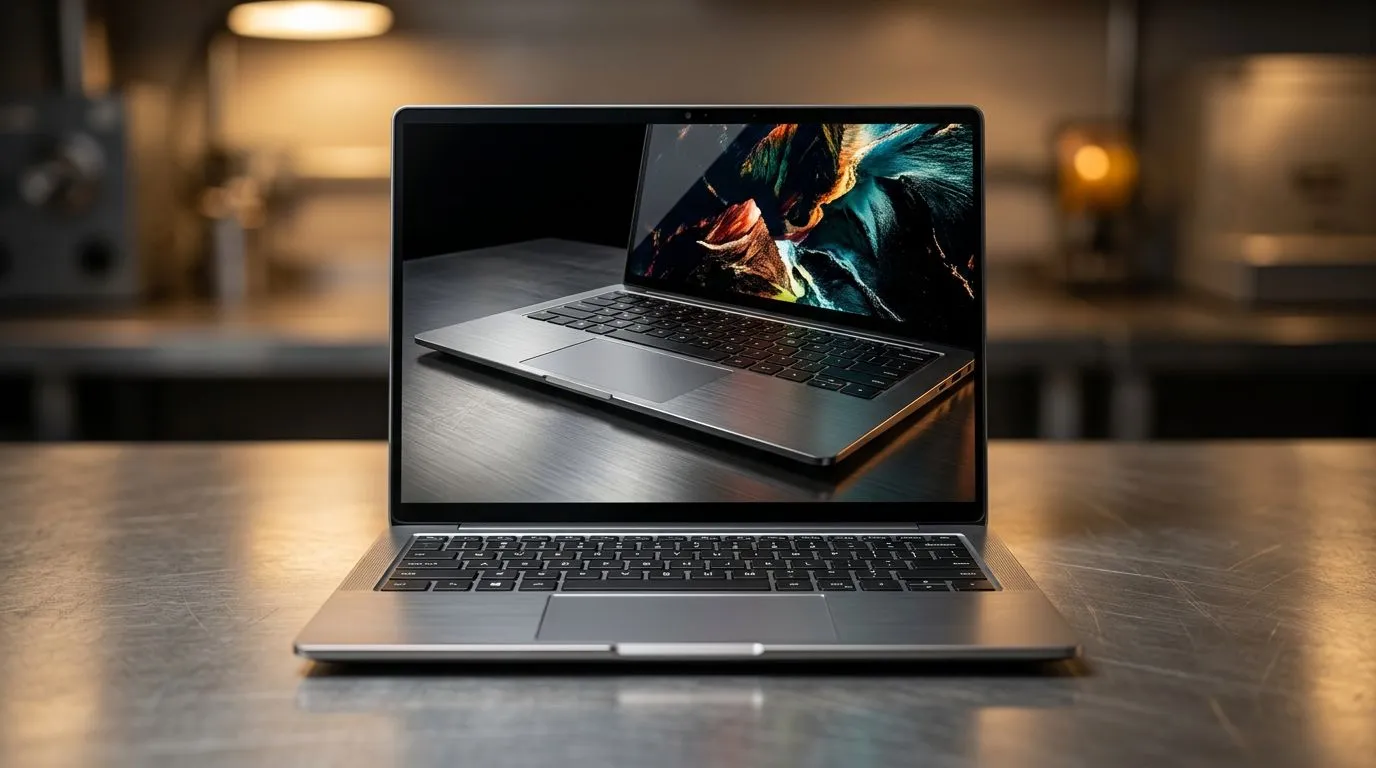
If you’re hunting for a portable screen that looks sharp without frying your eyes, a 14-Inch WUXGA OLED Laptop Display Guide: Calibration and Eye Care approach is exactly what you need. In South Africa, that matters… because load-shedding isn’t the only thing that drains you. Long gaming sessions, spreadsheets, and Discord scrolling can also do a number on your focus.
OLED brings deep blacks and punchy contrast, but how you set it up decides whether it feels effortless or exhausting. Let’s calibrate it properly, then protect your eyes so you can game, study, and create for longer. ✨
OLED pixels self-illuminate, so you get near-instant response and excellent contrast. The upside is huge. The catch is that brightness and colour settings can affect comfort, especially during late-night sessions.
For a practical starting point, treat your screen like a “lighting tool”:
You don’t need expensive gear to get 80% there. If your laptop supports built-in display profiles, use them as a base and then fine-tune.
Keep brightness around comfortable reading levels. In a bright room, go higher. In a darker room, drop it. The goal is consistent perceived comfort, not maximum “wow”.
Most laptops ship with modes like Standard, Vivid, Cinema, and sometimes “Game”. For eye comfort and colour accuracy, Standard or a custom mode usually wins.
Aim for neutral whites in daylight. Then create a second profile for evenings:
If your laptop’s software includes slider controls for colour temperature, use them. Avoid setting everything to maximum saturation. Games look good, but extreme modes can fatigue you faster.
Use:
Features like Flicker reduction and low-blue modes can help, but don’t assume “more is better”. If you notice washed-out colours, reduce the intensity.
On Windows, use the PowerToys FancyZones utility to create custom snap layouts for your windows. It's a lifesaver for managing multiple apps on an ultrawide monitor, letting you organise your timeline, preview window, and asset folders perfectly for video editing.
Eye comfort is habits plus settings. Here’s a routine that fits real gaming schedules.
Instead of a full 20 minutes, try micro-breaks:
In South Africa, home lighting is often bright and uneven. If your screen reflects lights:
OLED contrast is amazing. But don’t run ultra-bright scenes in a dark room. If you play in the evening, lower brightness and keep UI brightness balanced. Your eyes will thank you.
If you’re gaming in short bursts, don’t constantly crank brightness for every new match. Pick a comfort level you can stick to.
A good display is more than specs. It’s also how the laptop handles those specs in real life: colour profiles, brightness range, and software support.
Before you buy, check:
If you’re comparing AMD and Intel options or chasing deals in Rands, start with a curated list and then narrow down to models that clearly support display tuning.
Explore Intel laptop specials here: Intel laptops on special.
For Ryzen deals you can actually justify, see: Ryzen laptop deals.
If you’re specifically aiming at gaming laptops with strong display potential, check: best gaming laptop deals.
On a tighter budget (and yes, many SA gamers are right there), browse: buy gaming laptops under R20k.
Want Nvidia GeForce-focused options? This list helps: GeForce RTX gaming laptops on special.
Before your next session, run this quick checklist:
Do this once, and your OLED screen becomes something you enjoy… not something you endure. 🚀
Ready to Find Your Perfect Match? The Mac vs Windows debate is complex, but for maximum power, choice, and value in South Africa, Windows is hard to beat. Explore our massive range of laptop specials and find the perfect machine to conquer your world.
Use the Windows HDR Calibration app for HDR content or a hardware colorimeter for professional-grade colour accuracy across your WUXGA display.
OLED screens emit blue light, but you can mitigate eye strain by using Windows Night Light, adjusting brightness, and taking regular breaks.
Keep HDR disabled for general desktop use to save battery and reduce screen wear, but enable it when watching HDR movies or playing compatible games.
Prevent burn-in by using a dark mode theme, setting a short screen timeout, hiding the taskbar, and avoiding static images at high brightness.
Aim for 50-70% brightness for daily tasks to balance visual quality and longevity. Avoid 100% brightness unless necessary for outdoor viewing.
Yes, WUXGA (1920x1200) offers a perfect balance of sharpness and power efficiency, providing extra vertical space for productivity on 14-inch panels.
AIO Liquid 240mm Setup and Configuration. Clear setup instructions with SA-specific considerations, troubleshooting tips & recommended components.
Read more
Setting Up DDR5 64GB Kit. Tested & verified settings for best FPS and visual quality on SA hardware budgets.
Read more
Overwatch 2 Setup Guide Gamers. Clear setup instructions with SA-specific considerations, troubleshooting tips & recommended components.
Read more
R and RStudio on Mac: Data Science Setup Guide. Clear setup instructions with SA-specific considerations, troubleshooting tips & recommended components.
Read more
NVIDIA Broadcast Setup with GPU: Streamer Guide. Clear setup instructions with SA-specific considerations, troubleshooting tips & recommended components.
Read more
Core Ultra 7 265K Temperature Guide: Normal Range. Complete product range with SA pricing, key specs & recommendations for different budgets.
Read more
AMD RX 9050 XT: Rumoured Specs, Price & Release. SA-focused analysis with local pricing data, real-world insights & actionable buying advice.

Can RTX 4080 Super Run AI Workloads for SA Developers Detailed answer with SA data, expert analysis & practical recommendations for local buyers.

Can RTX 4090 Run AI Workloads for SA Developers Detailed answer with SA data, expert analysis & practical recommendations for local buyers.

Top Settings for Intel Arc B580 at Ultrawide 1440p picks evaluated on performance, value & SA availability with current Rand pricing from Evetech.

RTX 4060 CS2 Low Settings at 1080p: FPS Results. Real-world benchmark data, FPS numbers & performance analysis. What SA gamers can actually expect.

Visual Artifacts: Possible GPU Issue Issue #1. Diagnosis steps, proven fixes & when to seek professional help. SA-specific support info included.

Can the RTX 4090 Handle 1440p 144Hz Gaming. Performance testing verdict with real data & practical recommendations for SA buyers.

Top ASUS GPU Under R15000 picks evaluated on performance, value & SA availability with current Rand pricing from Evetech.

GTA 6 Max Settings on RTX 5070. Tested & verified settings for best FPS and visual quality on SA hardware budgets.

Cyberpunk 2077 Max Settings on RTX 5080. Tested & verified settings for best FPS and visual quality on SA hardware budgets.

Starfield Max Settings on RTX 5070 Ti. Tested & verified settings for best FPS and visual quality on SA hardware budgets.

Top RTX 5090 Under R5000 picks evaluated on performance, value & SA availability with current Rand pricing from Evetech.