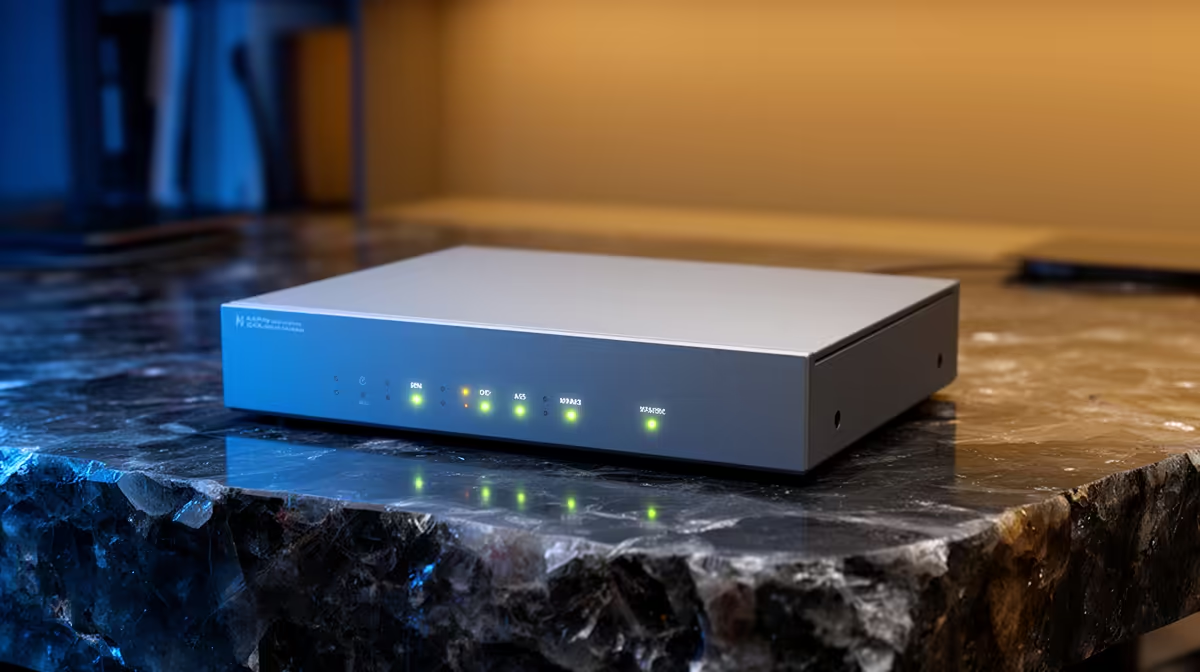
Your NAS can almost certainly move data faster than your network lets it. Most home setups are stuck at gigabit, which caps real transfers at around 110MB per second no matter how quick the drives inside are. A 2.5GbE switch lifts that ceiling to roughly two and a half times the speed, runs on the Cat5e cable already in your walls, and costs a small fraction of what a 10GbE setup demands.
Quick Answer
A 2.5GbE switch is the easiest meaningful speed upgrade for a home NAS in 2026. It delivers about 2.5 times gigabit throughput over existing Cat5e cabling, needs no rewiring, and sits at a price most home users can justify, unlike the far pricier jump straight to 10GbE.
Why Gigabit Is the Real Bottleneck
A modern NAS with SSDs, or even a few fast hard drives in a pool, can comfortably saturate a gigabit link and then sit idle waiting for the network. The drives are ready, the switch is not. Move to 2.5GbE and the same NAS suddenly pushes large file copies, photo libraries and video projects across the network noticeably quicker, because you have removed the slowest link in the chain rather than upgrading parts that were never the problem.
The Cat5e Advantage
The reason this upgrade is so painless is the cabling. 2.5GbE was designed to run over ordinary Cat5e, the cable already pulled through most homes and offices, so you do not touch the walls. Plug the new switch in, connect your NAS and PC with the network ports both already have or via cheap add-in adapters, and the link negotiates 2.5 gigabit automatically. Compare that to 10GbE, which often wants Cat6a runs, pricier network cards and switches several times the cost, and the case for 2.5GbE as the sensible middle step becomes obvious.
What You Need to Check First
Two things decide whether you see the full benefit. First, both ends of the link, the NAS and the computer, need a 2.5GbE port, either built in or added through an inexpensive USB or PCIe adapter. Second, the drives inside the NAS must be quick enough to feed the faster pipe, which means SSDs or a healthy multi-drive hard-disk pool rather than a single slow disk. Get both right and the switch does the rest. You can match it with the right diskless NAS units at Evetech and fill them from the SSD best sellers for drives fast enough to keep the link busy.
What to Look for in a 2.5GbE Switch
Port count and management features are the main decisions. A five-port unmanaged switch suits a simple home setup: plug in the NAS, one or two computers, and you are done. Eight-port models give room for more devices and are worth the small premium if you plan to add endpoints over time. Managed switches add VLAN support and traffic monitoring, which matters more in a home-lab or small-office context where you want to segment traffic or troubleshoot performance.
Many 2.5GbE switches also include a 10GbE uplink port, which connects the switch to a router or core switch at higher speed. For a home, this is rarely necessary, but it future-proofs the setup if you later move to a 10GbE backbone. Fanless designs are the norm at this price level, which keeps the switch quiet enough to live in a room without being noticed.
Endpoints: What Already Supports 2.5GbE
Most NAS units launched in 2024 and 2025 include at least one 2.5GbE port as standard, and many newer motherboards have followed. If your existing hardware does not, the fix is inexpensive: USB 3.0 to 2.5GbE adapters are widely available and install in seconds on a laptop or desktop without opening the case. PCIe adapters offer a cleaner internal solution for a desktop. Either way the cost is modest, which keeps the total upgrade spend low even when both ends need new adapters.
It is worth checking both ends before buying the switch, since a switch upgrade that is bottlenecked by gigabit endpoints will not deliver the full benefit. Confirm the NAS port and at least one client have 2.5GbE capability, or factor adapters into the budget alongside the switch.
Real-World Gains
In practice, copying a 50GB video project that crawled at gigabit speeds finishes in well under half the time on a 2.5GbE link, assuming the storage keeps up. Backups complete faster, editing directly off the NAS feels far more responsive, and several devices pulling from it at once no longer choke a single gigabit pipe. Real-world tests consistently show transfer speeds in the 260 to 300 MB/s range over 2.5GbE, versus roughly 110 to 120 MB/s on gigabit, which translates directly to shorter wait times on large jobs. For the modest outlay, it is the most cost-effective speed bump available to a home NAS owner this year.
Pairing With Wi-Fi 6 and Wi-Fi 7 Access Points
One underrated reason to move to 2.5GbE now is that Wi-Fi 6 and Wi-Fi 7 access points have outgrown gigabit uplinks. A capable Wi-Fi 6 AP serving a handful of devices can push 600 to 800 Mbps of real throughput back to the network, which leaves gigabit with almost no overhead for anything else on that switch port. Connecting those access points to a 2.5GbE switch eliminates the uplink congestion that turns a premium wireless setup into a gigabit bottleneck in disguise.
The same logic applies to any device doing simultaneous large transfers. Two computers each copying 500 Mbps to the NAS at once would saturate a gigabit link; on a 2.5GbE switch with 2.5GbE endpoints they each get the bandwidth they need without competing for the same bottleneck port.
Managed vs Unmanaged: A Closer Look
For a straightforward home NAS a simple unmanaged switch is the right call, but it is worth understanding what you give up so you can make an informed decision. An unmanaged 2.5GbE switch, such as the widely available TP-Link TL-SG105-M2 five-port or TL-SG108-M2 eight-port models, is plug-and-play. There are no settings to configure, no firmware to log into, and no traffic segmentation. It just connects devices and routes frames at line speed.
A managed 2.5GbE switch adds VLAN support, traffic prioritisation and per-port statistics. If you want to isolate IoT devices from the NAS, monitor which device is consuming the most bandwidth, or tag traffic for a more structured home-lab setup, the managed tier is where those features live. TP-Link Omada managed 2.5GbE switches are a commonly recommended option in the home-lab community, with web-based management and five-year warranties. The price gap over unmanaged has narrowed considerably in 2026, so if there is any chance you will want VLAN capability later, it is worth spending slightly more now rather than replacing the switch again when the need arises.
Frequently Asked Questions
Do I need new cabling for a 2.5GbE switch?
No. 2.5GbE runs over the Cat5e cabling already in most homes. That is the whole point of the standard and the reason this upgrade is so simple.
Will both my NAS and PC need 2.5GbE ports?
Yes, for the full speed. Many newer NAS units and motherboards include 2.5GbE, and where they do not, a cheap USB or PCIe adapter adds it to either end.
Is 2.5GbE worth it over jumping straight to 10GbE?
For most home users, yes. 10GbE usually means better cabling, pricier cards and a far more expensive switch. 2.5GbE delivers a real, noticeable boost at a fraction of that cost.
My drives are slow hard disks. Will I still benefit?
Partly. A single slow disk may not fully feed 2.5 gigabit, but a multi-drive pool or SSDs will. The switch removes the network limit, so the faster your storage, the more of the gain you keep.
Should I get a managed or unmanaged 2.5GbE switch?
For a straightforward home NAS setup, an unmanaged switch is simpler and cheaper. Go managed only if you want VLAN support, traffic monitoring, or plan to grow into a more complex home-lab network.
Ready to unstick your NAS? Pick a chassis from the diskless NAS range at Evetech and pair it with fast drives so a 2.5GbE link has something to move.