Quick audio wins for PS5 and Xbox Series X
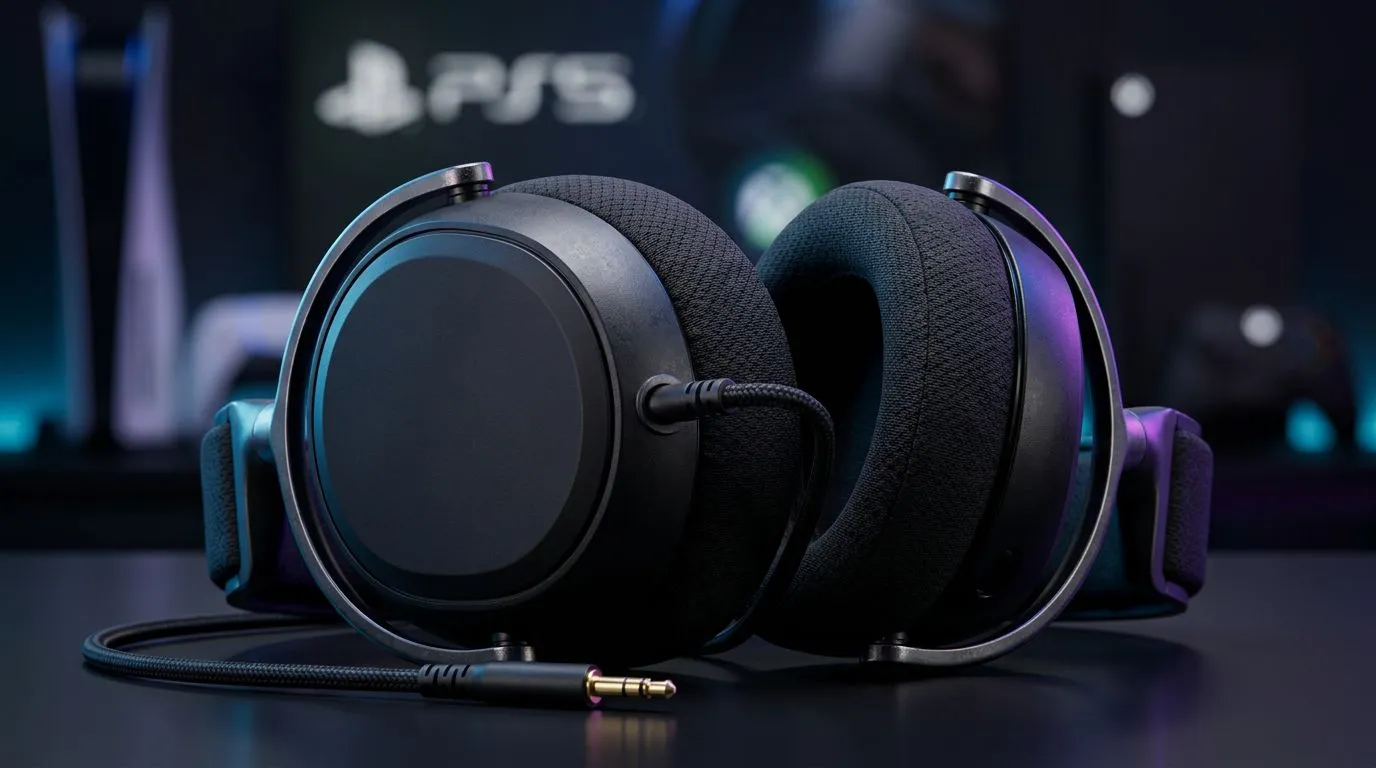
First up: you don’t need pro gear to get crisp game chat and balanced in-game sound. Plug a decent 3.5mm headset into your controller, tweak a couple of console settings, and you’ll be ready for raids or ranked play. This guide covers practical 3.5mm Headset Settings PS5 and Xbox Series X tips that South African gamers can use tonight 🔧🎧.
PS5: set the basics fast
- Plug your 3.5mm headset into the DualSense controller.
- Press the PS button > Settings > Sound. Under Output Device choose "Headset Connected to Controller".
- Open the Microphone settings and use "Adjust Microphone Level" to set clear voice volume. Keep your mic 2–3 cm from your mouth for best clarity.
- In Sound > Audio Output, tweak the "Chat Mixer" to favour game or chat volume depending on squad needs. If teammates complain you’re too loud, nudge chat volume down.
Pro tip: Some headsets have an in-line mic mute switch. Use it between matches.
Xbox Series X: controller jack and menu shortcuts
- Plug the 3.5mm headset into your Xbox controller jack.
- Press the Xbox button > Profile & system > Settings > General > Volume & audio output.
- Under Headset audio, choose the chat/game balance and enable features like Mic monitoring if your headset supports it. For positional accuracy, test "Windows Sonic" or "Dolby Atmos" in Headset format, but note these apply to the console’s processing rather than the 3.5mm wiring.
Small habit: test your mic in a private party before a competitive match to avoid awkward delays.
Audio Tip 🔧
Keep a spare set of headphones or a wired dongle in your kit. If your controller jack misbehaves, swapping cables or a headset often fixes issues faster than troubleshooting mid‑game.
Troubleshooting common 3.5mm issues
- No sound? Check the plug is fully seated and not using a TRRS adapter with the wrong wiring.
- One side only? Try another headset to isolate whether the headset or controller is faulty.
- Muffled voice? Clean the mic port and check the headset’s inline controls are not limiting volume.
If problems persist, consider a wireless option as a fallback for tournaments and stream sessions. For instance, the Razer Barracuda X Chroma wireless headset is a compact backup with low-latency options and multi-platform support — see the product page for specs and availability: Razer Barracuda X Chroma wireless headset (phantom white).
Gear upgrades and where to browse
If you want to upgrade beyond basic 3.5mm convenience, Evetech stocks a range of gaming headsets and accessories. Browse the Razer headphones and headsets category to compare features and find microphone and surround options that suit your style. For a broader search, check our full headphone and headset category to compare wired and wireless picks, all in one place.
Final checklist before you play
- Headset fully plugged in.
- Console output set to "Headset Connected to Controller".
- Chat Mixer balanced for teammates.
- Mic level adjusted and tested.
Ready to Find Your Perfect Match?
The Mac vs Windows debate is complex, but for maximum power, choice, and value in South Africa, Windows is hard to beat. Explore our massive range of laptop specials and find the perfect machine to conquer your world.