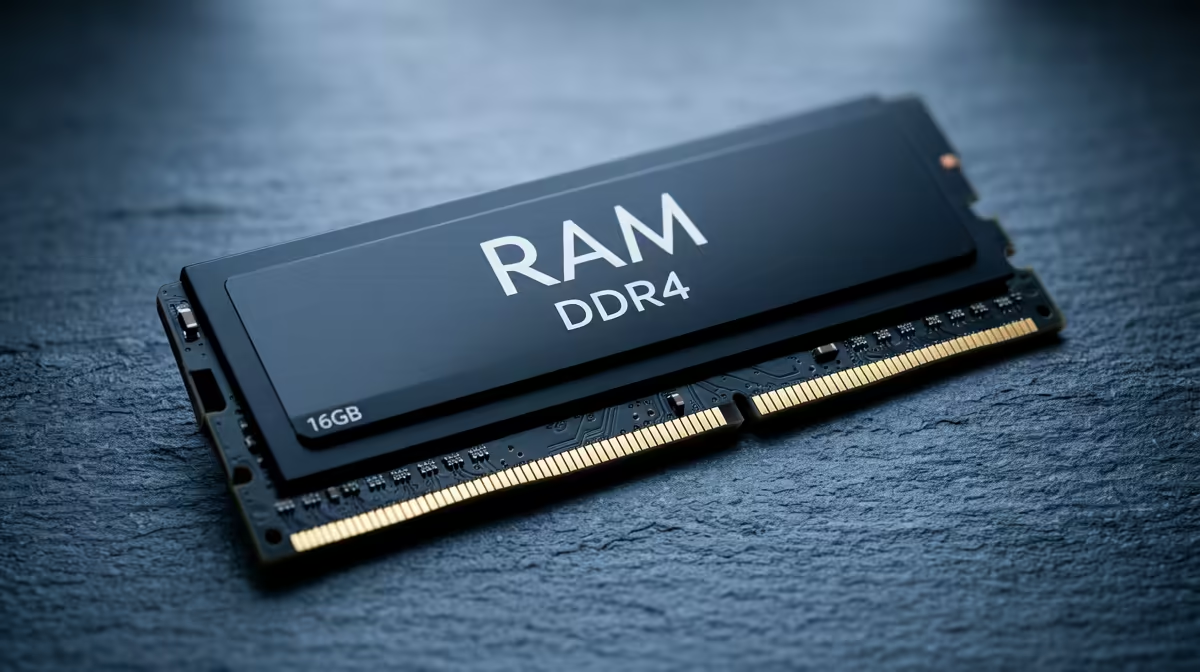
Spec a creator workstation and the RAM question lands fast: is 128GB genuinely needed, or is 64GB plenty for the money saved? The honest answer is that it depends entirely on whether you run one demanding app at a time or several at once. For most photo, design and 4K video work, 64GB is comfortable. The jump to 128GB earns its keep only when your machine is juggling heavyweight tasks simultaneously or chewing through enormous source files.
Quick Answer
For a creator workstation, 64GB comfortably covers photo editing, graphic design and 1080p to 4K timelines. Step up to 128GB when you run CPU renders in Blender alongside an active Premiere or Resolve session, or when you handle multi-stream 8K RAW footage. If you work one app at a time, 64GB is the smarter spend.
What 64GB handles without breaking a sweat
For a large share of creative work, 64GB is the comfortable middle, not a compromise. Photo editing in Lightroom or Photoshop, even with big layered files and many open images, sits well within it. Graphic design, illustration and page layout rarely come close to filling it. And video editing on 1080p and 4K timelines, with a reasonable number of effects and a few tracks, runs smoothly at this tier.
The key qualifier is sequencing. If you edit, then render, then move to the next task, 64GB rarely becomes the bottleneck. It is when several heavy apps stay open and active together that memory pressure builds, and that is the line where 128GB starts to matter.
It also helps to understand how the operating system uses spare RAM. Free memory is not wasted memory; the OS and creative apps cache project files, undo histories and timeline previews in whatever is available, which is why a machine with more RAM often feels snappier even on the same task. With 64GB that caching is generous for most single-app work. The benefit of going higher only appears once the genuine working set, the data the apps must keep live at once, exceeds what 64GB can hold, at which point the system starts evicting useful cache and eventually paging to disk.
When 128GB stops being overkill
There are clear workloads where 128GB is the correct call rather than a flex.
Simultaneous heavy applications
The classic case is running a CPU render in Blender while Premiere or DaVinci Resolve stays open with a loaded project. Each app wants gigabytes of headroom, and together they can push past 64GB, at which point the system starts swapping to disk and everything slows. With 128GB both can hold their working sets in memory at once, so a background render does not stall your editing.
Very high resolution footage
8K RAW is the other driver. Multi-stream 8K timelines, or grading high-resolution RAW with heavy caching, consume memory at a rate that 64GB cannot sustain comfortably. If your source material is 8K and you work with several streams, 128GB gives the cache room to keep playback responsive.
Large 3D scenes and simulations
Complex Blender scenes, fluid or particle simulations, and large texture sets are memory-hungry in their own right. A scene that fits in 128GB but not 64GB renders without paging, which keeps render times predictable and avoids out-of-memory failures partway through a long job. Simulations are especially demanding because they may need to hold many frames of computed data in memory at once, and an out-of-memory error several hours into a bake is exactly the kind of lost work that justifies the extra capacity.
Heavy compositing and motion graphics
After Effects and similar compositing tools cache rendered frames in RAM to give smooth previews. The larger the composition and the higher the resolution, the more memory those previews consume, and a long, layered comp can swallow whatever you give it. Creators who live in motion graphics often feel the 64GB ceiling sooner than video editors do, because the preview cache is so memory-driven. Here 128GB buys longer cached previews and fewer interruptions to re-render.
How much RAM your workload really uses
A practical way to settle the question is to watch your own memory use during a busy session. Open your usual apps, load a real project, and check how high memory climbs while you work the way you normally do. If you regularly sit near the top of 64GB with apps still open, you are a candidate for 128GB. If you rarely pass two-thirds of it, extra capacity would mostly go unused and those rands are better directed at a stronger GPU or faster storage.
This matters because RAM is one of the easier components to over-buy on paper. The marketing case for 128GB is always compelling, but memory only earns its cost when your actual working set needs it. A stronger GPU or quicker NVMe often delivers more noticeable day-to-day improvement than capacity you never fully touch.
How memory works with the rest of the build
RAM does not act alone. For GPU-accelerated work, your graphics card's VRAM often matters as much as system RAM, because effects, AI tools and viewport rendering lean on the GPU. A balanced workstation pairs generous system memory with a capable professional GPU rather than over-spending on one and starving the other. You can see how the two scale together across the workstation graphics card range at Evetech to find the natural partner to whichever memory tier you choose.
It is also worth thinking about upgrade path. If your motherboard has spare DIMM slots, starting at 64GB and adding more later is a valid plan, provided you buy a kit that leaves room to expand. If the board fills its slots at 64GB, you would have to replace the whole kit to upgrade, which can make buying 128GB upfront the cheaper route over the life of the machine.
Picking your tier in one line
Choose 64GB if you work largely one app at a time on photo, design or 4K video. Choose 128GB if you run multiple heavy apps together, edit 8K RAW, or build large 3D scenes. To see how complete builds are configured around each tier, the PC best sellers give a useful read on where most creators land.
Frequently Asked Questions
Is 64GB enough for 4K video editing?
Yes, for most 4K work 64GB is comfortable, including reasonably complex timelines with effects and several tracks. You hit its limits mainly when you run other heavy apps at the same time or move up to 8K source footage.
When do I actually need 128GB?
When you run demanding apps simultaneously, such as a Blender render alongside an active Premiere or Resolve project, or when you edit multi-stream 8K RAW. Those workloads push past 64GB and benefit clearly from the extra headroom.
Does more RAM make rendering faster?
Not directly. RAM stops the system swapping to disk when a job needs more memory than you have, which avoids slowdowns and out-of-memory failures. Render speed itself is driven more by your CPU and GPU.
Should I buy 128GB now or upgrade later?
If your motherboard has free slots and your kit leaves room, starting at 64GB and adding more is fine. If the board fills its slots at 64GB, buying 128GB upfront avoids replacing the whole kit later.
Does VRAM matter as much as system RAM?
For GPU-accelerated creative work, often yes. Effects, AI tools and viewport rendering lean on the graphics card, so a balanced workstation pairs generous system RAM with a capable professional GPU.
Building a creator workstation? Match your memory tier to a capable professional GPU from the workstation graphics card range at Evetech, and spec a machine balanced for the work you actually do.