

Complete Guide: Setting Up AIO Liquid 420mm
Setting Up AIO Liquid 420mm. Tested & verified settings for best FPS and visual quality on SA hardware budgets.
Read moreOur guide to ASUS GameVisual modes explained breaks down every preset from FPS to Cinema. Learn what each mode does, which is best for your games, and how to optimize your display for a competitive edge. Stop guessing and start winning with the perfect settings! 🚀🎮
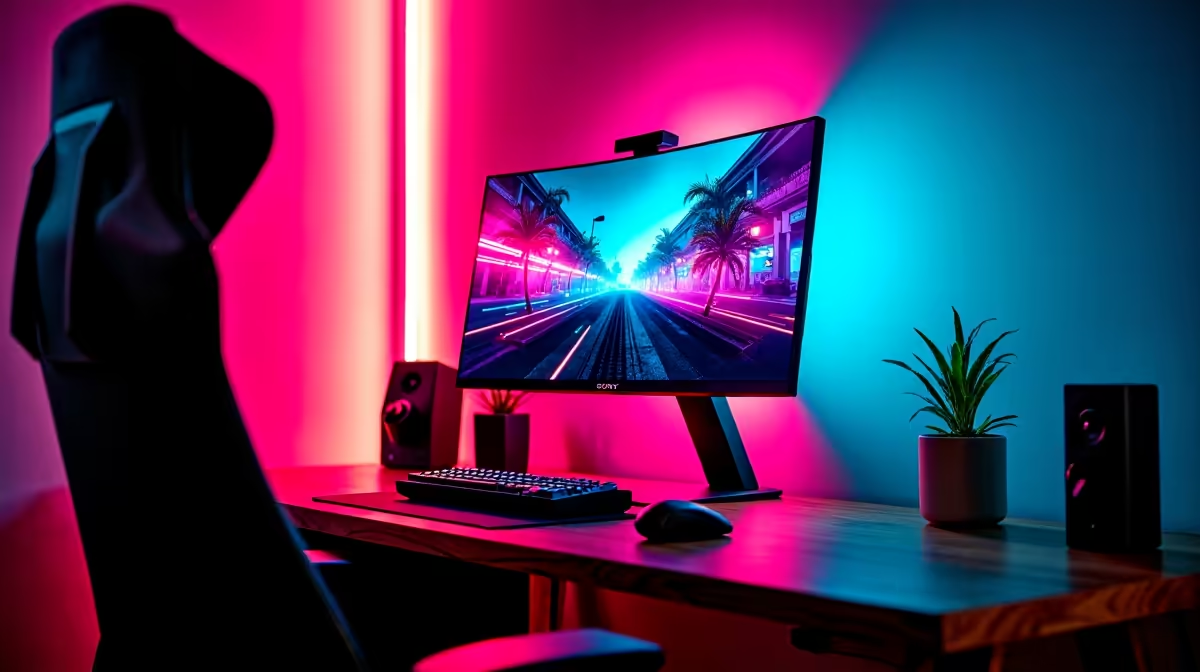
You've just unboxed a shiny new ASUS monitor, ready to dominate in Sandton or stream from Stellenbosch. But wait… the colours feel a bit flat in Apex Legends, or maybe the shadows in Elden Ring are swallowing everything whole. Before you dive into confusing calibration menus, the secret to a perfect picture is just a button press away. We're talking about ASUS GameVisual modes, the built-in presets designed to instantly optimise your display for any task.
Think of ASUS GameVisual modes as a set of expert-tuned colour and contrast profiles for your screen. Instead of you manually tweaking brightness, saturation, and gamma, ASUS has done the hard work. Each preset adjusts the display's characteristics to enhance specific visual elements, whether it's making enemies pop in a fast-paced shooter or bringing cinematic brilliance to a movie.
This technology is a standard feature across most of the brand's displays, from affordable entry-level options to the most advanced panels you'll find in our collection of all gaming monitors. Let's break down what each mode does and where it shines. ✨
Finding the best ASUS GameVisual mode is all about matching the preset to your content. While the names are a great guide, understanding the "why" behind each one will help you make the perfect choice every time.
This is your competitive edge. FPS (First-Person Shooter) mode boosts brightness and contrast to make enemies hiding in dark corners more visible. Colours are slightly more saturated so that character models stand out against the background. It's the ideal preset for titles like Valorant, CS:GO, and Warzone, where spotting your opponent a split-second earlier can mean the difference between victory and the Gulag. Check out some of the best PC monitor deals to find a screen with a responsive FPS mode.
Ready to hit the track in Forza Horizon or Assetto Corsa? Racing mode is built for speed. It reduces input lag to a minimum and enhances colour vibrancy to make the track and car liveries look brilliant. The result is a smoother, more responsive experience where you feel truly connected to the road. This mode pairs exceptionally well with immersive curved monitors for an unbeatable wrap-around view.
For grand strategy games like Civilization VI or sprawling worlds like The Witcher 3, this mode is king. It enhances the sharpness and colour performance of in-game elements, making units on the battlefield or details on your character's armour crisp and clear. The ASUS GameVisual setting for RTS/RPG (Real-Time Strategy/Role-Playing Game) ensures you don't miss a single detail in visually rich environments. It's a versatile choice for many titles in our full range of PC monitors.
For an even greater advantage, try pairing your chosen GameVisual mode with other ASUS features. For example, use FPS mode with ASUS Shadow Boost to make dark areas even brighter without overexposing the rest of the image. This powerful combo gives you maximum visibility in competitive games.
When it's time to kick back with a movie on Netflix or Showmax, Cinema mode delivers. It boosts contrast and colour saturation to create a more vibrant, cinematic feel, making films look rich and engaging. It's perfect for watching high-quality content, especially on the crisp panels of modern stunning 4K monitors.
Specifically tuned for Multiplayer Online Battle Arenas like Dota 2 and League of Legends. MOBA mode enhances the colours of your hero's health and mana bars, as well as their unique ability effects, making them stand out from the chaotic battlefield. This ensures you can track crucial information at a glance during intense team fights. It's even a great preset for when you're gaming on the go with handy portable monitors at a local LAN.
Scenery mode is perfect for viewing photos, offering a wider brightness range and more contrast gradations to bring landscapes to life. sRGB mode, on the other hand, is for the creators. It provides the best colour accuracy for tasks like photo editing, graphic design, or any work where seeing the "true" colour is critical.
The best way to discover your favourite ASUS GameVisual mode is simply to experiment. What works for one person might not be perfect for you. Cycle through the presets in your favourite game and see which one feels best.
Remember, a great display is the foundation of a great visual experience. Once you've mastered your presets, you might want to consider upgrading your setup with the right monitor accessories to complete your setup, like a quality VESA mount or calibration tool. Ultimately, these presets are powerful tools designed to help you get the most out of your hardware with zero fuss.
Ready to See the Difference? The right monitor can completely transform your gaming experience. ASUS GameVisual modes are just one feature that makes a modern display a must-have. Explore our massive range of PC monitor deals and find the perfect screen to bring your games to life.
For fast-paced shooters, FPS mode is best as it enhances brightness in dark areas. For strategy games, use RTS/MOBA mode to make colors more vibrant and hero health bars stand out.
Use sRGB mode for color-critical work like photo or video editing. It provides the most accurate color representation but may appear less vibrant for general gaming or media.
ASUS Racing mode is designed for fast-moving games. It reduces input lag and provides faster response times with vibrant colors, making it ideal for racing simulators and action titles.
You can typically disable ASUS GameVisual by navigating to the 'Color' or 'Image' section in your monitor's OSD (On-Screen Display) menu and selecting a standard or user mode.
Scenery mode is not ideal for competitive gaming. It boosts brightness, contrast, and color saturation to make landscapes look vivid, which can be great for open-world exploration.
ASUS Eye Care mode reduces blue light emissions and minimizes screen flicker to reduce eye strain during long sessions, making it perfect for reading, writing, or late-night browsing.
Setting Up AIO Liquid 420mm. Tested & verified settings for best FPS and visual quality on SA hardware budgets.
Read more
Intel XTU Download & Setup Guide: Intel CPU. Clear setup instructions with SA-specific considerations, troubleshooting tips & recommended components.
Read more
Cyberpunk 2077 Max Settings on RTX 4090. Tested & verified settings for best FPS and visual quality on SA hardware budgets.
Read more
The Complete Guide to GPU. Everything you need to know with SA pricing, step-by-step instructions & expert recommendations.
Read more
NVCleanstall Download & Setup Guide: NVIDIA. Clear setup instructions with SA-specific considerations, troubleshooting tips & recommended components.
Read more
to Driver Installation for Beginners. Everything you need to know with SA pricing, step-by-step instructions & expert recommendations.
Read more
AMD RX 9050 XT: Rumoured Specs, Price & Release. SA-focused analysis with local pricing data, real-world insights & actionable buying advice.

Can RTX 4080 Super Run AI Workloads for SA Developers Detailed answer with SA data, expert analysis & practical recommendations for local buyers.

Can RTX 4090 Run AI Workloads for SA Developers Detailed answer with SA data, expert analysis & practical recommendations for local buyers.

Top Settings for Intel Arc B580 at Ultrawide 1440p picks evaluated on performance, value & SA availability with current Rand pricing from Evetech.

RTX 4060 CS2 Low Settings at 1080p: FPS Results. Real-world benchmark data, FPS numbers & performance analysis. What SA gamers can actually expect.

Visual Artifacts: Possible GPU Issue Issue #1. Diagnosis steps, proven fixes & when to seek professional help. SA-specific support info included.

Can the RTX 4090 Handle 1440p 144Hz Gaming. Performance testing verdict with real data & practical recommendations for SA buyers.

Top ASUS GPU Under R15000 picks evaluated on performance, value & SA availability with current Rand pricing from Evetech.

GTA 6 Max Settings on RTX 5070. Tested & verified settings for best FPS and visual quality on SA hardware budgets.

Cyberpunk 2077 Max Settings on RTX 5080. Tested & verified settings for best FPS and visual quality on SA hardware budgets.

Starfield Max Settings on RTX 5070 Ti. Tested & verified settings for best FPS and visual quality on SA hardware budgets.

Top RTX 5090 Under R5000 picks evaluated on performance, value & SA availability with current Rand pricing from Evetech.