Driving four external screens off a single laptop sounds like it should be a settings toggle, but on Apple silicon the details decide whether it works at all. The M5 Max MacBook Pro can run up to four external displays, and the trick is that the fourth one is not a straight plug-in. It comes from daisy-chaining a second monitor through a Thunderbolt 5 port on the first display. Get the port spec right and you have a genuine four-screen workstation. Get it wrong and the fourth panel simply will not appear.
Quick Answer
The M5 Max MacBook Pro drives up to four external displays. Three connect directly to the laptop's ports, and the fourth is added by daisy-chaining it through a Thunderbolt 5 pass-through port on one of the primary monitors. The spec to verify before buying is Thunderbolt 5 (or Thunderbolt 4) pass-through on at least one of your displays.
How the M5 Max Reaches Four Screens
The M5 Max has the display controllers and bandwidth to push four external panels, but the MacBook Pro chassis does not give you four equal video ports for them. You have three Thunderbolt ports plus HDMI. The clean way to hit four monitors is to use the Thunderbolt ports for the first displays and then chain the final monitor off the back of a Thunderbolt-equipped display rather than off the laptop directly.
This is why two buyers with the same laptop can have completely different experiences. One bought four standard monitors and can only light up three. The other bought displays with Thunderbolt pass-through and runs all four. The laptop never changed; the monitors did.
The Critical Spec: Thunderbolt Pass-Through
Why Daisy-Chaining Matters
A monitor with Thunderbolt pass-through has an input and an output. The signal for that monitor and the next one in the chain travels down a single cable from the laptop, and the first monitor forwards what the second one needs. That is what lets you reach a fourth display without running out of ports on the MacBook itself.
When you shop, look for a display that explicitly lists Thunderbolt 5 or Thunderbolt 4 with a downstream port. USB-C displays without Thunderbolt generally cannot pass a second independent display signal along the chain, which is the most common reason a four-monitor setup quietly fails.
Matching Resolution and Refresh
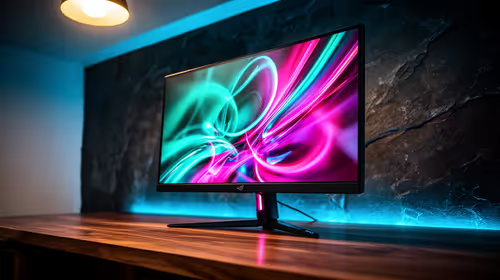
Four panels share the available bandwidth, so plan resolution and refresh together. Four 4K screens at high refresh is demanding; a mix of resolutions is often the practical choice. For coding, design, and reference-heavy work, several sharp 4K panels at 60Hz are usually more useful than chasing high refresh on every screen. Decide what each screen is for before you decide its specs.
Building the Four-Display Layout
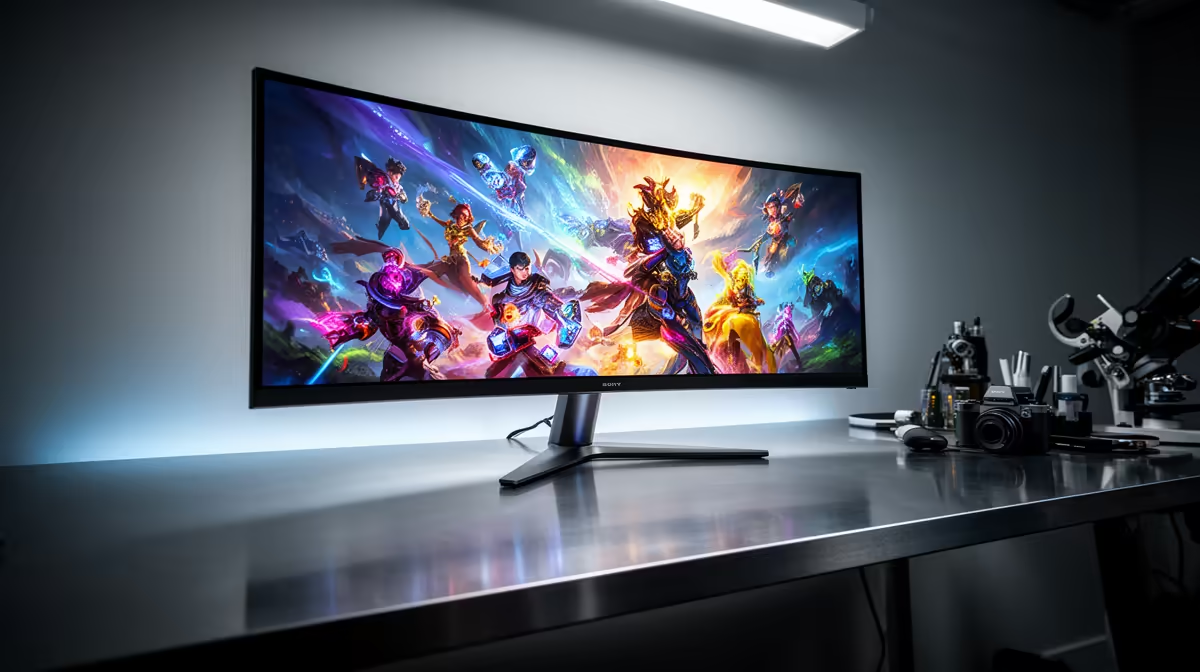
A workstation that earns four screens usually splits roles: a main 4K or 5K panel dead ahead for primary work, one or two flanking screens for reference, communication, and timelines, and a fourth for monitoring, previews, or system tools. Portrait orientation on one screen suits long documents and code, which is easy to set per-display in macOS.
Cable management deserves a moment too. The fewer cables back to the laptop, the cleaner the desk, which is the underrated upside of daisy-chaining: one Thunderbolt run can serve two displays. If you are still choosing the MacBook configuration itself, the MacBook Pro models at Evetech list the chip and port options that determine how many screens you can drive.
Single-Cable Four-Display Docks
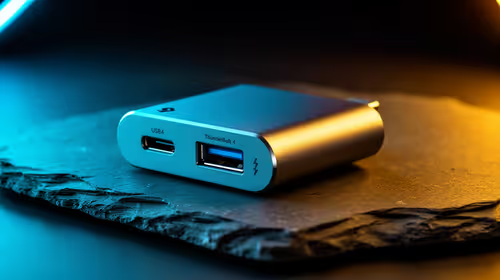
The daisy-chain method above requires careful monitor selection, but an alternative route exists for those who want simpler cabling. Certain Thunderbolt 5 docks, built around a double-Thunderbolt-controller architecture, expose enough video-capable downstream ports to connect all four displays directly to the dock itself, removing the daisy-chain requirement entirely.
The trade-off is cost. These docks sit at the higher end of the market. For a permanent desk setup where the price is amortised over years, the cleaner cabling and simpler troubleshooting can justify the premium. For a more portable or cost-sensitive setup, the daisy-chain route with a Thunderbolt 5 pass-through display is the practical standard.
Dock bandwidth and display count
M5 Pro MacBook Pro models can also drive up to three external displays through a single Thunderbolt port, which is a significant upgrade from the two-display ceiling of the previous M4 generation. Owners of M5 Pro models do not need to daisy-chain for three screens, only for four. The fourth screen remains the M5 Max's exclusive territory given its additional display controllers and bandwidth headroom.
Who This Setup Is For
A four-display M5 Max rig is overkill for general use and exactly right for a specific crowd: developers juggling code, logs, and a browser; video and photo editors who want timeline, preview, scopes, and library visible at once; finance and data professionals tracking multiple live views. If you only need two or three screens, you can skip the Thunderbolt pass-through requirement entirely and save money. If you want to see which displays other professionals are pairing with their machines, the best-selling laptops and workstation gear at Evetech is a useful starting point.
Frequently Asked Questions
How many external monitors can the M5 Max MacBook Pro really drive?
Up to four external displays. Three connect directly to the laptop's ports, and the fourth is added by daisy-chaining through a Thunderbolt pass-through port on a primary monitor.
What is the one spec I must check before buying?
Thunderbolt 5 or Thunderbolt 4 pass-through (a downstream port) on at least one display. Without it, you cannot daisy-chain, and the fourth screen will not be detected.
Can I use plain USB-C monitors for all four?
Usually not for the full four. Standard USB-C displays typically cannot forward a second independent video signal, so they cannot complete a daisy-chain. They work fine as directly connected screens within the first three.
Will running four screens slow the laptop down?
The M5 Max is built to handle four displays, but four high-resolution, high-refresh panels share bandwidth and draw on the GPU. For most professional work, mixing 4K at 60Hz across the screens keeps everything smooth.
Can one of the four monitors be in portrait orientation?
Yes. macOS lets you rotate any connected display individually, so you can set one screen to portrait for documents or code while the others stay landscape.
Planning a four-screen M5 Max workstation? Start with the right machine in the MacBook Pro range at Evetech, then build out your displays around Thunderbolt pass-through.