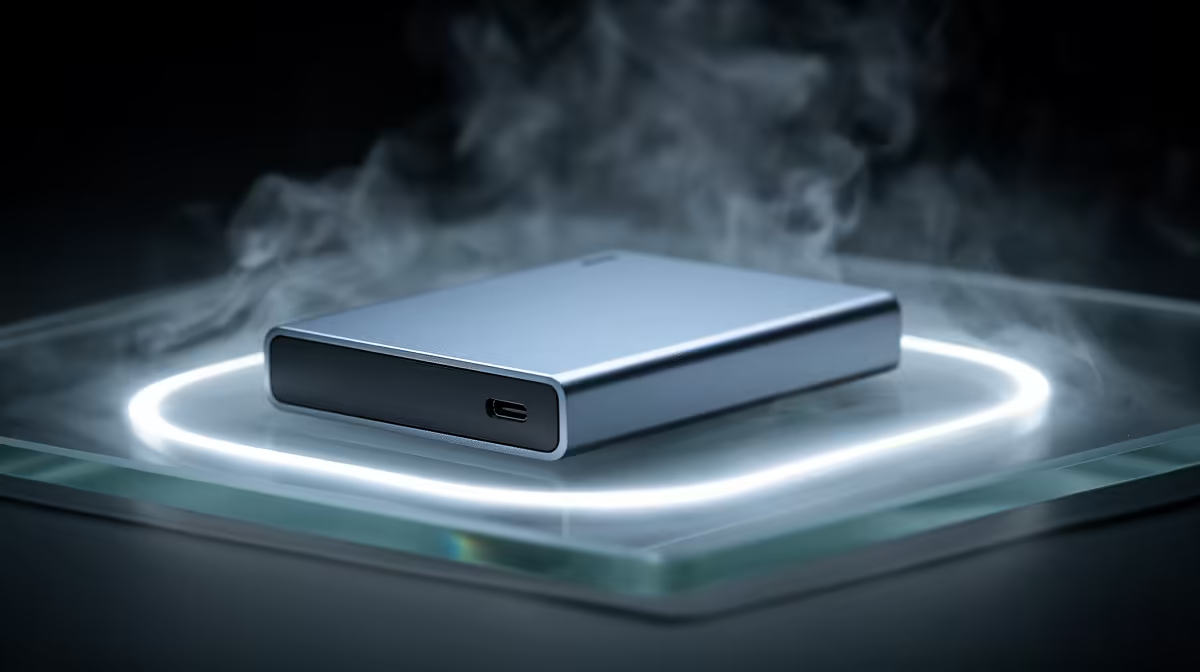
Editing 4K footage straight off an external drive only works if the drive can keep up with the timeline, and most cannot. The fastest option on the market right now, the LaCie Rugged SSD Pro5, reaches around 6,700MB/s over Thunderbolt 5, which is enough to scrub 4K ProRes and even 8K timelines without proxies. But raw speed is only half the answer. The best external SSD for 4K video editing on a MacBook is the one whose interface actually matches the port on your machine.
Quick Answer
For a current Thunderbolt 5 MacBook Pro, the LaCie Rugged Pro5 at roughly 6,700MB/s lets you edit 4K and 8K directly off the drive. On an older Thunderbolt 4 or USB-C MacBook you will be capped lower, so the right buy is the fastest drive your port can feed, not the fastest drive on the shelf. Match the interface first, then the capacity.
Match the Drive to Your MacBook's Port First
The single most expensive mistake is buying a drive faster than your MacBook can talk to. The port generation sets the ceiling, and a Pro5 plugged into an older port will run at that older port's speed, not its own.
Know which port you have
The latest MacBook Pro models ship with Thunderbolt 5, which is what unlocks the Pro5's full 6,700MB/s. The previous generation used Thunderbolt 4, which tops out around 40Gbps and delivers roughly 3,000MB/s in practice. MacBook Air models and some configurations use USB-C ports that may run at USB 3 speeds despite the identical connector shape, which is the trap that catches most buyers.
Why the shape lies
USB-C is a connector, not a speed. A USB-C port might be Thunderbolt 5, Thunderbolt 4, or plain USB 3, and they look identical. Check your specific MacBook model's specification before buying, because the same drive behaves completely differently behind each one.
If you are choosing the MacBook itself around an editing workflow, the MacBook range at Evetech lays out which models carry which port generation so you can pair the drive correctly.
What 4K and 8K Editing Actually Demands
Editing performance off an external drive is about sustained read and write speed, not the burst figures on the box. Different codecs ask very different things of a drive.
ProRes is the heavy lifter
4K ProRes 422 HQ runs into the high hundreds of megabytes per second per stream, and the moment you stack two or three layers, add effects, or move to 8K, you are well into the thousands. This is exactly where Thunderbolt 5 bandwidth earns its keep, because the drive never becomes the thing holding your scrub bar back.
Compressed codecs are gentler
If you shoot H.265 or other heavily compressed formats, the data rate per stream is far lower, and a Thunderbolt 4 or fast USB-C drive can handle straightforward 4K edits comfortably. You only truly need 6,700MB/s when you are layering high-bitrate ProRes or 8K, so be honest about your real workload before paying for the top tier.
Sustained speed matters more than burst
Manufacturers quote a peak figure that a drive can hit for a few seconds before its cache fills and the speed drops. For video editing, what you feel is the sustained rate the drive holds while reading a long timeline, not that opening burst. A drive that starts fast and then sags will stutter on a heavy scrub, so look for reviews that test sustained throughput rather than trusting the headline number alone. The better TB5 drives, including the Pro5, hold their speed far longer than budget alternatives, which is part of what the premium pays for.
Speed, Durability and Capacity Trade-offs
The Rugged line is built for people who shoot on location, with drop and crush resistance that matters if your drive lives in a camera bag bouncing around a shoot in the Karoo or on a wedding job. That ruggedness is part of what you are paying for, alongside the raw throughput.
On capacity, video fills space brutally. An hour of 4K ProRes can run into hundreds of gigabytes, so size your drive to a full project plus headroom rather than buying the smallest model and constantly offloading. A 2TB drive is a sensible floor for active 4K work, with 4TB more comfortable if you keep multiple projects live.
Speed also helps with offloading: dumping a full day of footage onto a fast drive at the end of a shoot saves real time over a slow USB stick. For comparing which portable machines and accessories pair well with this workflow, the best-selling laptops at Evetech are a useful reference point for current MacBook and rival pricing.
Who Should Buy What
Buy the LaCie Rugged Pro5 if you have a Thunderbolt 5 MacBook Pro and you cut high-bitrate ProRes or 8K, where its 6,700MB/s is genuinely used. Pairing it with an older port wastes the premium.
If you are on a Thunderbolt 4 machine, a strong Thunderbolt-rated SSD around 3,000MB/s gives you everything the port can carry for far less money. And if your MacBook only has USB 3 speed ports, a quality USB SSD handles single-stream 4K editing without you overpaying for bandwidth you cannot reach.
Frequently Asked Questions
Do I really need 6,700MB/s to edit 4K on a MacBook?
Only for the heaviest work. Multi-layer ProRes and 8K timelines benefit from that speed, but a single stream of compressed 4K runs fine on a 3,000MB/s drive. Buy for your actual footage, not the top number.
Will the LaCie Rugged Pro5 work on an older MacBook?
Yes, it is backward compatible, but it will run at the older port's maximum speed, not its own. On Thunderbolt 4 you will see roughly 3,000MB/s, so the full benefit only appears with Thunderbolt 5.
How do I tell which Thunderbolt version my MacBook has?
Check the technical specification for your exact model, since the USB-C connector looks identical across Thunderbolt 5, Thunderbolt 4, and USB 3. The port generation, not the plug shape, decides your real speed.
What capacity should I get for 4K editing?
Start at 2TB for active 4K work, since an hour of ProRes can consume hundreds of gigabytes. Step up to 4TB if you keep several projects open at once and want to avoid constant offloading.
Can I edit directly off the external drive or should I copy locally first?
With a fast Thunderbolt drive you can edit directly off it, which is the convenience these SSDs are built for. Just keep a second copy elsewhere, because a single working drive is a single point of failure.
Pairing a new SSD with the right Mac is half the battle. Compare port generations across the MacBook range at Evetech, then match your drive to the machine for full-speed 4K editing.