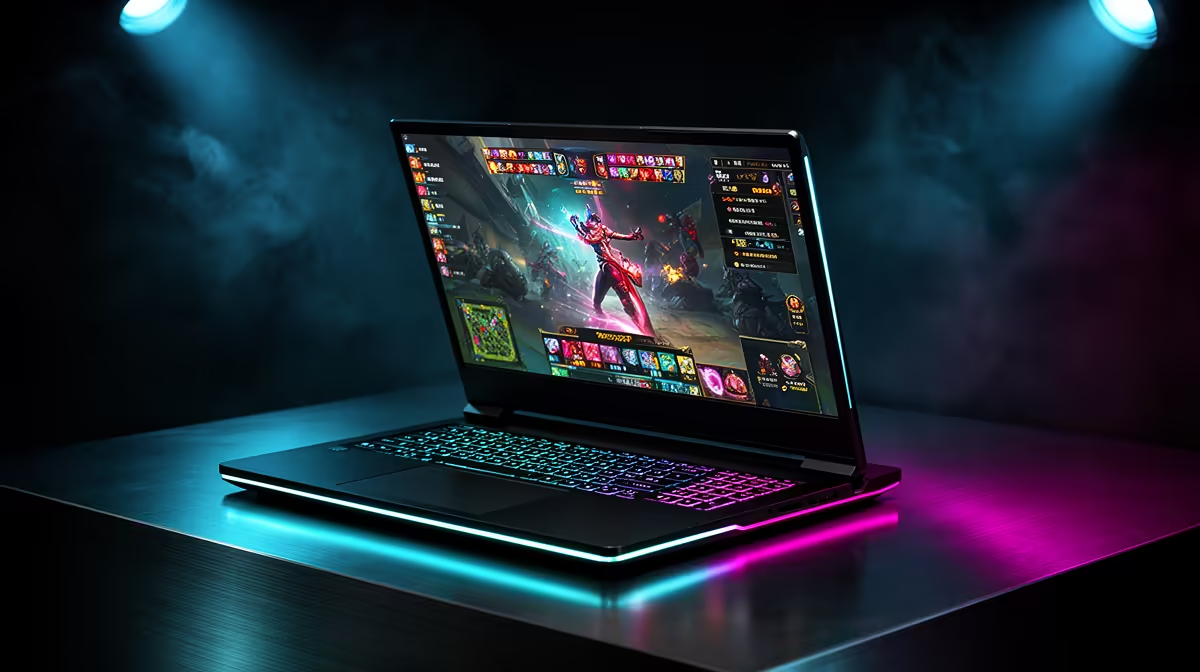
Valorant is easy to launch and much harder to drive at a steady competitive frame rate. A gaming laptop aimed at 240 Hz or more needs strong CPU frame delivery, a fast panel and cooling that holds clocks after the first match. A flagship GPU is rarely the first requirement.
Quick Answer
Choose a recent gaming laptop with strong per-core CPU performance, dual-channel memory, a dedicated GPU and a measured fast display. Match the frame-rate target to the screen: 144 Hz is accessible, while 240 Hz and above demand better CPU and thermal behaviour. Use current exact-model tests instead of buying from the GPU name alone.
Start with the screen target
A 144 Hz panel can show a new frame every 6.9 milliseconds. At 240 Hz that window falls to about 4.2 ms. The laptop must deliver frames consistently inside that time for the display to earn its place.
Average fps is only one number. One-percent lows and frame-time spikes decide whether a fast flick feels clean during a crowded execute. Look for tests that run a repeatable match or practice sequence after the laptop has warmed.
Panel response matters beside refresh rate. Slow pixels can blur motion even at 240 Hz. Check measured transitions, overshoot and input delay on the exact panel, because one laptop family can ship with several screen options.
Valorant often leans on the CPU
At competitive low settings, the GPU has less work and the processor becomes more visible. Fast cores, cache and memory latency can lift the frame-rate ceiling. A large core count built for rendering does not guarantee the best game result.
Laptop processor names also hide power limits. Two machines with the same CPU can hold different clocks after ten minutes because their cooling and firmware differ. Use complete-laptop benchmarks rather than a generic processor chart.
Background software competes for CPU time. Browser tabs, RGB utilities, recording and voice chat should be included in a realistic test.
Start with laptops buyers currently favour, then inspect the gaming notebook selection for the exact CPU, GPU, memory and panel.
The GPU still sets useful limits
A dedicated GPU gives Valorant plenty of headroom at 1080p and supports high-refresh external displays. Mid-range mobile graphics can be enough for competitive settings. Higher tiers make more sense when the laptop must also run demanding single-player games, stream at high quality or drive a higher-resolution screen.
Check graphics power, not just the RTX or Radeon tier. Mobile GPUs can operate across a range of wattages. A well-cooled mid-range configuration can stay close to a higher label running at a low limit.
Keep the laptop plugged into its supplied adapter for play. Battery mode reduces CPU and GPU power and can cap performance.
Memory layout affects high-frame-rate play
Sixteen gigabytes is a practical starting point for Valorant with normal background tools. Two suitable memory channels can improve CPU-fed frame rates compared with a single module. Check whether the laptop uses two SO-DIMMs, soldered memory or a mixed layout.
Thirty-two gigabytes helps when streaming, editing or keeping heavy tools open. It does not raise fps by itself when 16GB has headroom. Upgrade capacity after measuring pressure.
Cooling must survive a full session
Put the laptop on a hard surface and select the intended performance profile. Run the game for at least twenty minutes, then watch CPU clock, temperature, fan noise and one-percent lows.
A stand can open the bottom intake. Clean filters and vents according to the maker's guidance. Avoid soft surfaces that block airflow.
Fan noise is part of the purchase. A laptop holding 300 fps with an unpleasant tone may be worse for your room and microphone than a quieter machine capped at the display refresh.
MUX switches and display paths
Hybrid graphics can route frames through the integrated GPU to save battery. A MUX switch or Advanced Optimus path can connect the discrete GPU more directly for gaming, which may improve performance and latency.
Test both where the laptop supports them. Discrete-only mode uses more power away from the plug. An external monitor may connect directly to the GPU through one port and through another path on a different port, so read the manual.
Use settings for clarity and stable frames
Start at native resolution. Competitive players often lower detail, shadows and effects to reduce distraction and GPU load. Keep texture and interface clarity where they help recognition.
Set a frame cap the laptop can hold. An uncapped menu or practice range can drive excess heat without improving a 144 Hz screen. A stable cap near a useful ceiling can calm clocks and fans.
Use one low-latency setting path at a time. Driver features, game options and frame caps can interact. Follow current Valorant and GPU guidance, then verify the frame-time result.
Network stability still matters
High fps cannot correct packet loss or unstable ping. Use Ethernet where practical, or a strong clean WiFi link close to the router. Separate network warnings from rendering hitches when diagnosing a match.
Close background downloads and cloud uploads. Test the connection at the time you normally play, since evening congestion can differ from a daytime benchmark.
Keyboard and touchpad details
Valorant relies on precise movement keys and a mouse, so keyboard feel and desk layout matter. Check key rollover, travel and whether the laptop's exhaust blows hot air onto the mouse hand. An external keyboard can improve position at the cost of more desk space.
Disable the touchpad during matches if accidental palm input is a problem. Check USB port placement for the mouse receiver or cable.
A practical buying scorecard
Record warmed-up Valorant fps, one-percent lows, panel response, fan noise, memory layout and weight. Add battery life for study or work, because the fastest machine can still be a poor laptop away from the desk.
Give the screen and sustained CPU result more weight than a top-tier GPU you will not use. Then check upgrade access and the South African warranty route for that exact configuration.
Frequently Asked Questions
Do I need a flagship GPU for Valorant?
No. Competitive settings often become CPU-limited, and a capable mid-range mobile GPU can drive high frame rates.
Is a 240 Hz laptop worth it?
It can be when the laptop sustains near that frame rate and the panel has fast measured pixel response.
Is 16GB RAM enough?
Yes for Valorant and normal background tools in many setups. Streaming and heavier multitasking can make 32GB useful.
Compare Valorant gaming laptops by warmed-up CPU frame delivery, panel response and memory layout before paying for a flagship mobile GPU.