Juggling external drives for the laptop, a cloud account for the phone, and nothing at all for the second PC is how families end up losing photos they can never get back. A home NAS for backing up multiple PCs and phones fixes that by becoming one central destination on your network that every device backs up to automatically, forming the on-site copy in a proper 3-2-1 plan.
Quick Answer
The best home backup NAS is a user-friendly two-bay Synology like the DS225+, which serves most households well, stepping up to a DS1525+ if you want more bays and faster networking. It pulls scheduled backups from Windows, Mac, and mobile devices to one place, with snapshot protection against ransomware. Budget from around R6,000 for the enclosure, plus drives.
What a NAS does that scattered drives cannot
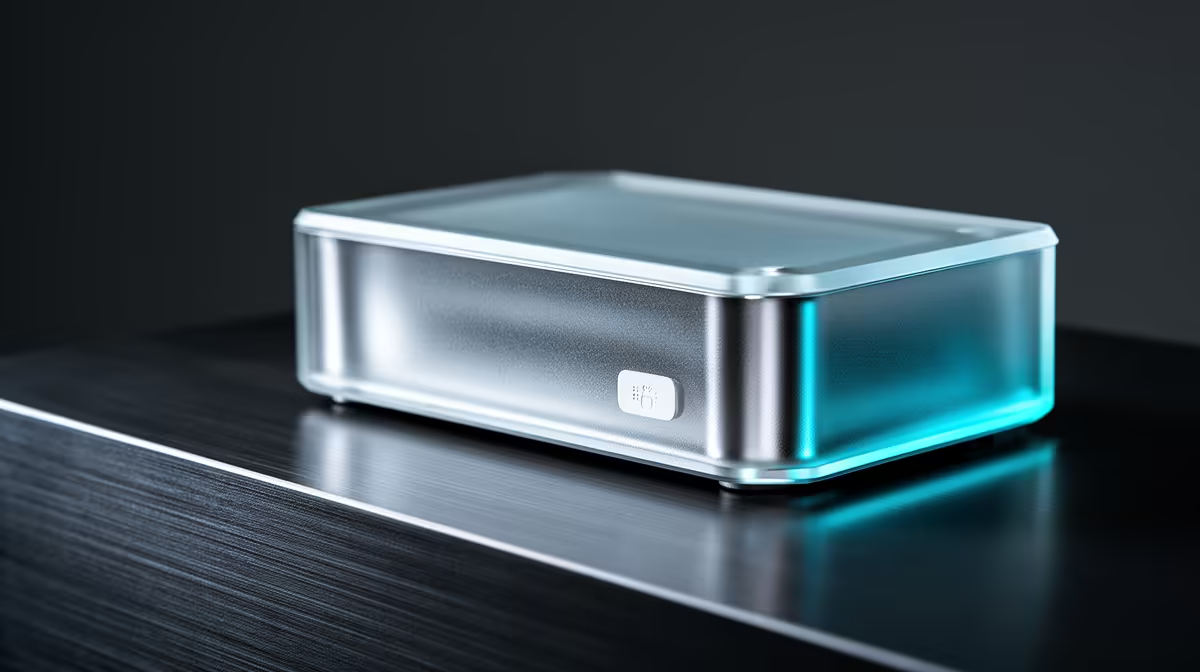
A NAS is a small always-on storage appliance that sits on your home network. Instead of plugging a drive into each machine, every PC and phone backs up over Wi-Fi or ethernet to one central box on a schedule you set. That means backups actually happen, because nobody has to remember to plug anything in.
It also gives you the on-site copy in the 3-2-1 backup strategy: three copies of your data, on two types of media, with one off-site. The NAS holds the convenient local copy you restore from quickly, while a cloud or off-site copy covers fire and theft. Most current NAS models add snapshot technology too, letting you roll files back to an earlier version if ransomware ever hits. Browse the diskless NAS enclosures at Evetech to see what is available before deciding on bay count and capacity.
Choosing the right NAS for a household
Bays and capacity
For most homes, a two-bay NAS is the sweet spot. Run the two drives mirrored and you get redundancy, so if one drive dies your data survives on the other. The DS225+ is the easy recommendation for typical families, balancing performance and simplicity, with a modern quad-core processor and 2.5GbE networking for fast backups. If you store large photo and video libraries from several people and want room to grow, a five-bay unit like the DS1525+ adds capacity and dual 2.5GbE networking.
Software and ease of use
This is where Synology earns its reputation. Its DSM operating system is polished and approachable, so setting up backups, remote access, and user accounts feels manageable even for a first-time owner. For families that just want it to work without becoming a hobby, that matters more than raw specs.
Mobile backup that runs itself
The companion mobile app is the part families notice most. It automatically backs up photos from each phone whenever the device is home on Wi-Fi, so everyone's pictures land safely on the NAS without monthly cloud fees or manual exports. Each family member gets their own account and private space.
What each device needs to connect
Windows machines use Synology's Active Backup for Business agent, which installs in minutes and handles incremental scheduled backups. Macs use Time Machine, which Synology supports natively as a backup target. Linux PCs can connect via rsync or SMB. Mobile devices install the Synology Photos or DS File app. Each device backs up independently on its own schedule, so a laptop that is off at midnight still catches up the next time it wakes. This covers every common household combination from a single machine to four or five devices, and all their backup histories sit on the same NAS volume under the same roof.
How much storage do I actually need?
The answer depends on how many devices are backing up and what they hold. A rough guide: a phone with a healthy camera library might use 50GB to 150GB, a laptop with documents and downloads sits around 200GB to 500GB, and a desktop with games and media can run 1TB or more. Add those up across your household, double it for a comfortable headroom buffer, and you have a working target for usable drive space. For most SA families with two to four devices, 4TB to 8TB usable is a practical floor. That means two 6TB or 8TB NAS drives in a mirrored 2-bay configuration, which gives you the space you need today with room to add a second volume or expand later.
Setting it up sensibly
Start by fitting NAS-rated drives sized for your needs, then configure a mirrored volume for redundancy. Install the backup agent on each Windows and Mac machine and set a schedule, then install the mobile app on every phone for automatic photo backup. Finally, add one off-site copy, whether cloud sync or a rotated external drive, to complete the 3-2-1 picture. When choosing drives, high-capacity NAS hard drives give the best value per gigabyte for bulk backup, though the SSD range at Evetech is worth checking if you need a faster cache or boot drive to pair with the array.
Frequently Asked Questions
How many drive bays do I need for a home backup NAS?
Two is enough for most households. Running them mirrored protects against a single drive failure. Choose four or five bays only if you store large media libraries from several people or want significant room to expand.
Can a NAS back up both Windows PCs and Macs?
Yes. A good NAS provides backup software for both, plus mobile apps for phones, so every device in the home backs up to the same central destination on its own schedule.
Does a NAS replace cloud backup?
No, it complements it. The NAS is your fast local copy in a 3-2-1 plan. You still want one off-site copy, via cloud sync or a rotated external drive, to cover fire or theft.
Will my phone photos back up automatically?
Yes. The NAS mobile app backs up photos automatically whenever the phone is on your home Wi-Fi, so each family member's pictures are saved without manual effort or monthly fees.
What protects a NAS against ransomware?
Snapshots. Most current NAS models take point-in-time snapshots you can roll back to, so even if files are encrypted by malware you can restore an earlier clean version.
One central NAS turns backups from a chore everyone forgets into something that just happens. Explore the diskless NAS storage range at Evetech to pick an enclosure, then choose drives sized for your family's photos, files, and devices.