Quick Answer
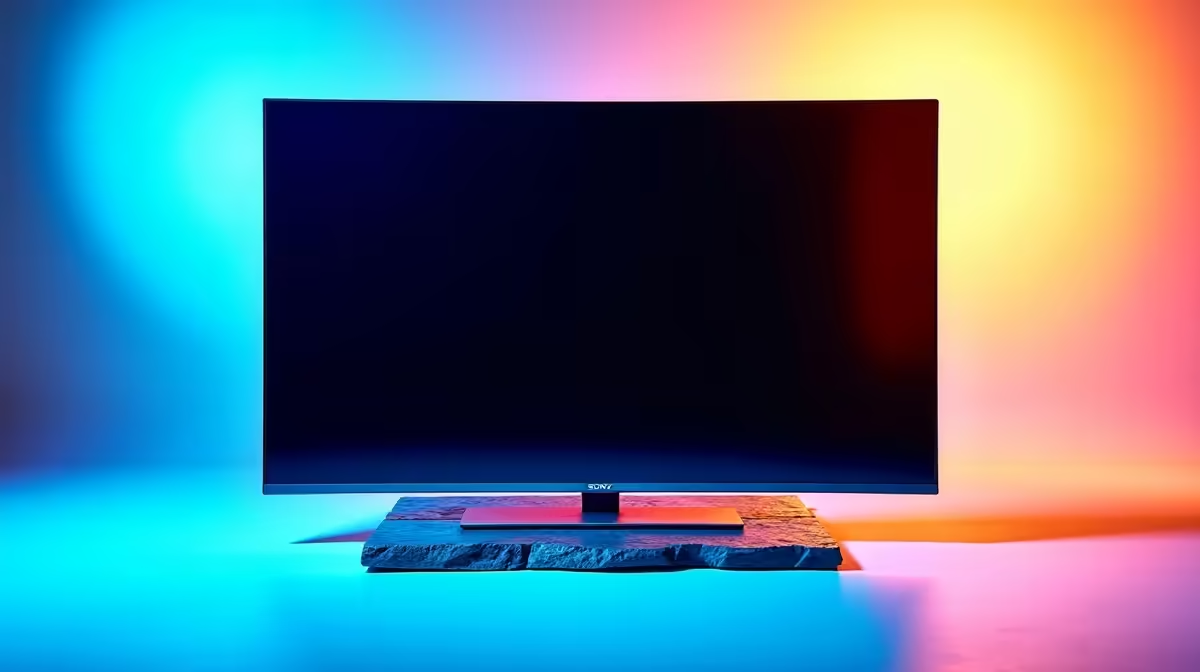
The best OLED monitors for Gqeberha buyers come down to the 27-inch 1440p 240Hz QD-OLED class (LG 27GR95QE, MSI MPG 271QRX) for competitive play, or a 32-inch 4K QD-OLED (MSI MPG 321URX) for desktop and creative work. Expect roughly R12,000-R18,000 for a 27-inch and R18,000-R25,000 for a 32-inch 4K, with nationwide delivery to Gqeberha from Evetech. All carry burn-in protection features and a standard 2-3 year warranty.
Which OLED for which use
For esports and fast shooters, a 27-inch 1440p 240Hz QD-OLED like the LG 27GR95QE delivers near-instant 0.03ms response and tear-free motion. For a do-everything desk, a 32-inch 4K 240Hz panel such as the MSI MPG 321URX gives sharper text and more workspace, though it needs a stronger GPU to drive 4K. Both have perfect blacks and HDR pop that IPS cannot match.
SA pricing and delivery to Gqeberha
A 27-inch QD-OLED runs roughly R12,000-R18,000, and a 32-inch 4K model R18,000-R25,000, currently stocked at Evetech with courier delivery to Gqeberha and the wider Eastern Cape. Each unit ships with a 2-3 year warranty and a published dead-sub-pixel policy, so keep your invoice and register the panel on arrival.
Burn-in protection settings
OLED burn-in is manageable: enable the panel's pixel-shift and logo-dimming, set the Windows taskbar to auto-hide, and use a dark desktop theme. Lower the SDR brightness for day-to-day work and let the screen run its compensation cycle when you power down. Done right, a modern QD-OLED easily lasts years of mixed gaming and work without visible wear.
FAQ
What is the best OLED monitor size for gaming?
A 27-inch 1440p 240Hz QD-OLED is the competitive sweet spot - fast, sharp, and easier to drive than 4K. Step up to 32-inch 4K only if you want extra desktop space and have a strong GPU.
How much does an OLED monitor cost in Gqeberha?
A 27-inch QD-OLED runs roughly R12,000-R18,000 and a 32-inch 4K model R18,000-R25,000 at Evetech, with courier delivery to Gqeberha and the Eastern Cape.
Will an OLED monitor get burn-in?
Modern QD-OLED panels include pixel-shift and logo-dimming that make burn-in unlikely with normal use. Auto-hide the taskbar, use a dark theme, and let the compensation cycle run to keep it pristine.
OLED, set the taskbar to auto-hide, enable pixel-shift and logo-dimming, and use a dark desktop theme - those three settings are the best defence against burn-in over the years.