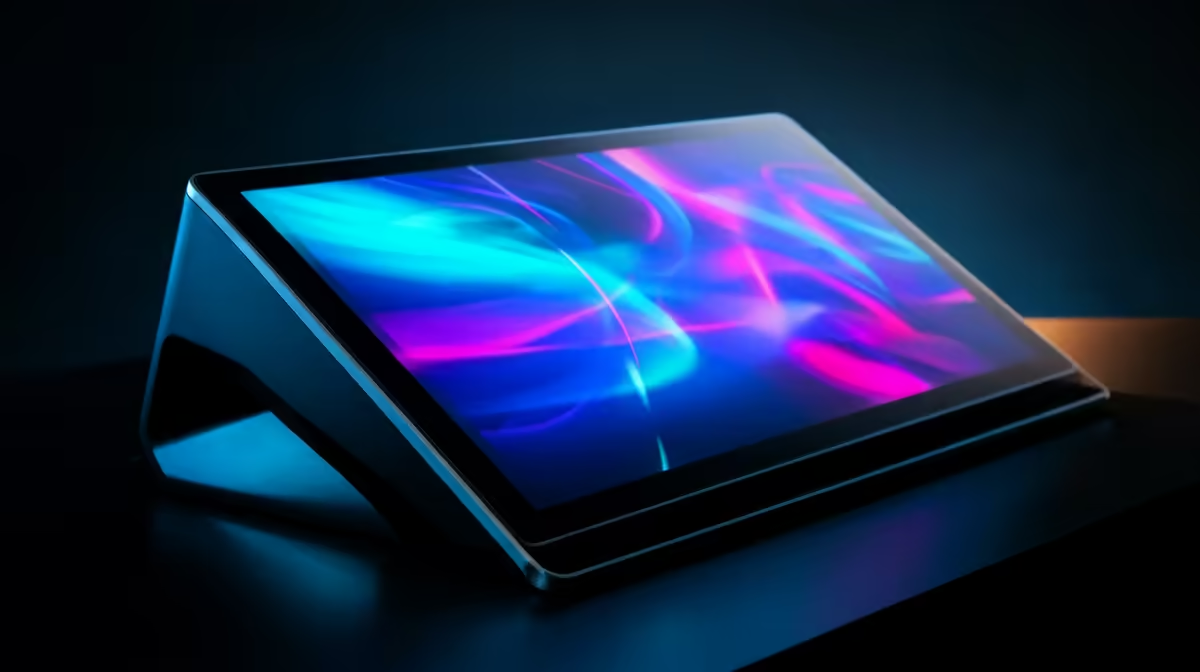
A second screen you can actually tap, swipe and pinch on changes how you work away from your main desk, and the touchscreen portable monitor is the device that delivers it. Instead of a passive panel that only mirrors your laptop, a touch portable monitor sends your tap and swipe input back to the host over USB-C, turning the extra display into a control surface. For creative work, point-of-sale and presentations, that interaction is the whole point.
Quick Answer
A touchscreen portable monitor is worth it when you need direct input on a larger surface than a phone, typically a creative, retail or presentation setup. Expect to spend more than a non-touch panel of the same size, with capacitive multi-touch models in the mid-range bracket. The standout feature to confirm before buying is that touch data travels over the same single USB-C connection as the display signal and the power feed.
How Touch Travels Over USB-C
The technology that makes a touchscreen portable monitor useful is the return path. On a plain portable monitor, the connection is one-way: your laptop pushes a picture to the panel. On a touch model, the panel also reports where your fingers land, sending that coordinate data back to the host over the same USB-C link that handles display output and power simultaneously. Your operating system treats those taps exactly as it would a built-in touchscreen.
This is why the cable matters. A full-feature USB-C connection can carry display output, power delivery and the touch data stream at once, which is what lets the whole thing run off a single cable. If a monitor splits these across a separate cable for touch, the convenience drops, so it is worth checking how a given model handles the connection before you buy. The portable monitor range at Evetech lists connection types and touch specs for each model so you can compare them before committing.
Capacitive Touch and Why It Matters
Almost every modern touch portable monitor uses a capacitive panel, the same technology in your phone. Capacitive screens respond to the electrical properties of your skin, which makes them fast, accurate and capable of multi-touch gestures like pinch-to-zoom and two-finger scroll. They do not need pressure, so a light tap registers, and they support several simultaneous touch points.
The older resistive approach, which relied on physical pressure, has largely faded from this category. If you see a portable monitor advertised as touch, assume capacitive multi-touch unless stated otherwise, and confirm the number of touch points if you rely on multi-finger gestures.
Stylus and Pen Support
Some capacitive panels add pen support, which matters if you sketch, annotate or sign. Not every touch monitor handles a stylus well, and pressure sensitivity is rarely as refined as a dedicated drawing tablet. If pen work is your main reason for buying, read the pen specification carefully rather than assuming touch implies good stylus behaviour.
Who Actually Benefits
A touchscreen portable monitor is not for everyone, and that is fine. It earns its premium for specific workflows.
Creative Work
For photo editing, light illustration and timeline scrubbing in video apps, direct touch on a larger surface than a phone speeds up the fiddly bits. You drag sliders, pinch to zoom into detail, and tap tools without breaking flow to reach for a trackpad. It does not replace a graphics tablet for serious illustration, but for retouching and quick edits on the move it is genuinely faster.
Point-of-Sale and Business Use
This is where touch portable monitors quietly shine. A market stall, a pop-up shop or a mobile service can run a point-of-sale interface on a compact touch panel driven by a laptop or mini PC. The tablet-style control surface means staff tap through a sale without a keyboard, and the whole rig packs down small. For South African small businesses running events, expos or seasonal pop-ups, that portability is a real advantage.
Presentations and Teaching
A presenter can annotate slides directly, swipe between them, and interact with content in front of a room without standing behind a laptop. For training sessions and client pitches, touching the screen reads as more engaging than clicking from a distance.
What to Check Before You Buy
A few specs separate a good touch portable monitor from a frustrating one. Confirm these before committing.
Connection and Cable Count
Verify that video, power and touch all run over a single USB-C cable. A model that needs a separate cable for touch undoes much of the portability. Also confirm that the USB-C port on your laptop actually outputs video, because a data-only port will not drive any external display.
Resolution and Panel Quality
Most portable monitors land at 1080p, which is fine for the size. For creative work, prioritise an IPS panel for accurate colour and wide viewing angles over chasing a higher resolution on a small screen. Brightness matters too, since you may use it in variable light at an event or a pop-up.
Build and Stand
A touch monitor gets poked and pressed, so a stable stand or a sturdy folio cover that props it at a usable angle is not optional. A panel that wobbles every time you tap it is a daily annoyance. Some models use a magnetic cover-stand, others a kickstand, so pick the one that matches how you will use it.
Weight and Size
The point of portable is portable. A 14 to 16 inch panel is the common sweet spot, large enough to be useful and light enough to carry. Heavier glass on touch models means they weigh a little more than non-touch equivalents, so factor that in if you carry it daily.
The Price Trade-Off
A touch portable monitor costs more than a non-touch panel of the same size and resolution, because of the added touch layer and the controller that handles the return data. Whether that premium is worth it comes down to use. If you will actually tap, swipe and annotate regularly, the interaction earns the extra spend. If you only need a second screen to extend your desktop, a non-touch panel saves money and weight. Browsing the wider monitor best sellers helps gauge where touch models sit against standard portables on price.
Frequently Asked Questions
How does touch input get back to my laptop?
The panel sends your finger-position data to the host over the same USB-C connection used for display output and power. Your operating system reads those taps as it would any built-in touchscreen.
Do touchscreen portable monitors work with any laptop?
They work with laptops whose USB-C port carries video and sufficient power, or via a separate HDMI plus USB connection on some models. Always check whether the port on your specific machine is capable of display output before purchasing.
Is one USB-C cable really enough?
On a full-feature model, yes. A single USB-C connection handles display, power and touch data together through one wire. Some cheaper models route touch over a second cable, so read the specification carefully before buying.
Are these good for digital art?
For retouching, annotation and light illustration they are handy, but they do not match a dedicated graphics tablet for serious drawing. If pen work is your priority, check the stylus and pressure support carefully.
Why does a touch model cost more than a normal portable monitor?
The added capacitive touch layer and the controller that sends input back to the host raise the cost. You pay a premium for the interaction, which is worth it only if you will use the touch regularly.
What size should I get?
A 14 to 16 inch panel is the common sweet spot, large enough to be a real control surface yet light enough to carry every day. Touch models weigh slightly more than non-touch panels of the same size.
Want a second screen you can actually tap and swipe? Explore the portable monitor range at Evetech, compare touch and connection specs, and pick a panel that matches your creative, retail or presentation work.