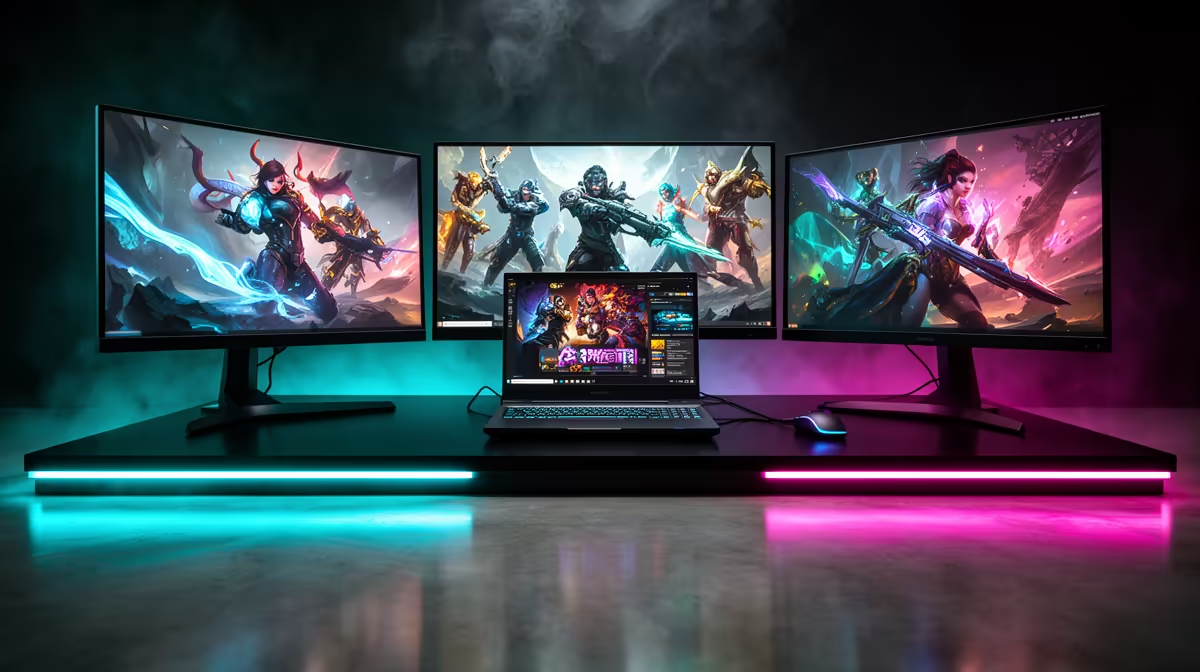
A triple-monitor setup built on an M5 Pro MacBook Pro is one of the cleanest desk upgrades you can make, because the M5 Pro silicon natively drives up to three external displays at once. That is the part people get wrong: the standard M-series chip caps lower, and only the Pro tier opens the door to a true three-screen workstation without ugly daisy-chaining tricks or DisplayLink workarounds. Get the chip right and the rest is monitors, a dock, and cables that can carry the bandwidth.
Quick Answer
The M5 Pro MacBook Pro supports three external monitors simultaneously, making it the entry point for a real triple-screen desk. Plan around two QHD or 4K panels plus the laptop, a Thunderbolt dock to consolidate the connections, and Thunderbolt-rated cables. Budget realistically: three quality monitors and a dock land in the region of R20,000 to R35,000 depending on panel size and resolution.
Confirm what your exact chip supports
Before buying a single monitor, verify the silicon. The plain M5 typically drives fewer external displays than the M5 Pro, and the M5 Max goes higher still. The M5 Pro is the one that cleanly handles three external panels alongside the built-in screen on most current configurations. Check your specific model in the menu under About This Mac so you are planning against reality, not a spec you assumed.
This matters because a setup designed for three screens will simply refuse to light up the third panel on the wrong chip. The Pro tier is the deliberate buy-in for this workflow. You can compare the current MacBook lineup and its display capabilities through the MacBook range at Evetech to confirm you are looking at a Pro-class machine.
Choosing the three displays
The displays do the heavy lifting, so spend your attention here.
Resolution and size that make sense
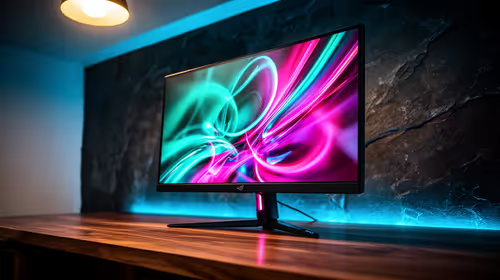
Two 27-inch QHD panels flanking a 27-inch or larger 4K centre screen is a popular, balanced layout. QHD at 27 inches gives crisp text without forcing heavy scaling, while a 4K centre panel rewards detailed work like video timelines, large spreadsheets, or photo editing. Going all 4K looks superb but raises both the cost and the bandwidth demand on your dock and cables.
Matching panels for sanity
Try to match the two side monitors in size, resolution, and panel type. Mismatched displays mean colours and brightness never quite agree across the desk, which is distracting for any colour-sensitive work. A matched pair plus a deliberately different centre panel reads as intentional rather than accidental.
Stands, arms, and desk space
Three monitors eat desk real estate fast. VESA-compatible arms free up the surface and let you align the top edges and curve the side panels inward toward you, which is far more comfortable than a flat wall of glass.
Refresh rate versus resolution
Decide early whether you care more about refresh rate or pixel density, because three high-resolution panels at high refresh push hard against your bandwidth budget. For productivity, the centre and side panels at 60Hz are perfectly comfortable and leave headroom in the dock. If you want higher refresh on the centre screen for smoother scrolling or any gaming, plan for it deliberately, since adding refresh rate raises the bandwidth each display consumes just as resolution does.
The dock is the bottleneck or the solution
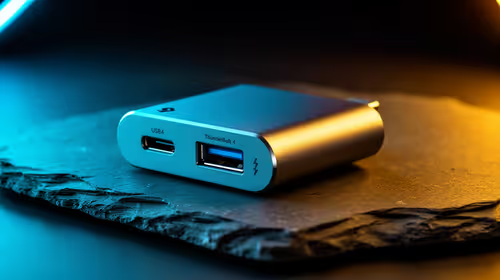
A single MacBook Pro has a limited number of ports, so a Thunderbolt dock is what turns one cable from the laptop into power, three video outputs, and your peripherals. Buy a dock that explicitly supports the number and resolution of displays you intend to run. A cheap hub that claims multi-monitor support but tops out at low refresh rates will quietly cap your setup.
Why bandwidth maths matters
Every display consumes a slice of the total bandwidth your Thunderbolt connection can carry. Three high-resolution panels at high refresh rates can exceed what a single port and a weak dock can deliver, forcing the dock to drop refresh rate or resolution to fit. A properly rated Thunderbolt dock with enough headroom avoids that compromise.
Power, peripherals, and one-cable docking
The right dock does more than carry video. A good Thunderbolt dock charges the MacBook Pro over the same single cable while connecting your keyboard, mouse, wired network, and external drives. That turns your desk into a true one-cable station: arrive, plug in once, and everything wakes up powered and connected. Check the dock's power delivery rating matches what an M5 Pro MacBook Pro wants for full-speed charging, since an underpowered dock will charge slowly or not at all under load.
Cables: the cheapest part that breaks everything
This is where good setups quietly fail. A cable that looks like USB-C may only carry data, not the video bandwidth a high-resolution display needs. Use Thunderbolt-certified cables for the dock connection and verify that each monitor cable, whether HDMI, DisplayPort, or USB-C, is rated for your target resolution and refresh rate. A R150 mystery cable can cap a R10,000 monitor at half its capability.
A sensible build order
- Confirm the M5 Pro chip and its three-display support.
- Buy a Thunderbolt dock rated for three displays at your target resolution.
- Choose two matched side monitors and one centre panel.
- Mount them on VESA arms for alignment and desk space.
- Use certified cables end to end and test each output before committing the layout.
If you want to see what other Mac users are pairing with their machines, the best-selling laptop list gives a quick read on popular configurations and the gear around them.
Frequently Asked Questions
Does the M5 Pro really drive three external monitors at once?
Yes. The M5 Pro natively supports up to three external displays simultaneously, alongside the built-in screen. The standard M5 chip supports fewer, which is why the Pro tier is the entry point for a true triple-monitor setup.
Do I need a Thunderbolt dock or can I use a cheap USB hub?
You need a proper Thunderbolt dock rated for three displays. A cheap hub may not deliver enough bandwidth, capping resolution or refresh rate on one or more screens. The dock consolidates power and all three video outputs over a single cable.
Why won't my third monitor turn on?
The most common causes are the wrong chip tier, a dock that cannot carry three displays, or a cable that only passes data rather than video. Confirm the M5 Pro, a correctly rated dock, and certified video-capable cables.
Should all three monitors be the same?
Match the two side panels in size and resolution for visual consistency. A different, often higher-resolution centre panel is fine and common. Mixing wildly different displays leads to colour and brightness mismatches that distract during work.
What resolution should I aim for?
Two 27-inch QHD side panels with a 4K centre screen is a strong balance of clarity and cost. All-4K is sharper but more expensive and demands more bandwidth from your dock and cables.
Building a triple-monitor command centre around your Mac? Confirm your M5 Pro model on the MacBook range at Evetech, then add matched monitors, a capable Thunderbolt dock, and certified cables to do the job properly. Shop online and have it delivered nationwide.