

AIO Liquid 240mm Setup and Configuration: Complete Tutorial
AIO Liquid 240mm Setup and Configuration. Clear setup instructions with SA-specific considerations, troubleshooting tips & recommended components.
Read more- Check ports, cables, and GPU - Choose the right dock or adapter - Configure displays and troubleshoot Connect multiple monitors to laptop quickly via HDMI and USB-C with step-by-step setup, adapter picks, and troubleshooting tips. ⚡️🖥️
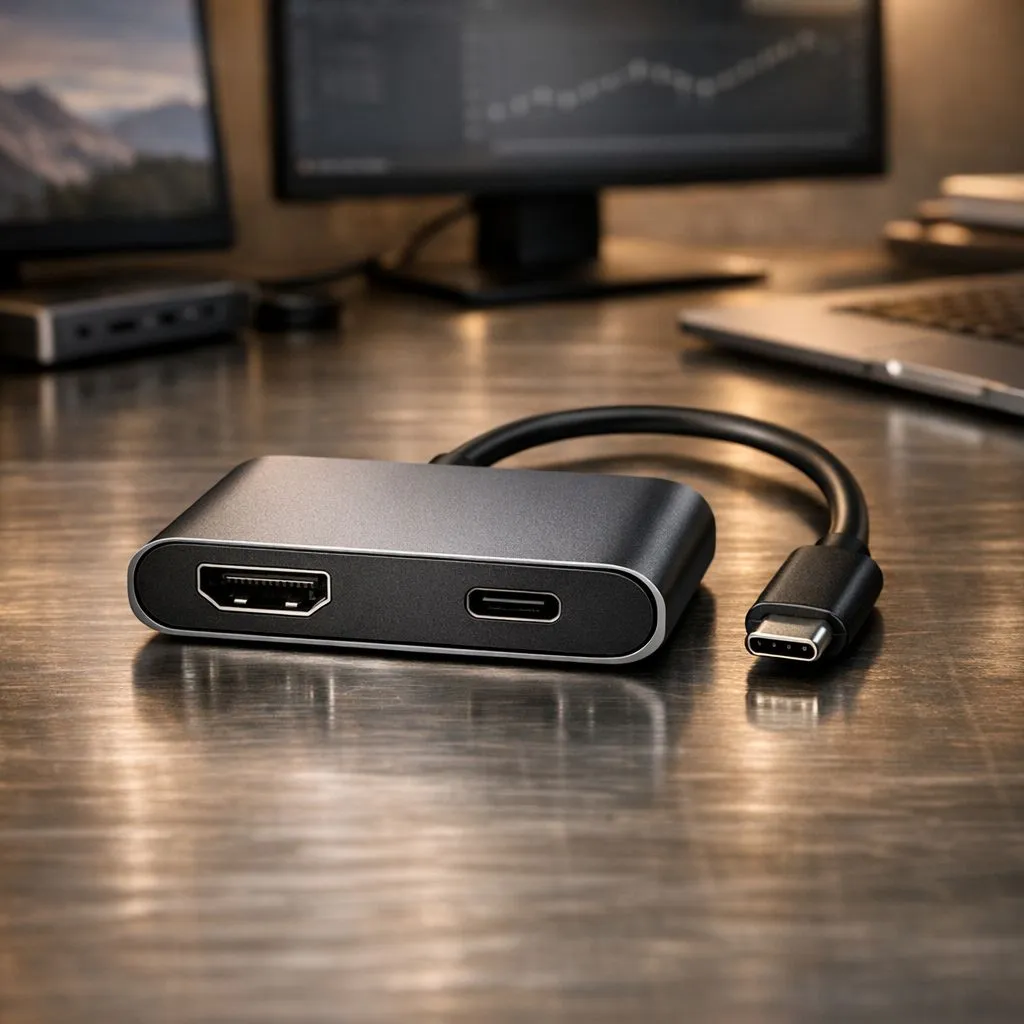
Tired of alt-tabbing between Discord, your game, and a browser on one small laptop screen? You're not alone. Expanding your digital real estate is the ultimate productivity and gaming upgrade. In South Africa, creating a multi-monitor battle station is easier than you think. Let's show you exactly how to connect multiple monitors to your laptop via HDMI and USB-C, using the ports you already have to unlock a new level of efficiency. 🚀
Before you plug anything in, it's crucial to know what you're working with. Most modern laptops come with at least two types of ports capable of sending a video signal to an external screen.
HDMI (High-Definition Multimedia Interface) is the standard. It’s the port you’ve used for your TV or console. It’s simple: one cable for both video and audio. Nearly every laptop has one, making it the perfect starting point for your first external monitor.
This is where things get interesting. Not all USB-C ports are created equal. To output video, your laptop's USB-C port needs to support DisplayPort Alternate Mode (often marked with a "DP" or a DisplayPort logo 🅿) or Thunderbolt (marked with a lightning bolt ⚡). These super-powered ports can handle high-resolution video, data transfer, and even power delivery over a single cable.
Look for a small lightning bolt (Thunderbolt) or a 'DP' symbol next to your laptop's USB-C port. If you see one, you're in luck! This confirms it supports video output. If there's no symbol, check your laptop's official specifications online to be sure before buying any cables or adapters.
Ready to get it all hooked up? Let's walk through the process. It's a breeze once you know the steps.
This is the easy part.
Your desktop will likely be "mirrored" by default. We'll fix that in a moment.
Now for the second screen.
With everything connected, it's time to tell your laptop how to use the screens.
And that's it! You've successfully managed to connect multiple monitors to your laptop using both HDMI and USB-C.
If your current machine is struggling to keep up or lacks the necessary ports, it might be time for an upgrade. A powerful CPU is essential for juggling tasks across screens, and you'll find excellent multitasking performance in both the latest Intel laptops on special and the newest Ryzen laptop deals.
For gamers and content creators, driving multiple high-resolution displays requires serious graphical horsepower. This is where a dedicated graphics card makes all the difference. Exploring our range of GeForce RTX gaming laptops on special will give you the power needed to game on one screen while managing your stream on another. You don't have to break the bank either; there are fantastic gaming laptops under R20k that are perfectly capable of handling a dual-monitor setup. For a curated list, check out the best gaming laptop deals available right now in South Africa.
Ready to Build Your Command Centre? A multi-monitor setup transforms your laptop from a portable device into a powerhouse workstation. If your current machine is struggling, it might be time for an upgrade. Explore our massive range of laptop specials and find the perfect machine to conquer your world.
Use your laptop's HDMI for one display, add USB-C Alt Mode or a USB-C/Thunderbolt docking station for extra monitors, then configure displays in OS settings.
HDMI splitters usually mirror the same image. For extended screens use a USB-C dock or an active multi-monitor adapter for separate displays.
USB-C Alt Mode carries native display signals (DisplayPort/HDMI) over the port, allowing direct monitor connections and higher resolutions.
Often yes. A USB-C or Thunderbolt dock with multiple video outputs or DisplayPort MST lets you run 3+ monitors depending on GPU limits.
Check cables and monitor input, update GPU drivers, try a different port or a powered USB-C dock, and use your OS display detect option.
Only if the laptop's USB-C supports DisplayPort MST and the monitors have DisplayPort out for daisy-chaining.
Choose USB-C or Thunderbolt docks with dual HDMI/DisplayPort outputs, or active multi-monitor adapters that support required resolution and refresh rates.
AIO Liquid 240mm Setup and Configuration. Clear setup instructions with SA-specific considerations, troubleshooting tips & recommended components.
Read more
Setting Up DDR5 64GB Kit. Tested & verified settings for best FPS and visual quality on SA hardware budgets.
Read more
Overwatch 2 Setup Guide Gamers. Clear setup instructions with SA-specific considerations, troubleshooting tips & recommended components.
Read more
R and RStudio on Mac: Data Science Setup Guide. Clear setup instructions with SA-specific considerations, troubleshooting tips & recommended components.
Read more
NVIDIA Broadcast Setup with GPU: Streamer Guide. Clear setup instructions with SA-specific considerations, troubleshooting tips & recommended components.
Read more
Core Ultra 7 265K Temperature Guide: Normal Range. Complete product range with SA pricing, key specs & recommendations for different budgets.
Read more
AMD RX 9050 XT: Rumoured Specs, Price & Release. SA-focused analysis with local pricing data, real-world insights & actionable buying advice.

Can RTX 4080 Super Run AI Workloads for SA Developers Detailed answer with SA data, expert analysis & practical recommendations for local buyers.

Can RTX 4090 Run AI Workloads for SA Developers Detailed answer with SA data, expert analysis & practical recommendations for local buyers.

Top Settings for Intel Arc B580 at Ultrawide 1440p picks evaluated on performance, value & SA availability with current Rand pricing from Evetech.

RTX 4060 CS2 Low Settings at 1080p: FPS Results. Real-world benchmark data, FPS numbers & performance analysis. What SA gamers can actually expect.

Visual Artifacts: Possible GPU Issue Issue #1. Diagnosis steps, proven fixes & when to seek professional help. SA-specific support info included.

Can the RTX 4090 Handle 1440p 144Hz Gaming. Performance testing verdict with real data & practical recommendations for SA buyers.

Top ASUS GPU Under R15000 picks evaluated on performance, value & SA availability with current Rand pricing from Evetech.

GTA 6 Max Settings on RTX 5070. Tested & verified settings for best FPS and visual quality on SA hardware budgets.

Cyberpunk 2077 Max Settings on RTX 5080. Tested & verified settings for best FPS and visual quality on SA hardware budgets.

Starfield Max Settings on RTX 5070 Ti. Tested & verified settings for best FPS and visual quality on SA hardware budgets.

Top RTX 5090 Under R5000 picks evaluated on performance, value & SA availability with current Rand pricing from Evetech.