

AIO Liquid 240mm Setup and Configuration: Complete Tutorial
AIO Liquid 240mm Setup and Configuration. Clear setup instructions with SA-specific considerations, troubleshooting tips & recommended components.
Read more• Pair • Map • Optimize — Connect wireless controller to Android phone or tablet with clear pairing steps, button mapping, and low-latency tips. 🎮📱
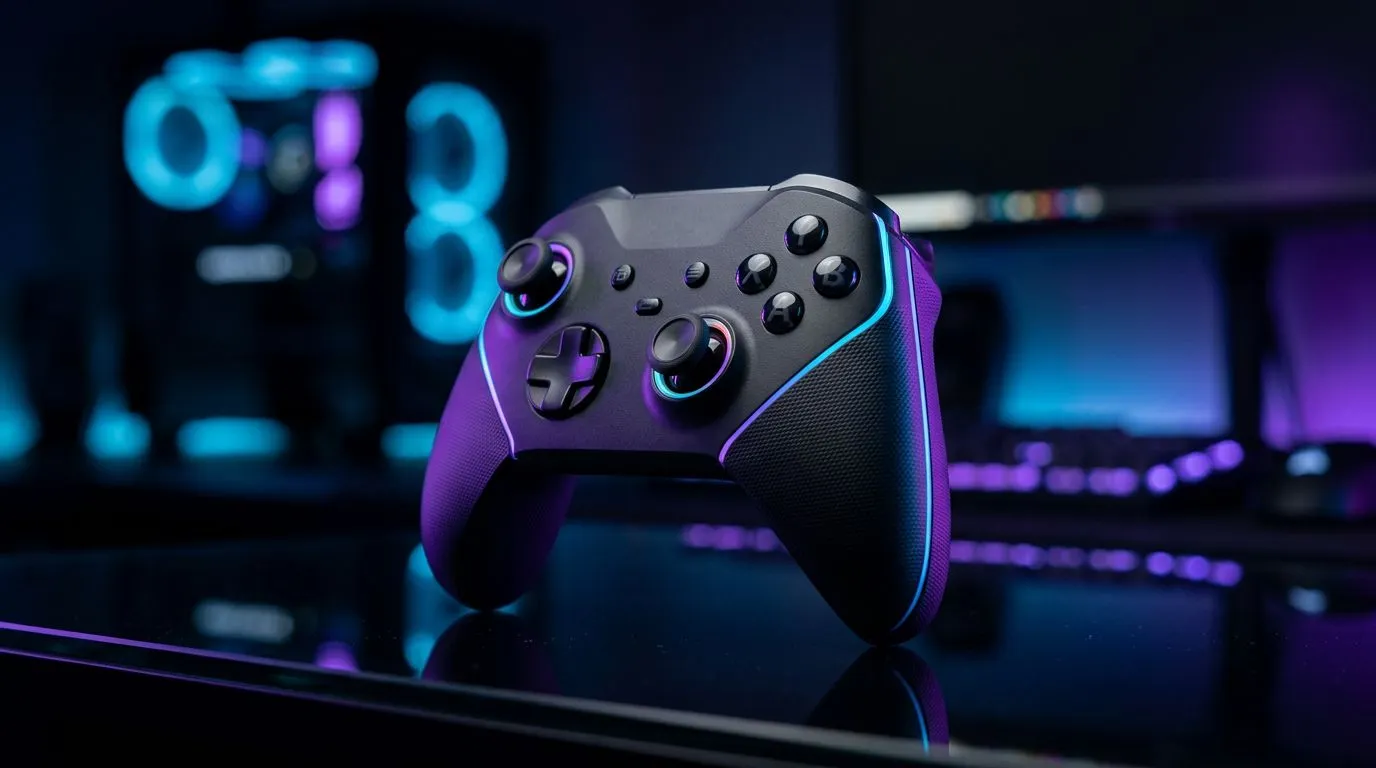
Want a console feel on your phone? Learn how to Connect Wireless Controller to Android Phone or Tablet in under five minutes — no extra apps, no dongles for most modern controllers. This guide walks South African gamers through Bluetooth pairing, USB-C wired options, and the little quirks that save you time and rage quits.
Most controllers from Xbox, PlayStation and Bluetooth-capable third parties pair directly with Android. Put the controller in pairing mode, open Settings > Connected devices > Pair new device on your phone or tablet, then pick the controller name. If your Android device is older, update Bluetooth in Settings or try a wired connection.
Not sure which controllers play nicely with Android? Evetech lists a wide selection for every budget — check the general controller range to compare models and specs before you buy: https://www.evetech.co.za/PC-Components/buy-gaming-controllers-365.
If your phone supports USB OTG, plugging a controller directly often removes input lag. Use a USB-C to USB-A adapter or a USB-C cable suitable for data. Android will usually recognise the controller immediately, and games that support controllers will map buttons automatically. Wired is a great fallback for cloud gaming or fast-paced shooters.
If you want a high-quality wired/wireless hybrid, the Razer Wolverine V3 Tournament Edition is a premium pick for competitive play; see the official Evetech listing for current specs and deals in ZAR: https://www.evetech.co.za/razer-wolverine-v3-tournament-edition-8k/best-deal/24274. For South Africans shopping Razer specifically, browse the Razer-filtered controller range here: https://www.evetech.co.za/PC-Components/buy-gaming-controllers-365?brands=Razer.
Keep your phone in Game Mode (if available) and close heavy background apps before pairing. For cloud gaming, wired controllers cut latency and reduce packet jitter, giving smoother input.
Make sure your Android OS is up to date and the game supports controller input. If you still need help choosing the right controller or want hands-on advice, our team can recommend models that suit competitive or casual play and match your budget.
Ready to Find Your Perfect Match? The Mac vs Windows debate is complex, but for maximum power, choice, and value in South Africa, Windows is hard to beat. Explore our massive range of laptop specials and find the perfect machine to conquer your world.
Enable pairing on the controller, open Android Bluetooth settings, and select the controller. Use Bluetooth pairing or USB OTG for wired setups.
Yes. Most Xbox Bluetooth controllers work with Android. Pair via Bluetooth or use USB-C for a wired, low-latency connection.
Yes. DualShock 4 and DualSense can pair over Bluetooth. Use a mapping app if button layouts differ between games.
Install an Android controller mapping app, grant permissions, then map buttons per game. Popular apps include Octopus and Tincore.
Lag often stems from Bluetooth interference, low battery, or game settings. Try USB connection, reduce distance, or enable low-latency modes.
No. Many games support controllers natively, others need mapping apps or cloud streaming services that include controller support.
Same as a phone: enable pairing and select the controller in Bluetooth. For stable play, consider a USB-C OTG cable connection.
AIO Liquid 240mm Setup and Configuration. Clear setup instructions with SA-specific considerations, troubleshooting tips & recommended components.
Read more
Setting Up DDR5 64GB Kit. Tested & verified settings for best FPS and visual quality on SA hardware budgets.
Read more
Overwatch 2 Setup Guide Gamers. Clear setup instructions with SA-specific considerations, troubleshooting tips & recommended components.
Read more
R and RStudio on Mac: Data Science Setup Guide. Clear setup instructions with SA-specific considerations, troubleshooting tips & recommended components.
Read more
NVIDIA Broadcast Setup with GPU: Streamer Guide. Clear setup instructions with SA-specific considerations, troubleshooting tips & recommended components.
Read more
Core Ultra 7 265K Temperature Guide: Normal Range. Complete product range with SA pricing, key specs & recommendations for different budgets.
Read more
AMD RX 9050 XT: Rumoured Specs, Price & Release. SA-focused analysis with local pricing data, real-world insights & actionable buying advice.

Can RTX 4080 Super Run AI Workloads for SA Developers Detailed answer with SA data, expert analysis & practical recommendations for local buyers.

Can RTX 4090 Run AI Workloads for SA Developers Detailed answer with SA data, expert analysis & practical recommendations for local buyers.

Top Settings for Intel Arc B580 at Ultrawide 1440p picks evaluated on performance, value & SA availability with current Rand pricing from Evetech.

RTX 4060 CS2 Low Settings at 1080p: FPS Results. Real-world benchmark data, FPS numbers & performance analysis. What SA gamers can actually expect.

Visual Artifacts: Possible GPU Issue Issue #1. Diagnosis steps, proven fixes & when to seek professional help. SA-specific support info included.

Can the RTX 4090 Handle 1440p 144Hz Gaming. Performance testing verdict with real data & practical recommendations for SA buyers.

Top ASUS GPU Under R15000 picks evaluated on performance, value & SA availability with current Rand pricing from Evetech.

GTA 6 Max Settings on RTX 5070. Tested & verified settings for best FPS and visual quality on SA hardware budgets.

Cyberpunk 2077 Max Settings on RTX 5080. Tested & verified settings for best FPS and visual quality on SA hardware budgets.

Starfield Max Settings on RTX 5070 Ti. Tested & verified settings for best FPS and visual quality on SA hardware budgets.

Top RTX 5090 Under R5000 picks evaluated on performance, value & SA availability with current Rand pricing from Evetech.