Corsair HS65 Surround setup on Windows — quick hook 🔧
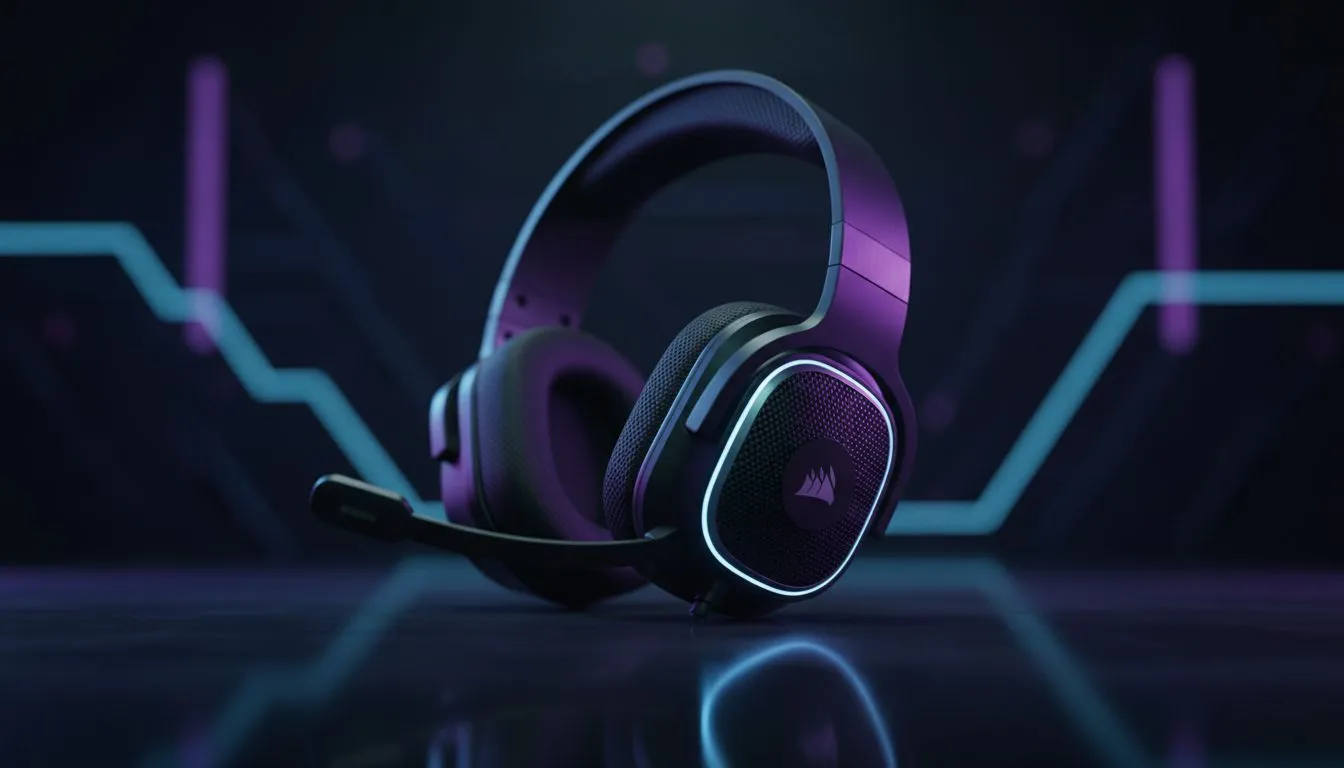
If you want clear spatial sound for Siege, FIFA or Apex, the Corsair HS65 Surround setup: Multi-Platform Guide gets you playing faster. In under ten minutes you’ll know which ports to use, how to enable virtual surround, and how to keep chat and game audio balanced for squad comms. This guide is practical, South African-focused and ready for buyers comparing local deals. 🚀
Corsair HS65 Surround setup on Windows — step-by-step
Start with the wired connection. Plug the USB-C or USB-A dongle into a front USB 3.0 port for the lowest latency. If your PC needs a little help, open Sound Settings, choose the HS65 as both Playback and Communication device, and set the sample rate to 48000 Hz for consistent voice comms. If you prefer a mix of voice and game audio, use the in-game audio mixer to fine tune levels rather than Windows sliders.
For players considering wireless alternatives, the Razer Barracuda X Chroma is a solid contender — see the product page for features and current ZAR pricing if you want a direct comparison: Razer Barracuda X Chroma Wireless Headset (Phantom White).
HS65 Surround setup on PlayStation — plug and play
Console users: PS5 and PS4 accept USB headsets natively. Plug the dongle into a rear USB port for best throughput. Go to Settings > Sound > Audio Output and pick the HS65. You can enable 3D Audio on PS5 for compatible titles… it improves positional cues in shooters. Keep chat volume balanced — use the PS quick menu to adjust microphone level during play.
Corsair HS65 setup on Nintendo Switch and mobile
On Switch docked, use the USB dongle in the dock’s USB port. In handheld mode, you’ll need a USB-C adapter or a wired 3.5mm connection if available. For mobile gaming, use the wired option or a compatible USB-C audio adapter to avoid Bluetooth latency. For broader headset choices and mobile-friendly picks, browse Evetech’s headphones and headsets category to compare options and ZAR prices.
Check similar headset categories here: Razer headphones & headsets and general headphone/headsets categories to compare features and local stock.
Quick Mix Tip ⚡
If you hear echo in party chat, drop the Windows microphone boost to zero and lower in-game voice sensitivity. That removes feedback loops and keeps your team chat clear.
HS65 Surround setup on Mac — permissions and software
Mac users should allow microphone access in System Preferences > Security & Privacy. If you’ve plugged the dongle and have no sound, open Sound preferences and set the Corsair device as both Output and Input. Mac audio routing can be quirky; if needed, create a Multi-Output Device in Audio MIDI Setup to send chat and system audio where you want it.
Troubleshooting common issues — concise fixes
- No mic detected: check the headset mute switch and test on another device.
- One side quieter: swap ports and inspect the cable for damage.
- Low volume in games: check both system and in-game sliders.
If you need a different control approach, many gamers switch to headsets with built-in mixers or software. For example, browse our Razer headphones category for models with dedicated control decks.
Final thoughts — expert nudge
Setting up the HS65 Surround is straightforward once you know which port and settings to use. Want alternatives that lean lighter or wireless? Compare local stock and ZAR deals on Evetech before committing. ✨
Ready to Find Your Perfect Match?
The Mac vs Windows debate is complex, but for maximum power, choice, and value in South Africa, Windows is hard to beat. Explore our massive range of laptop specials and find the perfect machine to conquer your world.