So, you’ve dropped some serious ZAR on a shiny new graphics card, expecting buttery-smooth frame rates. But instead, you’re getting frustrating stutters in Apex Legends or frame drops in Helldivers 2. What gives? Before you blame your GPU, your PC might be suffering from a hidden performance thief: a CPU bottleneck.
Understanding CPU bottleneck testing is the first step to unlocking the full power of your rig. Let's dive in and diagnose your PC. 🚀
What Exactly is a CPU Bottleneck?
Think of your PC components as a team working on an assembly line. Your CPU (Central Processing Unit) prepares the data—like game logic and physics—and your GPU (Graphics Processing Unit) renders the beautiful images you see on screen.
A CPU bottleneck happens when your CPU can't prepare data fast enough for your powerful GPU. The GPU ends up waiting around, twiddling its digital thumbs, and your frame rate suffers. It doesn't matter how fast your GPU is if the CPU can't keep up.
How to Perform CPU Bottleneck Testing 🔧
The good news is that you don't need a fancy lab to do some basic CPU bottleneck testing. You just need a monitoring tool and your favourite game.
Step 1: Grab Your Tools
First, download a free monitoring utility like MSI Afterburner which comes bundled with RivaTuner Statistics Server. This combo is the gold standard for displaying your PC's vital stats—like CPU and GPU usage, temperatures, and frame rates—as an overlay while you game.
Step 2: Set Up the Test
Launch the game you want to test. Head into the graphics settings and do something that might feel wrong: lower your screen resolution to 1080p or even 720p.
Why? Lowering the resolution reduces the workload on your GPU, forcing your CPU to work harder to pump out as many frames as possible. This makes any potential CPU limitation much more obvious.
Check Every Core
When you're looking at CPU usage, don't just watch the overall percentage. Some games rely heavily on just one or two cores. A CPU might show 40% total usage, but if one core is maxed out at 100%, that's your bottleneck right there!
Step 3: Analyse the Results 📊
Now, play the game for a few minutes and watch the numbers on your screen:
- Ideal Scenario (GPU Bound): Your GPU usage is sitting consistently at 95-100%, while your CPU usage is lower. This is perfect! It means your graphics card is the component limiting your performance, and you're getting every drop of power you paid for.
- Problem Scenario (CPU Bottleneck): Your CPU usage is pinned at 95-100% (either overall or on a single core), while your GPU usage is significantly lower, say 60-80%. This is the classic sign of a CPU bottleneck. Your CPU is running flat-out and can't feed the GPU frames fast enough.
If your tests confirm a bottleneck, don't panic. Every system has a bottleneck somewhere. The goal is to ensure it's not so severe that it wastes the potential of your other components. Whether you're a fan of multi-threaded beasts from Team Red or the raw single-core speed of Team Blue, balance is everything.
Quick Fixes for a CPU Bottleneck
Before you rush out to buy a new processor, there are a few things you can try.
First, the software approach. Close unnecessary background applications eating up CPU cycles—web browsers with dozens of tabs are a common culprit. You can also look at in-game settings. Things like "object detail," "physics quality," and "shadows" are often CPU-intensive. Lowering them can free up resources.
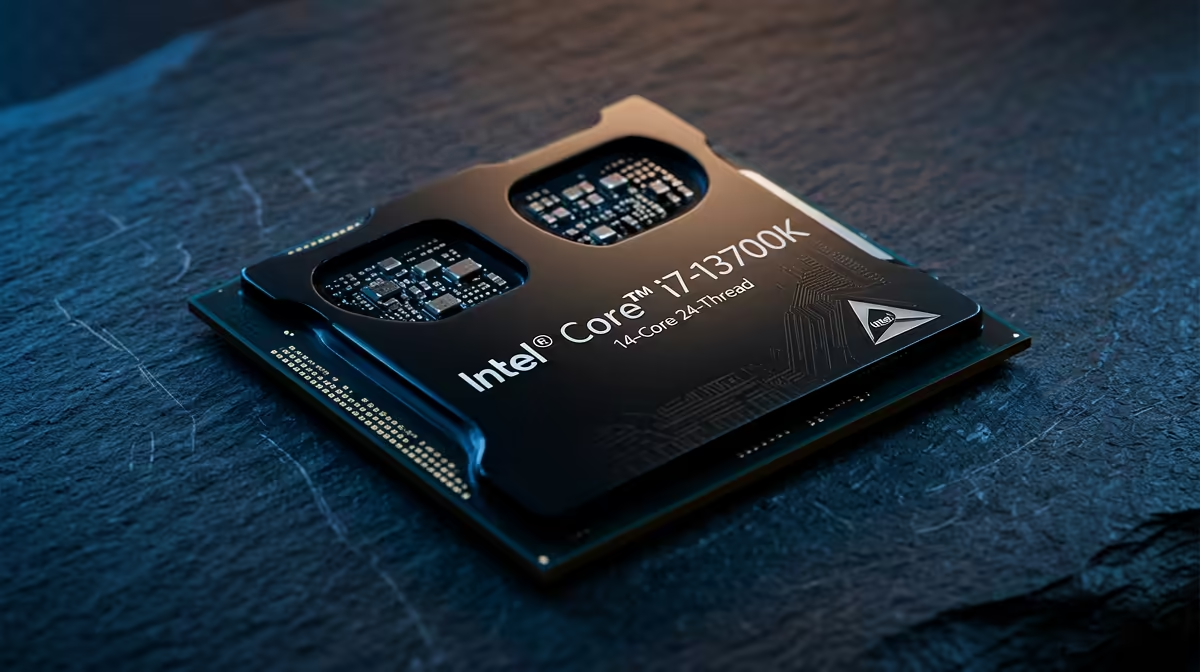
If software tweaks don't cut it, a hardware upgrade is the most effective solution. Pairing a modern GPU with an older CPU is a recipe for a bottleneck. Upgrading to a CPU that can keep pace, like a newer Intel CPU with high clock speeds, can make a night-and-day difference to your gaming experience. ✨
Ready to Unshackle Your GPU?
A balanced PC is a happy PC. Explore our massive range of the latest and greatest CPU processors at Evetech and give your rig the brainpower it deserves.