Quick Answer
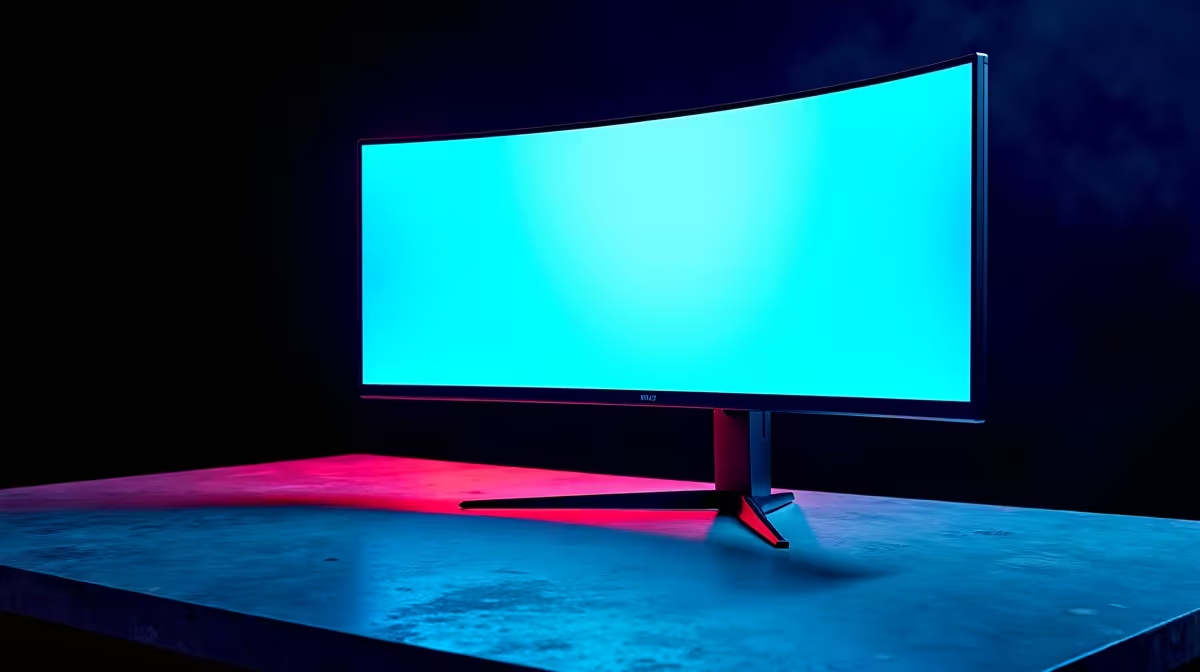
Yes, 4K@60Hz makes a meaningful difference over 4K@30Hz for both desktop use and video playback. At 30Hz, cursor movement, window animations, and video panning feel visibly laggy. At 60Hz, motion is smooth and eye fatigue during long sessions drops noticeably. The cable enabling 4K@60Hz costs R150 to R350 and is the simplest upgrade available.
What 4K@60Hz Feels Like Day-to-Day 🖥️
Windows renders its UI at the monitor's refresh rate. At 30Hz, every mouse drag, scroll, and window transition updates only 30 times per second, creating a stroboscopic effect that becomes exhausting during a full workday. At 60Hz the desktop feels fluid and immediate. For South African professionals using a 27-inch or 32-inch 4K monitor for financial modelling, document review, or Figma design work, the jump from 30Hz to 60Hz is immediately perceptible. Video playback at 4K@60Hz is equally smooth: Showmax 4K streams (available to SA subscribers) and 4K YouTube play at native quality without judder. Local 4K footage previewed in DaVinci Resolve renders without the choppy cadence that 30Hz output creates on a timeline scrub.
The Technical Reason 60Hz Matters for Video 🔧
Most video content is encoded at 24fps, 30fps, or 60fps. At a 60Hz display, 24fps content plays with clean 2:2 or 3:2 pulldown cadences; 30fps and 60fps content plays at 1:1 with zero interpolation artefacts. At 30Hz, 24fps content produces uneven cadence that causes judder in horizontal panning shots, a visible problem in cinematic films and documentary footage. 60fps content (common in sports broadcasts and action gaming) plays correctly only at 60Hz or above. The DisplayPort 1.2 cable that enables 4K@60Hz requires 21.6Gbps of bandwidth and carries all these frame rates without bottlenecking or introducing timing errors.
Who Benefits Most in the SA Context 💡
Cape Town's post-production industry employs editors and colourists who view 4K footage directly on high-resolution displays; 60Hz preview playback is smooth where 30Hz is choppy during fast action sequences. University students at Wits or UCT using a 4K monitor for presentations and research benefit from sharper text and fluid browser scrolling. Even casual Showmax subscribers will notice the difference when switching from a 30Hz cable-limited output to a 60Hz certified connection. Enabling 4K@60Hz often requires nothing more than replacing an old DP 1.1 or HDMI 1.4 cable with a certified DisplayPort 1.2 unit at R150 to R350.
Confirm 60Hz in Display Settings After Setup ⚡
After connecting a 4K monitor, open Windows Settings, then System, then Display, then Advanced Display Settings and confirm the refresh rate reads 60Hz at 3840x2160. Windows sometimes defaults to 30Hz when first detecting a new display. Manually select 60Hz to unlock the full experience immediately.
FAQ
Is 4K@60Hz noticeably better than 1080p@144Hz for everyday desktop use?
They excel in different areas. 4K@60Hz wins on text sharpness and screen real estate, making it superior for productivity and content work. 1080p@144Hz is better for competitive gaming where frame-rate visibility matters. For mixed-use setups, 1440p@144Hz offers the best balance in 2026.
Does 4K@60Hz require a powerful GPU?
For desktop use and video playback, integrated graphics on modern CPUs like the Ryzen 7 9700G handles 4K@60Hz comfortably. For 4K gaming at 60fps in demanding titles, a discrete GPU such as the RTX 5060 Ti or RX 9070 is recommended.
What cable do I need to achieve 4K@60Hz?
A certified DisplayPort 1.2 cable (21.6Gbps) or an HDMI 2.0 cable is the minimum. HDMI 1.4 and DisplayPort 1.1 cap at 4K@30Hz. Always check the cable's packaging for a bandwidth or version marking before purchasing.
Upgrading to 4K or trying to fix your monitor's refresh rate?
Evetech stocks 4K monitors and certified DisplayPort cables to get you to smooth 60Hz without the guesswork.