The Delta Mega's feature list becomes useful only when each specification is connected to a task or physical decision. Every Delta Mega display and ergonomic feature spans image area, motion, connection, folding and day-to-day convenience across a laptop workspace.
Quick Answer
For R6,899, the UPERFECT Delta Mega provides two 23.8-inch Full HD IPS panels with 100Hz refresh and 14ms response. Windows and Mac laptops can reach it over Type-C or HDMI. It folds through 360 degrees, allows vertical stacking, and includes speakers plus low blue light.
🔍 Decode the two-panel image
The two panels each measure 23.8 inches and use a 1920 x 1080 Full HD pixel grid. This gives a laptop user two independent task surfaces. One might carry primary work while the other holds evidence, messages or a preview; the laptop screen can remain a third control area when that arrangement is genuinely useful.
IPS identifies the display technology. Assess it with the content and viewing angles the desk will create. A sharing pose or upper stacked panel can be viewed differently from a straight-on screen, so inspect text, neutral colours, charts and video from the normal chair rather than judging only from the centre.
Native resolution should be the first software baseline. Apply scaling for readable text after the physical distance is settled. If both screens sit at comparable distances, start with the same scaling to avoid abrupt size changes as windows move between them.
Two screens do not automatically improve focus. Give each a named role and remove windows that do not serve that map. The product's value comes from keeping related work visible, not from filling every panel with activity.
See Evetech's portable monitor listings for other ways to extend a notebook workspace.
🏃 Place 100Hz and 14ms in context
At 100Hz, a compatible source can update the displayed picture one hundred times per second. The visible benefit can include smoother pointer movement, scrolling and supported animation compared with 60Hz. Refresh rate does not expand the Full HD canvas or change the amount of text that fits.
The 14ms response specification describes pixel transitions. It becomes easier to evaluate in moving images than in a stationary report. Office users should test ordinary scrolling, presentation transitions and video. Casual players can add familiar camera movement or scrolling backgrounds, while fast-motion specialists may place greater weight on the response result.
Do not combine the two numbers into a single "speed" score. A laptop application can stutter because of its own workload even when the monitor is set correctly. Equally, a stable application may feel less fluid if one screen is not actually using 100Hz. Confirm the mode per panel and observe the real content.
Built-in speakers offer straightforward audio for meetings, notifications or casual media. They reduce the need for a separate basic sound device, although listeners with different audio priorities can still choose another solution.
Low blue light is a display comfort option. Try it with the room lighting and reading material that will be used, and remember that screen height, reflections and breaks remain separate parts of a comfortable day.
Explore Evetech's PC monitor range when a fixed display is part of the comparison.
🔄 Use the 360-degree ergonomic range
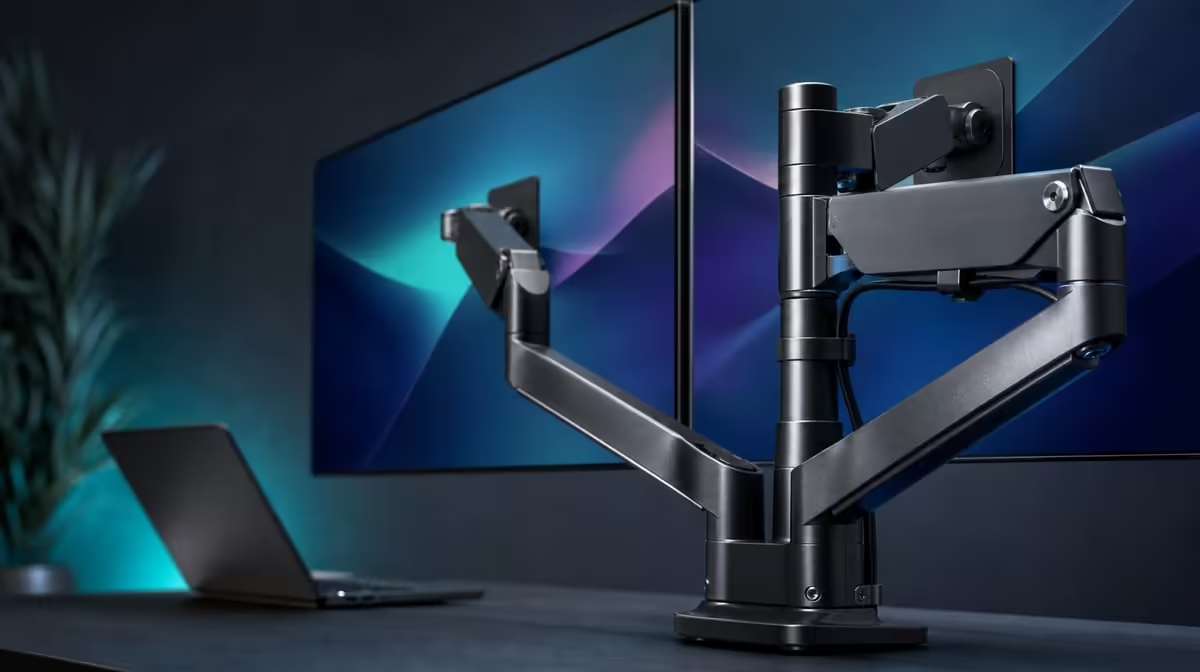
The folding structure supports horizontal, vertical and sharing positions across a 360-degree range. That mechanical flexibility lets one product serve more than one room arrangement, but ergonomics still depend on the chosen angle and the user.
A wide horizontal pair keeps two applications at similar height. It can suit comparison, research, analysis or creation and preview, provided the desk has sufficient width. Place the main task closer to the centre to limit repeated turns.
A vertical stack reduces horizontal spread. It is intended to reduce neck strain, but the result is not automatic. Keep the most frequent application on the screen nearest the natural eye line; reserve the upper panel for overview, reference or information checked less often. Adjust chair, viewing distance and fold until text can be read without leaning.
A sharing position can face a panel towards another person. The laptop remains the source and control point while the second screen supports a review or presentation. Confirm that the stand is stable and that neither panel reveals material not intended for the other viewer.
Before moving the assembly, clear the arc, hold it securely and watch the cables. After a substantial change, update the Windows or macOS screen map, orientation and pointer path. Physical flexibility is far less useful when the software still believes the panels occupy their previous places.
🔌 Match the feature set to the computer
Type-C and HDMI provide two supported connection routes. Windows and Mac compatibility broadens the potential laptop pairing, yet the source must still supply the intended display output. Not every Type-C port behaves identically, and cable capability remains part of the path.
Make the first test methodical. Connect one panel, confirm a stable native Full HD image, then bring in the second. Choose extended mode, arrange the screen rectangles and identify each display. Apply 100Hz only after basic detection and mapping are correct.
For a folding setup, route the cable with a relaxed bend and keep it outside the joint's travel. Check again in both the most open and most compact working poses. A connector should never become the stop that limits physical movement.
If both Windows and Mac laptops will visit the desk, test the switch deliberately. Keep separate notes for their ports, display order, scaling and refresh selection. Cross-platform compatibility becomes more useful when each person can recreate the intended result without guessing which settings belonged to the previous computer.
At R6,899, value depends on feature utilisation. A user who regularly changes between wide work, a centred stack and screen sharing can extract more from the hinge than someone who never moves it. The same principle applies to 100Hz, speakers and cross-platform inputs.
Use Evetech's current monitor favourites to compare complete usage patterns, not isolated headline figures.
End the feature audit with both "used" and "not needed" marks. No buyer has to exploit every fold or audio option, but the capabilities carrying the decision should answer repeated needs rather than remain attractive possibilities.
Frequently Asked Questions
Which panel format defines the Delta Mega?
It uses two 23.8-inch 1920 x 1080 IPS panels, giving the laptop two Full HD external work areas.
What does the 100Hz figure control?
It is the supported refresh rate, governing how frequently a compatible picture can update.
What does 14ms describe?
It is the listed pixel-response time, a motion characteristic separate from resolution and refresh rate.
How flexible is the physical arrangement?
The structure folds through 360 degrees for horizontal, vertical-stack and sharing positions.
Which source platforms and routes are supported?
The Delta Mega supports Windows and Mac systems through Type-C and HDMI, with real operation depending on the laptop output and cable.
What does vertical stacking aim to improve?
It aims to reduce neck strain by avoiding a very wide spread, although task height and personal posture determine the outcome.
Which convenience features are built in?
The monitor includes speakers and a low-blue-light option.
What should users test after changing angles?
Check stability, cable freedom, reflections, orientation, the operating-system display map and pointer travel between every screen.
Turn the feature list into a desk test.
Give each Delta Mega panel a job, try the useful folds with your laptop, and confirm motion, comfort and connections before scoring the complete setup.