A single USB-C lead can simplify a portable desk, but only after the host, cable and monitor agree on power, video and audio. This USB-C single-cable portable monitor requirements guide uses the UPERFECT UColor O2 at R7,199 to show how every layer should be qualified.
Quick Answer
Single-cable USB-C requires a host port with display output and enough power, a full-featured cable, and bandwidth for the intended 3K 120Hz mode.
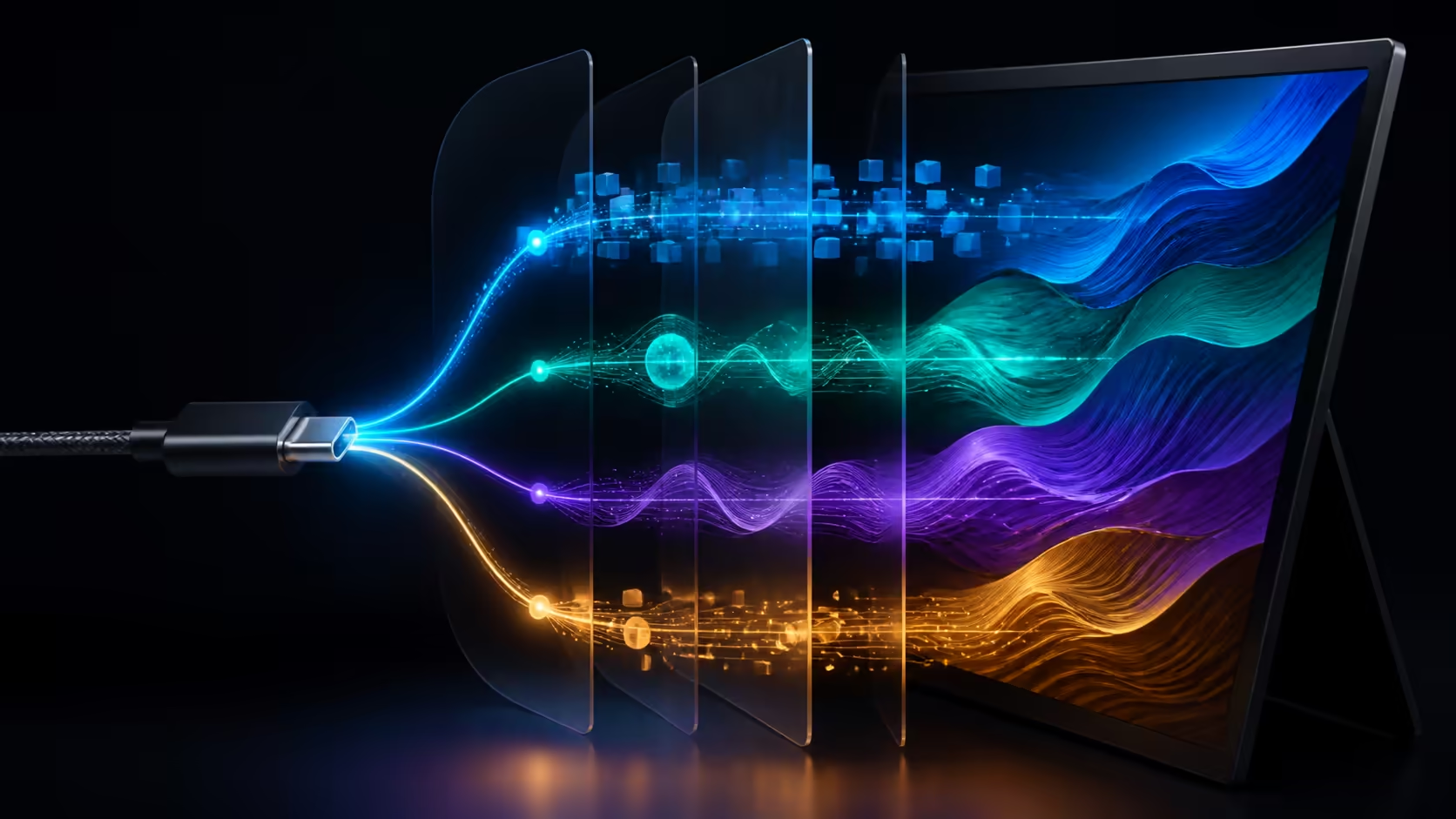
The UColor O2 can combine panel power, picture and sound data on a USB-C lead. Its 16-inch 2880x1800 OLED panel can also run at 120Hz. The monitor costs R7,199, while the exact host port, cable and display mode still determine whether the complete route works. Prove the basic picture first, then add native resolution, refresh, audio and HDR in stages.
🧭 Separate the three cable jobs
Power keeps the display operating during the session. Video carries the image at the selected resolution and refresh. Audio data reaches the playback route chosen by the operating system. Write an observable pass condition for each instead of declaring the cable successful when the screen merely lights.
A host can expose one USB-C function without every other capability. A cable that charges a device may not carry external video, and a video path may change when a dock enters the chain.
Build the direct baseline
Connect monitor to host without adapters, then check detection in the operating system. Start with a stable ordinary picture. Observe power behaviour under real use and select the intended audio destination. Label the successful port and lead.
After defining the host profile, open Evetech portable monitors and compare each candidate's connection expectations.
🧭 Add resolution and refresh deliberately
Select the UColor O2's native 2880x1800 mode and adjust scaling for the applications used. Confirm that the image remains stable, then choose 120Hz. Recheck the active mode after game launch, sleep and reconnection.
If the combination disappears, return to the last working state and change only the port or cable. Exact bandwidth and device results cannot be inferred from USB-C shape alone.
Keep HDR out of early diagnosis
Establish the 3K 120Hz baseline before enabling HDR. The panel supports 500-nit HDR and 10-bit colour, but those modes can alter desktop appearance. Save a readable SDR state so connection repair and image tuning do not become one problem.
Test actual HDR content later under the intended room light. A named HDR standard or bright-room conclusion should not be assumed.
🧭 Add a dock without losing evidence
Once the direct route passes, insert the intended dock and repeat power, image and audio checks. Connect other peripherals individually. A failure that appears only after the dock joins points to a different layer than a direct host-to-monitor fault.
Keep a direct-cable fallback for deadline work. Record device order, chosen output and recovery after sleep. Similar-looking leads should not be swapped without updating the note.
Create separate host profiles
A work laptop, personal computer or console may expose a different connection route. Test each source independently and record its cable, resolution, refresh and audio behaviour. The monitor's single-cable capability does not prove universal console support or a particular adapter outcome.
Compare fixed connection options through Evetech's PC-monitor category when portability is not needed.
🧭 Turn the setup into a travel routine
Disconnect, pack the 6.5mm display and labelled lead in separate protected spaces, then rebuild the setup at the destination. Time how long it takes to regain the native desktop, audio destination and 120Hz selection. This tests whether one-cable convenience survives movement.
Thickness does not state weight, bag compatibility or resistance to damage. Use a supported compartment and keep hard plug ends away from the OLED face.
Document the recovery ladder
When the screen fails, check power, host detection, direct connection, cable, native resolution and refresh in that order. Add audio and HDR only after the picture returns. A short ladder prevents several speculative changes from erasing the last known working state.
Verify behaviour under normal load
Keep the one-cable route active through a full working session. Open moving content, switch applications and route audio while observing panel power and image stability. Note any brief disconnect and whether it affects one function before the others. A quick desktop detection test cannot prove the link stays reliable during sustained use.
Repeat once after the host wakes from sleep. If the direct connection passes but the docked route does not, preserve both results rather than blending them into a general monitor complaint.
Assign ownership to every component
Label the monitor, host port, cable and dock profile in the setup note. Where a team shares equipment, specify which cable belongs with this display and which source profile each person uses. Similar leads are easy to exchange and difficult to diagnose later.
Ask another user to rebuild the connection from the written steps. Any uncertainty reveals a missing label or assumption before travel or a presentation makes it urgent.
Audit data and privacy paths
The monitor link carries display and audio data, but the applications shown may contain confidential material. Plan what appears on a second screen during shared work and presentations. Use an approved test file for troubleshooting instead of exposing client content.
This is a workflow check, not a monitor feature claim. A technically stable cable route still needs an appropriate screen-sharing and desk-use policy for professional settings.
Test the cable after travel
Inspect both plugs, connect directly and rebuild the native desktop before adding the dock. Exercise power, image and audio separately. A cable that worked at home may have been exchanged, bent or paired with another host during the journey, so record its identity rather than relying on appearance.
If a spare is carried, verify it under the full 3K 120Hz route beforehand. A duplicate connector is not a proven duplicate capability.
Review whether one cable still saves work
After ten sessions, count manual reconnects, output changes and occasions when another lead was required. Compare that friction with a deliberately separated setup. Single-cable value should come from faster, cleaner recovery, not from having fewer items in a photograph.
Keep the direct baseline and accepted fallback in the review. The best arrangement is the one that reliably finishes the actual portable task.
The same lead can carry audio, video and power only when every link supports those functions. OLED power demand may force an external supply even though the image route remains USB-C. Start with separate power to prove signal, then remove it as the final test. Mini HDMI offers a dedicated alternative for consoles, cameras or computers that do not provide a suitable Type-C output.
Power stability should be tested under the brightest 3K 120Hz workload, not only on a dark static desktop. A marginal host may sustain the idle panel and fail during demanding content. Keep the same signal cable, add the external supply and repeat the scene. That controlled change gives the one-cable decision a reliable electrical basis.
Frequently Asked Questions
Does USB-C always include monitor video?
No. Ports and cables can expose different capabilities. Test the exact host and lead for the required external-video route.
Can the UColor O2 carry power, audio and video together?
Yes. The monitor supports that single-cable path, subject to suitable equipment on the host side.
Why should native resolution come before 120Hz?
It establishes the correct 2880x1800 picture first, leaving refresh as one isolated change.
Does the audio path specify speaker quality?
No. Audio data can cross USB-C, while the chosen playback hardware needs its own assessment.
What belongs in a host profile?
Record the source device, port, cable, resolution, refresh, audio destination and behaviour after reconnection.
Ready to qualify every layer of a single-cable setup?
Compare Evetech monitors with the exact host, lead, display mode and travel routine written down.