So, you’ve got a powerful Mac, a couple of slick new monitors, and the dream of a minimalist, one-cable setup. You try to daisy-chain them, expecting a glorious extended desktop… but instead, you get flickering, black screens, or two identical images. Sound familiar? You’re not alone. Many South African Mac users hit this frustrating wall. But before you throw your cables out the window, know this: you can fix Daisy Chain MST issues on Mac monitors. Let’s get it sorted. 🔧
Why Your Mac Hates Daisy-Chained Monitors (The MST Problem)
First, let's demystify the jargon. Daisy-chaining is connecting your first monitor to your computer and your second monitor to the first one, creating a "chain." The technology that makes this work for multiple independent screens is called Multi-Stream Transport (MST), a feature of DisplayPort.
Here’s the catch: macOS does not support MST.
While your Mac's Thunderbolt ports are incredibly powerful, they don't speak the MST language required to extend your desktop across a DisplayPort daisy chain. This is a core software limitation in macOS that often trips up users coming from the Windows world, where MST is widely supported. It means that even if you have the right PC monitors, your Mac will simply send the same video signal to every screen in the chain.
Troubleshooting the Dreaded Mirrored Display Issue
The most common symptom of this Mac and MST conflict is the dreaded mirrored display. You plug everything in correctly, your Mac detects both screens, but they show the exact same content. You can drag a window from your MacBook screen to the external display, but you can't move it from the first external monitor to the second.
This isn't a fault with your hardware. It’s macOS doing exactly what it’s designed to do without MST support: clone the single DisplayPort signal. This can be especially frustrating when you’ve invested in gorgeous 4K and 5K monitors hoping for a massive digital canvas, only to be stuck with a copy.
How to Actually Fix Daisy Chain MST Issues on Your Mac Monitors
Don't despair! There are several reliable workarounds to get your multi-monitor setup running perfectly. The key is to bypass the need for DisplayPort MST entirely. ✨
Solution 1: Use a Thunderbolt Dock or Hub
This is the gold-standard solution. A proper Thunderbolt 3 or 4 dock acts as an external command centre for your peripherals. You connect the dock to your Mac with a single Thunderbolt cable, and then plug each monitor into the separate display outputs on the dock (e.g., two DisplayPort or HDMI ports). The dock’s chipset manages the displays as individual screens, completely solving the daisy-chain problem. It’s the cleanest way to get the job done and often comes with bonus ports for USB, Ethernet, and more. Investing in quality monitor accessories like a good dock is essential for a pro setup.
Solution 2: Use Native Thunderbolt Monitors
Some premium monitors come with both a Thunderbolt input and a Thunderbolt output. These are different from DisplayPort monitors. With these, you can daisy-chain successfully on a Mac because the entire chain uses the Thunderbolt protocol, which macOS fully supports. You connect the first monitor to your Mac and the second monitor to the first monitor's Thunderbolt output port. This is a pricier option but offers a truly seamless, one-cable experience. It's a popular choice for both creative professionals and gamers looking at our full range of gaming monitors.
Check Your Cables! ⚡
Not all USB-C cables are created equal. For multi-monitor setups, ensure you're using a certified Thunderbolt 3 or 4 cable. A standard USB-C charging cable lacks the massive data bandwidth required for video, which can cause flickering, resolution issues, or no signal at all.
Solution 3: Connect Each Monitor Directly
It’s the simplest fix and costs nothing. If your Mac has multiple Thunderbolt / USB-C ports (like a MacBook Pro or Mac Studio), just connect each monitor to its own port on the computer. This bypasses daisy-chaining completely. It means more cables on your desk, but it’s a foolproof way to extend your desktop. You could even add a sleek portable monitor to your setup this way for extra screen real estate on the go.
Exploring Alternative Multi-Monitor Setups
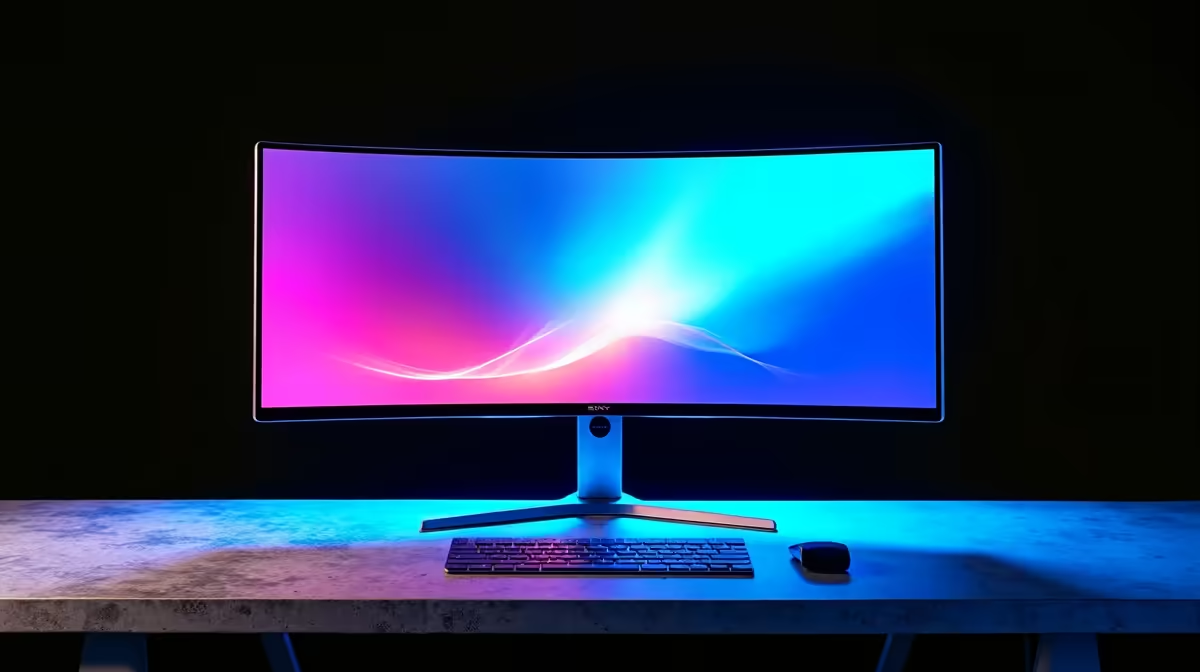
If managing docks and cables feels like too much of a faff, you could rethink your setup entirely. Instead of two separate screens, why not one massive one? Many users find that one of today's immersive curved monitors provides all the screen space they need, eliminating the daisy-chain problem and giving them a more focused, panoramic view for work and play. 🚀
Ready to Perfect Your Mac Setup?
Now that you know how to conquer Mac's multi-monitor quirks, it's time to build the workspace of your dreams. Find the best monitor deals in South Africa and get the performance and pixels you deserve.