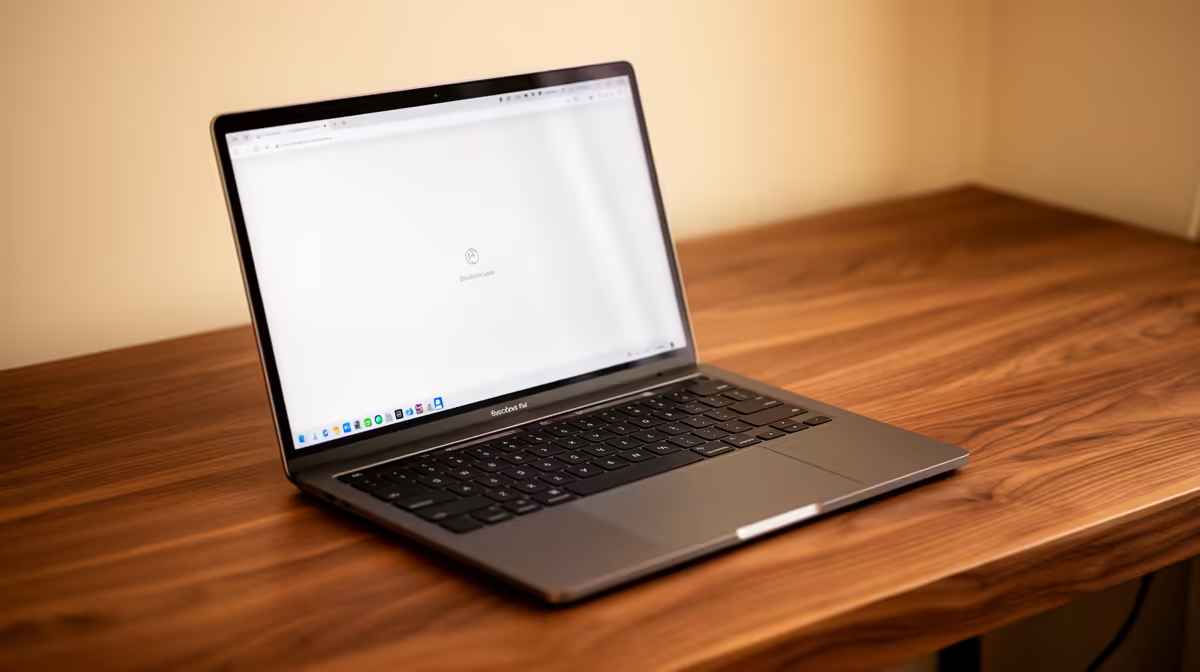
You’re ready to jump into a game or a critical work call, the power’s just come back on after an unexpected outage, and… nothing. Your Dell laptop’s Wi-Fi is not working. The dreaded yellow triangle or "No internet, secured" message is mocking you. Before you consider using your laptop as a frisbee, take a breath. We’ve put together a straightforward guide to help you troubleshoot and fix your Dell’s Wi-Fi connection issues right here in South Africa. 📶
First Steps: Rule Out the Obvious
Before diving into complex settings, let's get the simple stuff out of the way. Often, the reason your Dell laptop Wi-Fi is not working is due to a minor hiccup that a quick check can solve.
- Check the Wi-Fi Key: Some Dell models have a physical switch or a function key (like
Fn + F2 or Fn + PrtScr) that toggles the Wi-Fi adapter on and off. Make sure you haven't accidentally disabled it. - The Classic Reboot: It’s a cliché for a reason. Restart both your Dell laptop and your Wi-Fi router. Unplug the router, wait 30 seconds, and plug it back in. This clears temporary glitches on both devices.
- Isolate the Problem: Is it just your laptop? Check if your phone or another device can connect to the Wi-Fi. If nothing can connect, the problem is likely with your router or your ISP (sorry, Telkom/Vumatel/Openserve users!).
- Forget and Reconnect: In your Windows Wi-Fi settings, find your network, right-click, and select "Forget." Then, find it in the list of available networks and reconnect, entering the password again.
Troubleshooting Your Dell Wi-Fi in Windows
If the basics didn't work, it’s time to let Windows have a look. These built-in tools can often pinpoint the exact cause of your Dell Wi-Fi issues.
Run the Network Troubleshooter
Windows has a surprisingly capable built-in troubleshooter.
- Go to
Settings > Network & Internet > Status. - Under "Advanced network settings," click on "Network troubleshooter."
- Select "Wi-Fi" and let the wizard run. It will attempt to diagnose and automatically fix common problems.
Power Management Pro Tip ⚡
Sometimes Windows tries to be too clever and turns off your Wi-Fi adapter to save power. Go to Device Manager, find your Wi-Fi adapter under "Network adapters," right-click it, go to Properties, and open the "Power Management" tab. Uncheck the box that says "Allow the computer to turn off this device to save power." This can prevent random disconnects.
These steps are universal, whether you're running a high-performance gaming rig or one of the many reliable Dell Workstation laptops available in SA.
The Usual Suspect: Wi-Fi Driver Issues
A driver is a small piece of software that lets Windows talk to your hardware, including the Wi-Fi card. If this driver is outdated, corrupt, or bugged, your connection will fail. This is one of the most common reasons a Dell laptop's Wi-Fi stops working.
- Update Your Driver: Open
Device Manager (search for it in the Start Menu). Expand the "Network adapters" section. Right-click your Wi-Fi adapter (it will usually have "Wireless" or "Wi-Fi" in the name) and select "Update driver." Choose to search automatically. - Roll Back a Driver: Did the problem start after a recent Windows update? In the same driver properties window, go to the "Driver" tab and see if the "Roll Back Driver" option is available. This reverts to the previous version that worked.
- Manual Install: The best method is to go to the Dell Support website, enter your laptop’s Service Tag, and download the latest official Wi-Fi driver for your specific model. This ensures compatibility, which is crucial for specialised machines like the powerful Dell Precision Workstation laptops.
Advanced Fixes for Stubborn Wi-Fi Problems
Still no luck? Let's try some more powerful commands. These steps reset your computer's network configuration back to its default state, which can clear out deep-seated software conflicts. 🔧
Open Command Prompt or PowerShell as an Administrator (right-click the Start Menu to find it) and type these commands one by one, pressing Enter after each:
netsh winsock reset
netsh int ip reset
ipconfig /release
ipconfig /renew
ipconfig /flushdns
After running all the commands, restart your laptop. This process is a lifesaver for many, especially for small business owners who rely on their Dell Vostro laptop deals and can't afford connectivity downtime.
Could It Be a Hardware Problem?
If you've tried everything and your Wi-Fi is still dropping or not showing up at all, you might be facing a hardware failure. The internal Wi-Fi card could be failing, especially on an older laptop. While it can sometimes be replaced, it’s often a sign that the machine is nearing the end of its life.
Instead of sinking more money into an old device, it might be the perfect time to consider a fresh start. An upgrade not only solves your immediate problem but gives you a faster processor, more RAM, and a brand-new warranty. For those looking to simplify their setup, exploring options like the sleek Dell All-in-One desktop PCs could be a fantastic alternative.
Tired of Connection Woes?
If your Dell laptop's Wi-Fi issues persist after all this, it might be a sign of ageing hardware. Don't let a dodgy connection hold you back. Explore our massive range of laptop specials and find a new machine with the rock-solid connectivity you deserve.