

AIO Liquid 240mm Setup and Configuration: Complete Tutorial
AIO Liquid 240mm Setup and Configuration. Clear setup instructions with SA-specific considerations, troubleshooting tips & recommended components.
Read moreScreen tear ruining your gaming or work? 💥 Master how to tackle scroll without VRR and reclaim smooth visuals today! 🎮💻
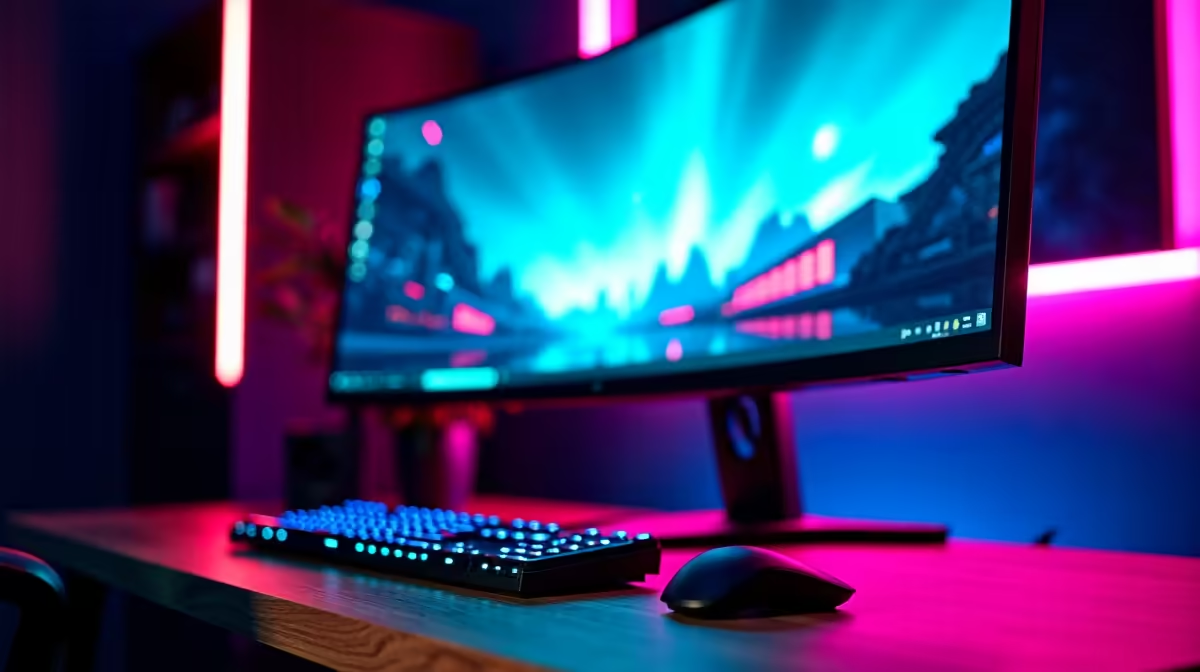
That jarring horizontal line slicing through your screen mid-game… we’ve all been there. It’s called screen tearing, and it can ruin the immersion of a fast-paced shooter or a beautiful open world. Many gamers think the only solution is an expensive new monitor with VRR (Variable Refresh Rate). The good news? You can often fix screen tear without VRR and get a smoother experience with the gear you already own. Let's dive in. 🔧
Before we jump into the fixes, let's quickly understand what causes this visual glitch. Screen tearing happens when your graphics card (GPU) is pushing out frames at a different rate than your monitor can display them. If your GPU sends a new frame while your monitor is still drawing the previous one, you see a "tear"—a mishmash of two different frames.
This mismatch is common on standard 60Hz or 75Hz PC monitors, where powerful GPUs can easily produce over 100 frames per second (FPS). The key to eliminating scrolling issues and tears is to get your GPU and monitor to synchronise.
You don't need to break the bank to get a smoother picture. These software-based solutions use your graphics card's settings to fix screen tear without VRR technology.
Vertical Sync, or V-Sync, is the oldest trick in the book. It's a setting found in the control panel for your NVIDIA or AMD graphics card, as well as in most game menus.
When enabled, V-Sync forces your GPU to wait for the monitor to finish its refresh cycle before sending a new frame. This effectively caps your frame rate to your monitor's refresh rate (e.g., 60 FPS on a 60Hz screen), completely eliminating tearing. The downside? It can sometimes introduce a slight delay known as input lag, which competitive players might notice.
If your game feels sluggish with V-Sync on, try enabling 'Triple Buffering' in your graphics card's control panel. This can often reduce the input lag associated with V-Sync without reintroducing tearing.
A more modern approach is to manually limit your game's FPS. This gives you more control than V-Sync and often results in less input lag. You can do this through your GPU's software (like NVIDIA Control Panel or AMD Radeon Software) or an external tool like RivaTuner Statistics Server.
For a 60Hz monitor, try capping your frame rate to 59 or 60 FPS. This simple tweak prevents your GPU from running wild and out of sync, providing a stable, tear-free image. It's a fantastic way to enjoy a smooth experience, whether you're gaming on one of today's immersive curved monitors or a trusty older screen.
NVIDIA and AMD have developed smarter V-Sync alternatives:
These options offer a great middle ground and are worth experimenting with.
While these software tricks are powerful, sometimes your hardware needs a little attention. Ensure you're using high-quality monitor accessories, like a proper DisplayPort cable, to guarantee a stable signal. Even a secondary display, like one of the handy new portable monitors, can benefit from a solid connection.
Ultimately, the most seamless, no-compromise solution for screen tearing is a monitor with VRR technology like G-SYNC or FreeSync. These displays dynamically adjust their refresh rate to match your GPU's output in real-time. The difference is incredible, especially on high-resolution 5K and 4K monitors where every frame counts.
If you’ve tried these fixes and are ready for the ultimate upgrade, exploring the latest range of all gaming monitors is your next logical step. The technology has become much more affordable, delivering a premium experience without the premium price tag of a few years ago. 🚀
Ready for a Tear-Free Future? While these tips will optimise your current setup, nothing beats the fluid perfection of a true VRR display. Check out our incredible PC monitor deals for performance that leaves tearing in the dust.
Mismatched GPU-frame output and monitor refresh rates. VRR dynamically syncs these; without it, fixed rates cause visual disruption.
Enable FreeSync/G-Sync if available, cap your FPS slightly below your monitor's refresh rate, and optimize in-game graphics settings.
Yes. Match your monitor’s refresh rate exactly and set a stable FPS cap to reduce tearing on non-VRR displays.
No – but it helps. Basic tearing can often be reduced with traditional syncing solutions (FreeSync/G-Sync) or FPS adjustments.
May reduce tearing and stutter by smoothing frame delivery, though hardware-level fixes (like VRR) deliver better results.
Yes – but it increases input lag. Use it if you can prioritize visual clean-up over absolute responsiveness in non-VRR setups.
Legacy G-Sync modules (pre-Compatibility Mode) require VRR. Newer NVIDIA drivers can mimic syncing via adaptive sync on some non-VRR monitors.
AIO Liquid 240mm Setup and Configuration. Clear setup instructions with SA-specific considerations, troubleshooting tips & recommended components.
Read more
Setting Up DDR5 64GB Kit. Tested & verified settings for best FPS and visual quality on SA hardware budgets.
Read more
Overwatch 2 Setup Guide Gamers. Clear setup instructions with SA-specific considerations, troubleshooting tips & recommended components.
Read more
R and RStudio on Mac: Data Science Setup Guide. Clear setup instructions with SA-specific considerations, troubleshooting tips & recommended components.
Read more
NVIDIA Broadcast Setup with GPU: Streamer Guide. Clear setup instructions with SA-specific considerations, troubleshooting tips & recommended components.
Read more
Core Ultra 7 265K Temperature Guide: Normal Range. Complete product range with SA pricing, key specs & recommendations for different budgets.
Read more
AMD RX 9050 XT: Rumoured Specs, Price & Release. SA-focused analysis with local pricing data, real-world insights & actionable buying advice.

Can RTX 4080 Super Run AI Workloads for SA Developers Detailed answer with SA data, expert analysis & practical recommendations for local buyers.

Can RTX 4090 Run AI Workloads for SA Developers Detailed answer with SA data, expert analysis & practical recommendations for local buyers.

Top Settings for Intel Arc B580 at Ultrawide 1440p picks evaluated on performance, value & SA availability with current Rand pricing from Evetech.

RTX 4060 CS2 Low Settings at 1080p: FPS Results. Real-world benchmark data, FPS numbers & performance analysis. What SA gamers can actually expect.

Visual Artifacts: Possible GPU Issue Issue #1. Diagnosis steps, proven fixes & when to seek professional help. SA-specific support info included.

Can the RTX 4090 Handle 1440p 144Hz Gaming. Performance testing verdict with real data & practical recommendations for SA buyers.

Top ASUS GPU Under R15000 picks evaluated on performance, value & SA availability with current Rand pricing from Evetech.

GTA 6 Max Settings on RTX 5070. Tested & verified settings for best FPS and visual quality on SA hardware budgets.

Cyberpunk 2077 Max Settings on RTX 5080. Tested & verified settings for best FPS and visual quality on SA hardware budgets.

Starfield Max Settings on RTX 5070 Ti. Tested & verified settings for best FPS and visual quality on SA hardware budgets.

Top RTX 5090 Under R5000 picks evaluated on performance, value & SA availability with current Rand pricing from Evetech.