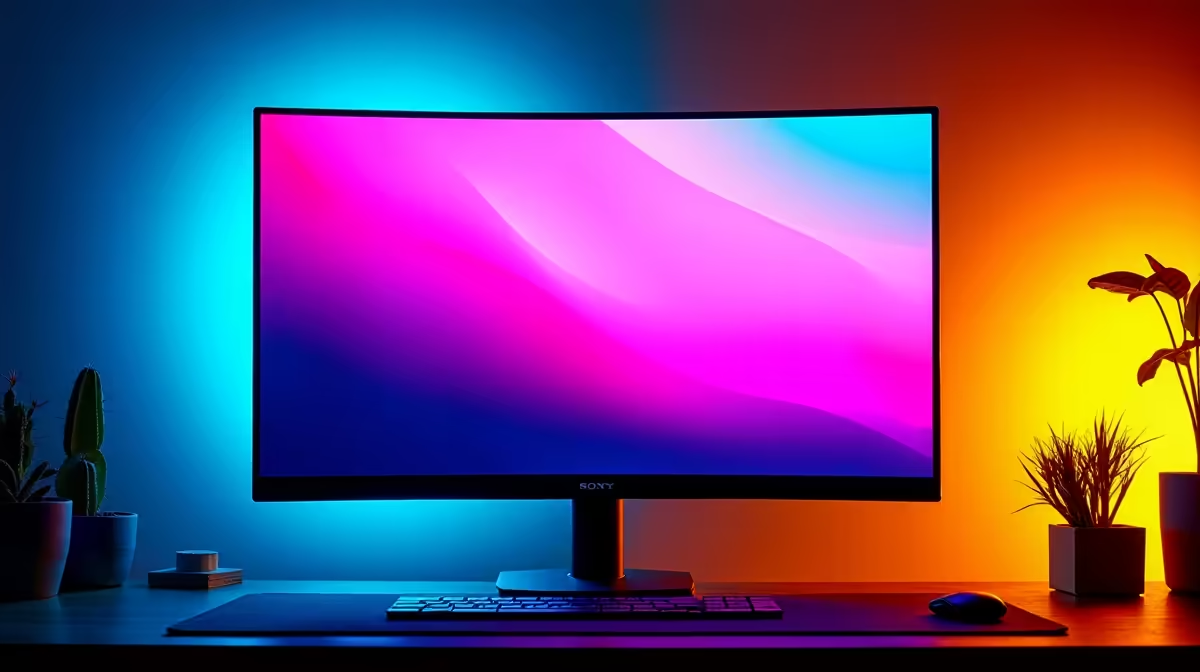
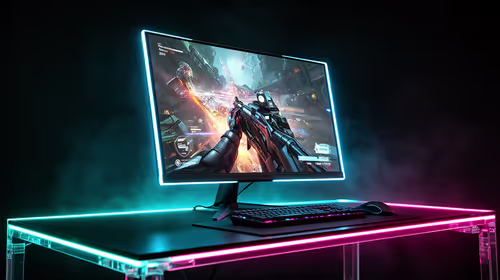
So, you’ve just unboxed your glorious new wide gamut monitor. The colours in your games and editing software look incredible… deep, vibrant, and exactly what you paid for. But then you open your web browser, and suddenly everything looks… wrong. The reds are searing your retinas, and that familiar blue logo looks like it’s been sunburnt. Welcome to the common, and fixable, problem of wide gamut monitor oversaturation. Let's sort it out. 🔧
Why Do My Monitor's Colours Look So... Intense?
The issue isn't a fault with your screen; it's a feature that needs a little taming for everyday web browsing. Think of it like this: most websites, images, and videos on the internet are created using a standard colour palette called sRGB. Your new monitor, however, can display a much larger palette, like DCI-P3 or Adobe RGB, which is fantastic for HDR content and professional creative work.
The problem of wide gamut monitor oversaturation occurs when your browser doesn't know how to handle this mismatch. It takes the standard sRGB colours and stretches them to fit your monitor's wider capabilities, making everything look hyper-saturated and unnatural. It’s a common experience for anyone upgrading to modern PC monitors.
How to Fix Wide Gamut Monitor Oversaturation in Your Browser
Luckily, forcing your browser to correctly display sRGB content is a straightforward fix. This tells the browser to stop guessing and manage colours properly, ensuring what you see on the web looks exactly as the creator intended. Whether you're using one of the latest immersive curved monitors or a flat panel, these steps will work.
For Google Chrome, Edge, and other Chromium Browsers
These browsers share the same engine, so the fix is identical.
- Open the "Flags" Menu: Type
chrome://flags (for Chrome) or edge://flags (for Edge) into your address bar and press Enter. This is a hidden menu for experimental features. - Search for Colour Profile: In the search bar at the top, type
Force color profile. - Change the Setting: You'll see an option called "Force color profile." Click the dropdown menu next to it (it's likely set to "Default") and select sRGB.
- Relaunch: A button will appear at the bottom asking you to relaunch the browser. Click it to apply the changes.
That's it! Web pages should now display with accurate, natural colours. This simple tweak is essential for getting the most out of the entire range of all gaming monitors available today.
For Mozilla Firefox
Firefox has powerful, built-in colour management that just needs to be enabled.
- Open the Config Menu: Type
about:config into the Firefox address bar and press Enter. Accept the warning message. - Search for the Setting: In the search bar, type
gfx.color_management.mode. - Change the Value: You'll see the setting
gfx.color_management.mode with a value of 2. Double-click on the number 2 and change it to 1. - Restart Firefox: Close and reopen the browser for the change to take effect.
Setting this value to 1 enables full colour management for all rendered graphics, fixing the oversaturation issue.
Pro Creator Tip ✨
the browser fix is great for everyday use, professional photo and video editors need system-wide colour accuracy. Investing in a hardware calibration tool like a Datacolor Spyder or Calibrite ColorChecker is essential. These tools create a custom ICC profile for your specific monitor and lighting conditions, ensuring perfect colours in apps like Photoshop and Premiere Pro. Proper calibration is a must-have in your toolkit of [monitor accessories](https: www.evetech.co.za PC-Components buy-monitor-accessories-368).
Beyond the Browser: Enjoying Your Monitor's Full Potential
Fixing browser colours is just the first step. Now, your monitor will correctly display standard web content while still being ready to unleash its full, vibrant potential in colour-managed applications and HDR games. The stunning detail on high-resolution 4K or 5K monitors is best appreciated when colours are accurate across the board.
Even if you're working on the go with one of the increasingly popular portable monitors, understanding colour spaces helps you get consistent results. Your wide gamut monitor is an incredible piece of tech... and now you know how to make it behave perfectly, no matter what you're doing. 🚀
Ready for a Colour-Perfect Display?
Taming oversaturation is the final step to unlocking your monitor's true potential. Whether you're a pro creator or a competitive gamer, the right screen makes all the difference. Explore our best PC monitor deals and find the perfect display to dominate your digital world.