A drive that connects quietly may still be working perfectly. Windows AutoPlay settings decide what Windows offers or does when supported media arrives. Changing that response can remove an unwanted prompt or restore a deliberate choice without altering the files stored on the device.
Quick Answer
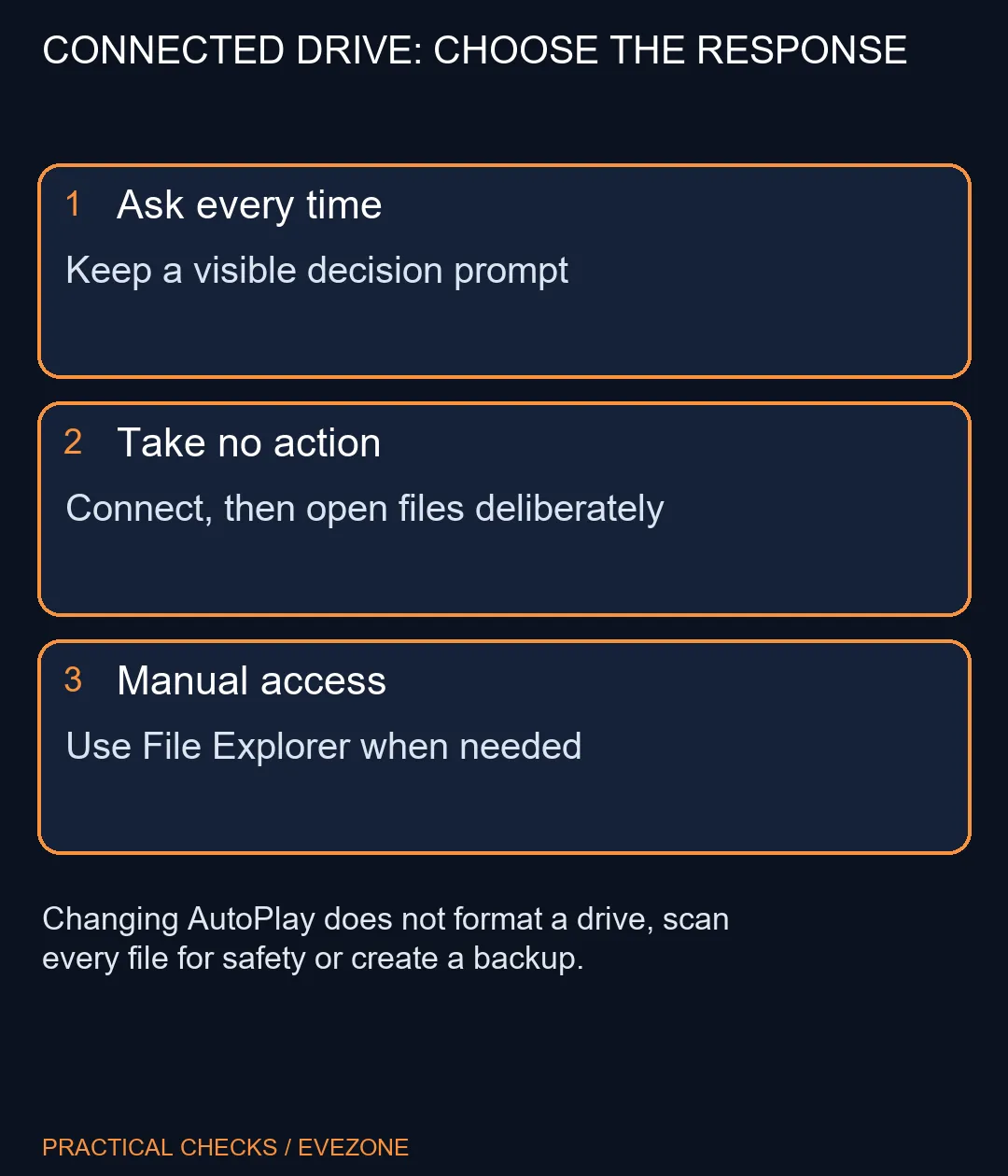
Go to Settings > Bluetooth & devices > AutoPlay and review the main switch and the available device defaults. Choose Ask me every time if you want a decision prompt, or Take no action if you prefer manual access. The check costs R0 in additional storage; never format a drive merely because an automatic prompt has stopped appearing.
💾 Test with media you already trust
Use a known drive whose important files are backed up. Connect it, observe the response, and then open File Explorer to check whether it is visible. These are separate observations. A drive that appears and opens normally with no pop-up suggests a different problem from a device Windows cannot detect at all.
Avoid testing with an unfamiliar drive just to trigger a dialog. AutoPlay is a convenience feature, not a verdict that connected media is safe. Do not open unexpected software or documents simply because a prompt offers an action. Your choice of default should support deliberate file handling rather than encourage automatic trust.
⚙️ Review the default for the right device
Inspect the removable-drive default and any other device categories that Windows exposes. A setting for one kind of media does not guarantee an identical response for a phone, memory card or another connected device. Pick the action you want, close Settings and reconnect the test device after any active operation has finished.
If Windows asks every time, confirm the prompt gives you a useful choice. If you select Take no action, open the device through File Explorer instead. That is expected behaviour, not evidence the setting failed. Avoid changing application defaults and device drivers in the same test, because you will lose track of what actually altered the response.
🧰 Keep connection faults separate
If the device is missing from File Explorer as well, document that symptom and move to a storage-connection investigation. Do not use a format command as an experiment. A file-access problem may need checks of the cable, port or device, while an AutoPlay preference only governs the automatic action offered after connection.
When extra capacity is the real requirement, compare external ssds by interface, cable and capacity. For installed storage, internal ssds serves a different role and should not be bought to fix a missing pop-up. Finish any transfers and use the appropriate safe-removal process before disconnecting the test drive. A successful settings check should leave both the files and the hardware exactly as they were.
Frequently Asked Questions
Where is AutoPlay in Windows11?
Open Settings > Bluetooth & devices > AutoPlay. Available defaults depend on the connected device and Windows configuration.
Does disabling it stop a USB drive working?
It changes the automatic response. A working drive can still be opened manually in File Explorer.
What is Ask me every time for?
It lets you choose the action when supported media connects instead of immediately reusing one saved default.
Is Take no action a security scan?
No. It avoids an automatic action; it does not prove that the files or device are safe.
Should I format a drive to restore a prompt?
No. A missing AutoPlay prompt alone is not a reason to format a drive or delete its contents.
Do I need a replacement SSD?
Start with the R0 settings check. A storage device that works in File Explorer does not need replacing just because the prompt changed.
Choose the prompt, keep the files.
Set the response you want for removable media and compare storage only when capacity, connection or reliability creates a separate need.