A document moving the opposite way to your fingers can make a familiar laptop feel wrong without any hardware failure. Windows touchpad scrolling direction controls that relationship on supported pads. Identify the input surface first: reversing a touchpad preference is a different task from fixing a mouse wheel or making the pointer move faster.
Quick Answer
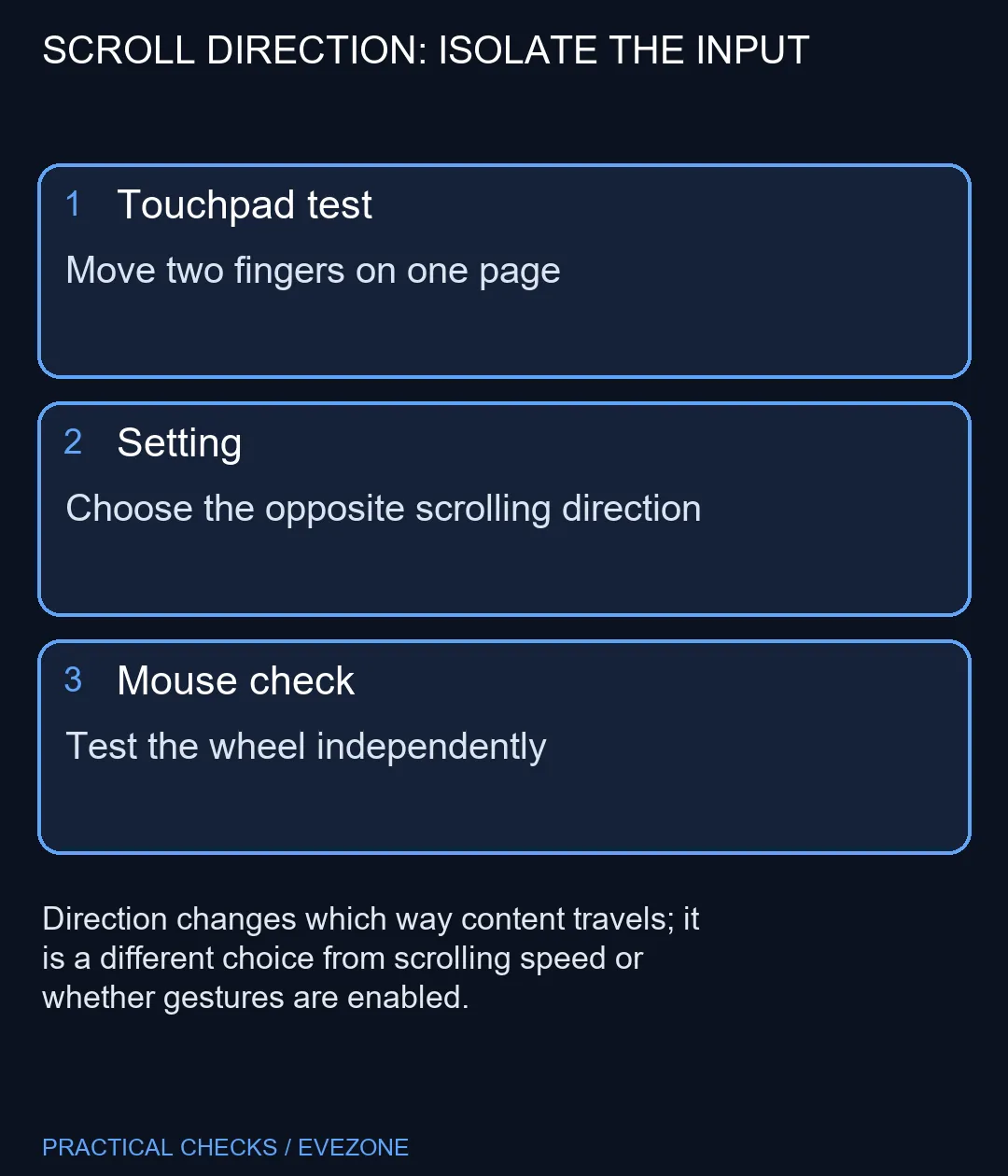
Open Settings > Bluetooth & devices > Touchpad and inspect Scroll & zoom for the direction choice. Change it once, then test a long page with two fingers. This costs R0 in additional hardware; if the control is absent, check your laptop's supported driver and instructions before assuming the pad needs replacement.
🖐️ Establish a simple comparison
Use a page long enough to show obvious vertical movement. Place two fingers on the pad and slide them together, keeping your other hand away from the mouse. Note which way the content travels. Repeat slowly so an accidental pinch or a horizontal gesture does not confuse the result. The goal is to identify a consistent preference, not to make several unrelated controls feel different at once.
Open the direction menu and choose the alternative. Return to the same page and repeat the motion. If the new behaviour feels natural, leave it there for an ordinary reading session. If it feels worse, restore the previous choice. A reversible preference is easier to evaluate when the page, gesture and movement distance stay similar.
🧭 Separate direction from a broken gesture
If two fingers do nothing at all, reversing direction will not necessarily help. Confirm that two-finger scrolling is enabled and that you are changing the laptop touchpad rather than the mouse settings. A manufacturer utility may expose additional controls on some hardware. Use the instructions for the exact model and avoid downloading a generic driver from an unrelated device.
Try a second ordinary application. A problem limited to one program may concern that application's gesture handling rather than the pad. Record whether vertical and horizontal scrolling both respond. That small observation is more useful to support than saying the laptop feels strange, and it can prevent a working touchpad being blamed for one application's behaviour.
🖱️ Decide whether another device is needed
Connect a mouse only as a separate comparison. If its wheel behaves differently, do not keep changing the touchpad setting to compensate. Each input has its own physical action and may have independent preferences. Keep the configuration that makes each device comfortable for its role.
Browse gaming mice if you want an alternative for desk use, rather than treating a preference issue as a mandatory purchase. If you are choosing a replacement computer, compare asus laptops for the whole machine and ask about the exact touchpad support. A scroll-direction choice alone does not justify replacing an otherwise suitable laptop.
Frequently Asked Questions
Where is the scrolling-direction setting?
On supported Windows11 touchpads, open Settings > Bluetooth & devices > Touchpad, then inspect Scroll & zoom.
Will this reverse my mouse wheel too?
Do not assume so. Touchpad and mouse are separate input devices and should be tested independently.
Does direction change pointer speed?
No. Pointer movement and document scrolling are different controls.
Why is the option missing?
Available controls depend on the hardware and driver. Check the laptop maker's model-specific touchpad documentation.
What if no two-finger scrolling works?
That is a gesture or device problem, not merely a direction preference. Check whether two-finger scrolling is enabled.
Does trying the option cost money?
The settings check needs R0 in additional hardware. It does not include an internet service or Windows licence.
Make the motion match your hand.
Try the supported direction setting first, then consider a separate mouse only if it improves the way you use the laptop.