A tiny change in the distance between two fingers can enlarge a page when you only meant to scroll. Windows touchpad pinch zoom is a separate gesture, so you may be able to turn it off while keeping ordinary two-finger movement. Check which kind of enlargement you are seeing before changing the size of everything on the screen.
Quick Answer
Open Settings > Bluetooth & devices > Touchpad > Scroll & zoom and clear Pinch to zoom if the supported control is present. Test a page at R0 additional hardware cost, then restore any unwanted enlargement through the application's own zoom control. A gesture setting and Windows display scaling solve different problems.
🔎 Identify what grew larger
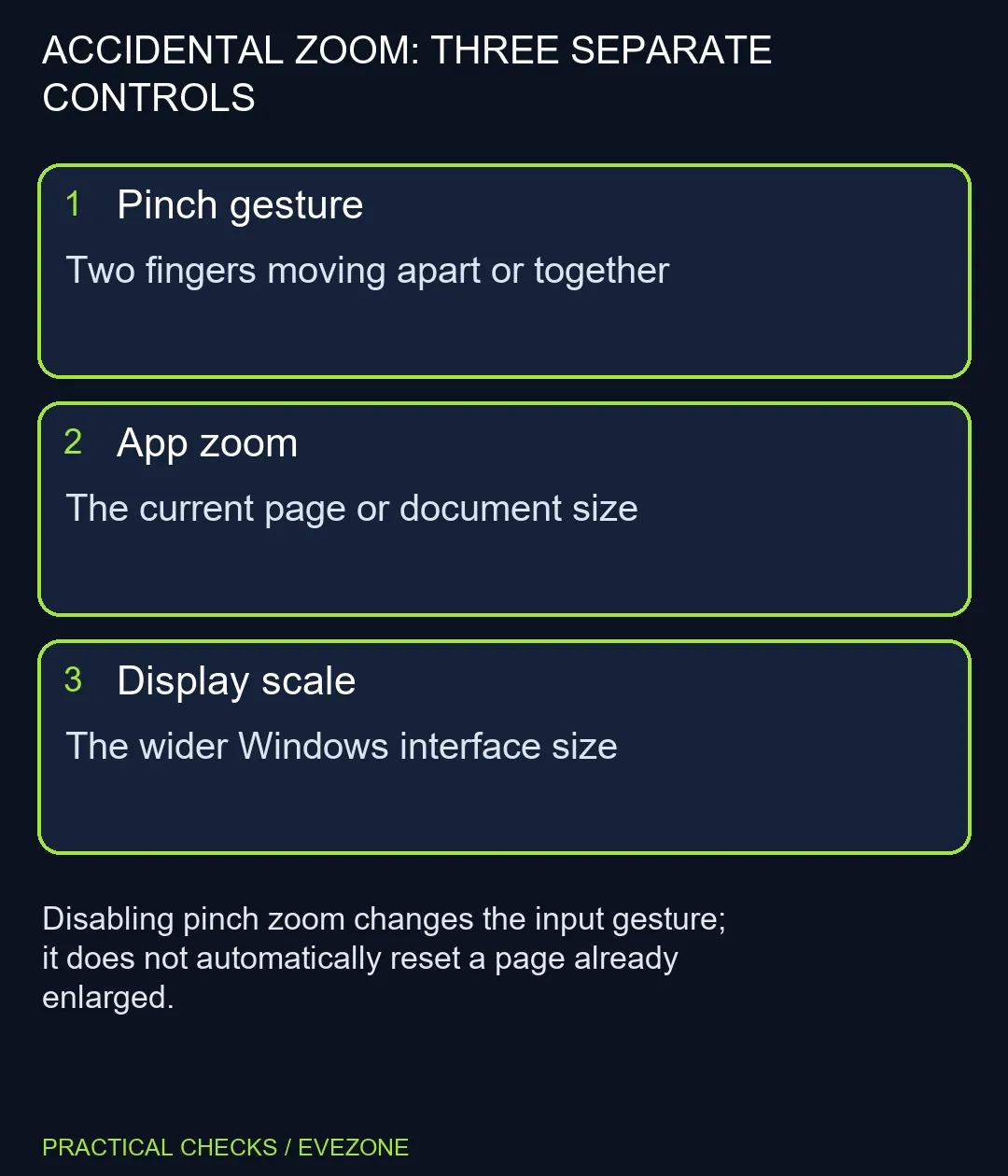
Look at the browser or document alongside the taskbar and Settings window. If only the document content changed size, inspect that application's zoom value. If the whole interface has become larger, investigate display scaling separately. Writing down that distinction prevents a small gesture preference turning into a confusing collection of screen changes.
Repeat the original motion slowly. Sliding two fingers together across the pad is scrolling; moving them farther apart or closer together is a pinch action. Keep the fingers at a similar distance during the scroll test. If the unwanted zoom reliably follows a pinch, you have a clear behaviour to change rather than a vague complaint about the display.
🖐️ Change the gesture, then retest
Disable the pinch option without altering the scrolling control. Return to the same application and make the same deliberate movement. Confirm that scrolling still works and that the unwanted enlargement no longer follows the pinch. If you prefer the original behaviour, restore the option and check again. Available controls depend on the touchpad and its driver.
Do not expect the checkbox to shrink a page that was already enlarged. Use the program's own view or zoom menu to restore a comfortable size, then test again from that baseline. Different applications can handle gestures differently. A second application helps establish whether the problem belongs to the device setting or a particular program's behaviour.
🖥️ Choose comfort before extra hardware
For someone who reads long documents, accidental zoom can be more disruptive than an occasional need to use a menu. For someone working with detailed images, keeping pinch enabled may be useful. Choose the setting around the task, then keep the separate controls for scrolling, pointer movement and screen scaling consistent with that choice.
Compare asus laptops only when the computer has broader limitations. If readable workspace is the actual problem, monitors may be relevant, but an external screen is not required to switch off a gesture. A working pad that responds to the intended preference needs configuration, not an automatic replacement budget.
Frequently Asked Questions
Can I disable zoom but keep scrolling?
On supported touchpads, Pinch to zoom is a separate control from two-finger scrolling.
Where should I look?
Open Settings > Bluetooth & devices > Touchpad > Scroll & zoom and inspect the available gesture choices.
Why is my browser still enlarged afterwards?
Turning off the gesture does not necessarily reset the app's saved zoom level. Check its own zoom control separately.
Is this the same as display scaling?
No. Windows scaling affects interface sizing more broadly; a pinch may change the view inside an individual application.
What if only one app ignores the gesture?
Test another supported application before blaming the pad. App behaviour can differ.
Should I buy a different laptop?
Try the R0 gesture check first. A reversible preference does not establish a hardware failure.
Keep scrolling comfortable.
Separate gesture preferences from page zoom and display size, then change only the control that matches the behaviour you observed.