Typing can work normally even when the keys are difficult to see. Laptop keyboard backlight not working should start with the exact notebook configuration, because lighting is optional on some models and the control is not universal. A familiar shortcut from another machine can do nothing without proving the keyboard is broken.
Quick Answer
Confirm that your model includes a backlit keyboard, find the key marked for keyboard illumination and cycle the documented brightness levels. Some models require Fn with that key; others behave differently. These R0 hardware checks should come before buying an external keyboard or installing software intended for another notebook.
💡 Establish whether lighting is fitted
Read the model-specific manual or configuration description rather than relying on the general name of the laptop range. A chassis used for several versions does not establish that every version has identical keyboard lighting. Look for a backlight symbol on the keys as a clue, then confirm it against the documentation for your machine.
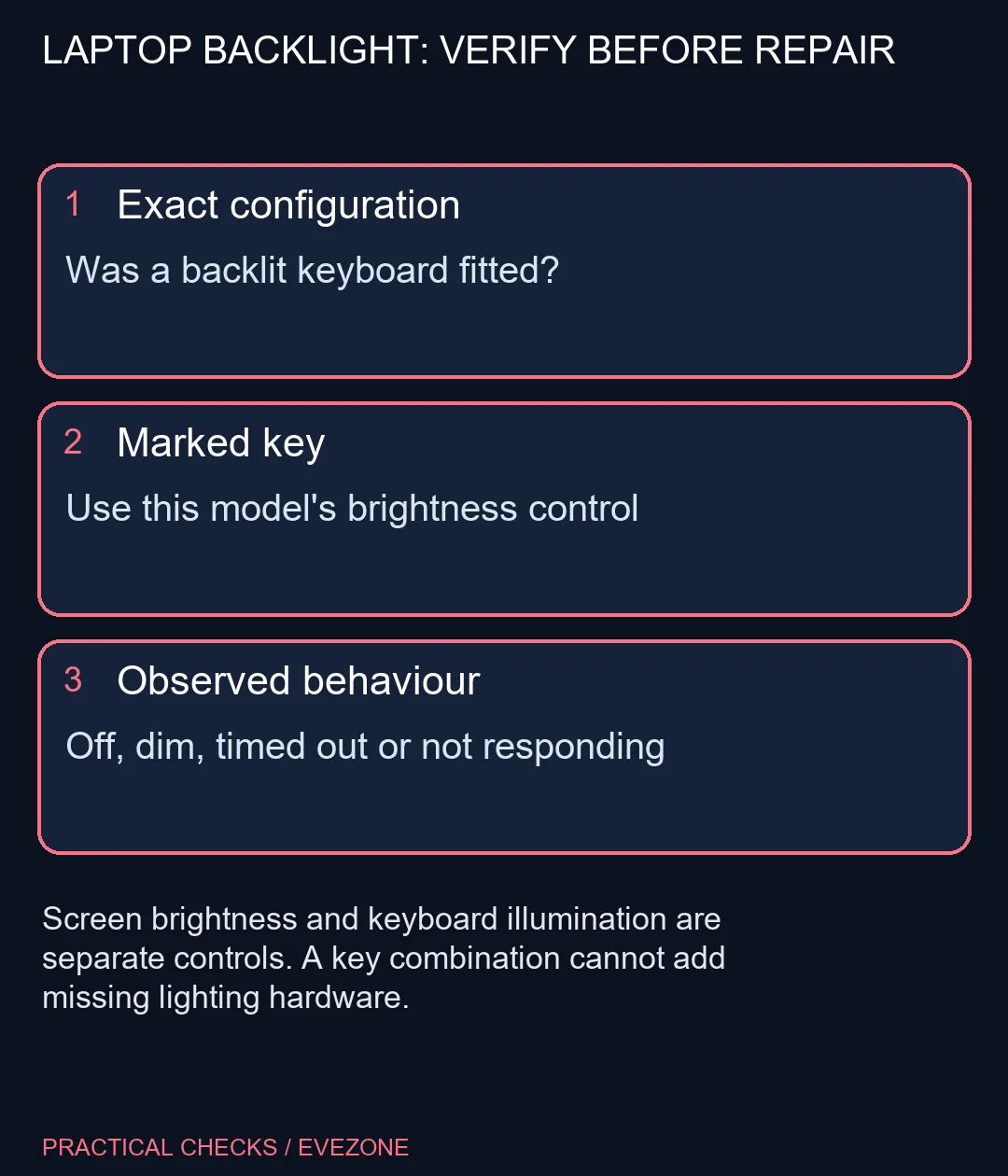
If backlighting is not fitted, no Windows preference or key combination can create the missing hardware. If it is fitted, distinguish completely dark keys from a dim setting or lights that turn off after inactivity. Record what happens immediately after startup and when typing begins. That observation can narrow the next support question without taking the computer apart.
⌨️ Use the model's control
ASUS describes Fn+F7 for many notebooks, but its instructions also show that shortcuts vary. HP likewise directs users to the marked backlight key and the appropriate Fn behaviour. Follow the marking and manual on your own machine, pressing the documented control deliberately while watching for a change. Do not repeatedly press unrelated function keys and then try to undo several new settings.
Screen brightness is a separate control. A display that gets lighter or darker does not establish that the keyboard's illumination circuit responded. Check in modest ambient light so a low brightness level is visible, and cycle through the documented states. Keep a note of the starting behaviour so the test is easy to describe later.
🛠️ Escalate with useful evidence
If the supported control produces no change, use the manufacturer's next steps for that exact model. Do not assume a generic utility or an old hotkey package is appropriate just because its name mentions keyboards. Changes to firmware or drivers should follow the model's support instructions, with important work saved and backed up first.
For a desk-based alternative, compare gaming keyboards, but remember that an external board does not repair a notebook's internal lighting. When considering asus laptops, check the illumination feature on the precise configuration before ordering. If ordinary typing has also failed or there is physical damage, record that separate symptom for support rather than treating the whole fault as a brightness preference.
Frequently Asked Questions
Do all laptop keyboards have lights?
No. Confirm the exact model and configuration includes a backlit keyboard before troubleshooting its control.
Does every ASUS laptop use Fn+F7?
No. ASUS describes that combination for many models, but the marked key and model manual take precedence.
Is keyboard lighting screen brightness?
No. The screen and keyboard have different brightness controls.
Should I install a random hotkey driver?
No. Use only the support resources for the exact laptop. Start with the documented key and brightness levels.
What should I record for support?
Note the full model, whether keys still type, whether lighting ever appears and what happens when you press the documented control.
Does the initial check need a purchase?
No. Checking the model specification and its brightness control costs R0 in extra hardware.
Check the fitted feature first.
Use the exact laptop manual and marked illumination control, then seek model-specific support if the documented steps do not restore the lights.